
Have you ever hit print, only to find your important document or photo coming out in dull black and white? It’s frustrating when your printer refuses to print in color, especially when you need vibrant results.
You might wonder if it’s a simple fix or a sign of a bigger problem. You’ll discover the common reasons why your printer isn’t printing in color and easy steps you can take to bring those bright images back to life.
Keep reading—you’re closer than you think to solving this annoying issue.

Credit: www.reddit.com
Common Causes Of Color Printing Issues
Color printing problems often arise from common, easy-to-fix issues. Understanding these causes helps solve the problem quickly. Checking each cause step-by-step saves time and frustration. Below are frequent reasons why a printer may not print in color.
Empty Or Low Color Ink Cartridges
Color printing needs enough ink in all cartridges. If color ink cartridges are empty or low, the printer prints only black or fades colors. Always check ink levels before printing color documents. Replace cartridges that are empty or near empty for best results.
Incorrect Printer Settings
Printer settings control how documents print. Sometimes settings are set to print in black and white or grayscale only. Check the printer preferences on your computer. Change the mode to color printing to fix this issue.
Clogged Printheads
Printheads push ink onto paper. They can clog if the printer is unused for days. Clogged printheads block color ink flow. Run the printer’s cleaning cycle to clear clogs. Regular use helps prevent printhead blockages.
Outdated Printer Drivers
Printer drivers are software that connects the printer to the computer. Old or corrupt drivers can cause printing errors. Download and install the latest driver from the printer manufacturer’s website. Updated drivers improve color printing performance.
Connectivity Problems
Printers need a stable connection to work properly. Poor Wi-Fi or loose USB cables disrupt data transfer. This can stop color prints or cause incomplete prints. Ensure cables are secure or move closer to the Wi-Fi router. Confirm the printer is online and ready to print.
Credit: www.toner-master.com
Checking Ink Levels And Cartridges
Checking ink levels and cartridges is the first step to fix color printing problems. Low ink or empty cartridges often cause printers to print only in black and white. Regularly checking these parts ensures smooth printer function.
How To Inspect Ink Cartridges
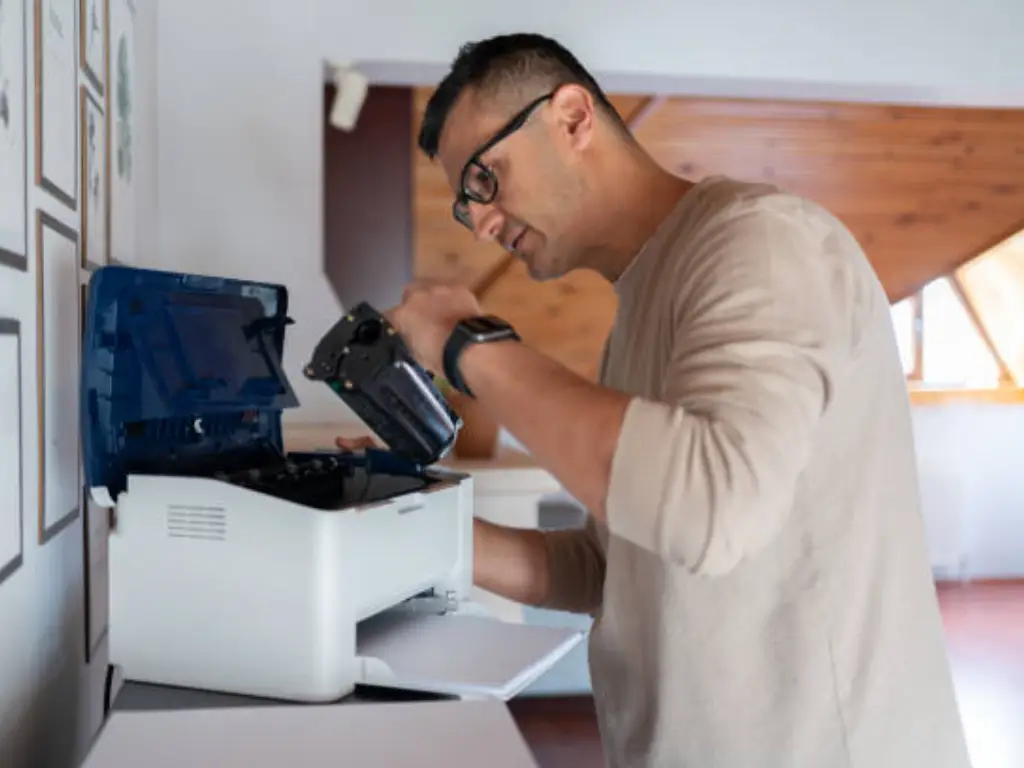
Open the printer cover carefully. Look at the cartridges for any leaks or damage. Many printers show ink levels on their screen or software. Check these levels to see if any color cartridge is empty or low. Remove the cartridge to inspect it closely if needed. Avoid touching the ink nozzles to prevent damage.
Replacing Or Refilling Cartridges
Remove empty cartridges from the printer. Replace them with new or refilled ones that fit your model. Follow the printer manual for proper installation. Some printers need a reset after cartridge replacement. Use the printer software to check if the new cartridge is recognized. Refill cartridges only if the ink is compatible and clean.
Using Genuine Ink Supplies
Use original ink cartridges from your printer’s brand. Generic or refilled inks might cause poor color quality or damage. Genuine ink ensures better color accuracy and printer safety. It helps avoid printer errors and extends the device’s life. Always buy ink from trusted stores or official websites.
Adjusting Printer Settings For Color Printing
Adjusting printer settings is a key step to fix color printing issues. Many printers default to black and white or grayscale mode. Changing the settings can help your printer use color cartridges correctly. This section explains how to set your printer for color printing.
Selecting Color Mode
Open your printer settings on your computer. Look for the “Color” or “Color Mode” option. Choose “Color” instead of “Black & White.” This tells the printer to use all color inks. Saving these settings ensures future prints use color automatically.
Disabling Grayscale Or Black & White
Some printers print in grayscale by default. Find the grayscale or black and white option in print preferences. Make sure this option is turned off. Disabling grayscale allows the printer to print colors as intended. This is a common cause of missing colors.
Setting Print Quality
Print quality affects color output. Higher quality settings use more ink and show better colors. Choose “High” or “Best” quality in the printer settings. Avoid “Draft” or “Fast” modes, as they reduce color intensity. Adjusting print quality improves the vibrancy of your prints.
Cleaning And Maintaining Printheads
Printheads play a key role in color printing. Dirt and dried ink block tiny nozzles. This causes poor color printing or no color at all. Cleaning and maintaining printheads keeps colors bright and clear. Regular care helps printers work longer and better.
Automatic Printhead Cleaning
Most printers have an automatic cleaning feature. It flushes ink through the nozzles to clear clogs. Start this process from the printer’s control panel or software. This method is simple and quick. Run it once or twice if colors look faded. Avoid using it too often. It uses ink and may waste some.
Manual Cleaning Techniques
If automatic cleaning does not help, try manual cleaning. Turn off the printer and unplug it first. Remove the printhead carefully according to the manual. Use a soft cloth dampened with distilled water or cleaning solution. Gently wipe the printhead nozzles and contacts. Let it dry completely before reinstalling. This method clears stubborn ink blockages. Be gentle to avoid damage.
Preventing Future Clogs
Use your printer regularly to keep ink flowing well. Avoid letting ink cartridges run completely empty. Store the printer in a cool, dry place. Use high-quality ink recommended for your printer. Clean the printhead at the first sign of color problems. These steps reduce the chance of clogs and improve print quality.
Updating And Reinstalling Printer Drivers
Updating and reinstalling printer drivers often fixes color printing problems. Drivers are software that help your computer and printer communicate. Outdated or corrupted drivers can stop your printer from printing in color. Keeping drivers up to date helps your printer work correctly and print vibrant colors.
Sometimes, reinstalling drivers can solve hidden issues. This process removes old files and installs fresh ones. It can clear errors that block color printing. Follow simple steps to find, update, and reinstall your printer drivers.
Finding The Latest Drivers
Go to the printer manufacturer’s official website. Search for your printer model in the support section. Look for the latest driver compatible with your operating system. Download the newest version to your computer. Avoid using third-party driver sites to prevent malware risks.
Steps To Reinstall Drivers
First, open the Control Panel or Settings on your PC. Find the “Devices and Printers” section. Right-click your printer and choose “Remove” or “Uninstall.” Restart your computer to clear old driver files. Install the new driver you downloaded from the website. Follow on-screen instructions carefully to complete the setup.
Troubleshooting Driver Issues
Check if the driver matches your printer model exactly. Using the wrong driver can cause color printing errors. Run the printer troubleshooter tool available in your OS. It can detect and fix driver-related problems automatically. If problems continue, contact the printer support team for help.
Resolving Connectivity And Communication Errors
Connectivity and communication errors often stop your printer from printing in color. These problems block the data flow between your computer and printer. Fixing these errors can bring back color printing quickly. Focus on the basics first. Simple steps can solve most issues.
Checking Cable Connections
Loose or damaged cables cause communication problems. Examine the USB or Ethernet cable connecting the printer and computer. Make sure both ends are plugged in firmly. Replace any worn or broken cables. A good connection keeps data moving smoothly.
Restarting Printer And Computer
Restarting resets temporary glitches in devices. Turn off the printer and computer. Wait about 30 seconds. Then turn them back on. This simple action refreshes the connection and clears minor errors. Many users find this step fixes color printing issues fast.
Resetting Network Settings
Network settings sometimes block printer communication. Resetting these settings can help. On the printer’s control panel, find the network or wireless menu. Choose the option to reset or restore network settings. Reconnect to your Wi-Fi or wired network after the reset. This step often solves hidden connection problems.
Testing And Verifying Color Printing
Testing and verifying color printing helps find issues with your printer. It shows if the problem is with the printer or the setup. This step is important before trying other fixes. You can check if the printer prints colors correctly or only prints black and white. Follow simple methods to test and confirm color printing.
Printing Test Pages
Most printers have a test page option in their menu. Print a test page to see if colors appear. The page shows different color blocks and patterns. Check if all colors print clearly and fully. Missing colors mean a problem with ink or printer heads. This step quickly shows if color printing works.
Using Printer Diagnostic Tools
Printers often come with software tools for diagnosis. Run these tools to check printer health and color function. The software can detect clogs, low ink, or errors. It may guide you to clean print heads or replace cartridges. These tools give detailed info on color printing issues.
Confirming Successful Color Output
After tests, print a simple color image or document. Look closely at the colors on the page. Colors should match the screen or original file. Faded or missing colors show ongoing issues. Clear, vibrant colors mean the printer works well. This final check confirms color printing is fixed.

Credit: printertouch.com
Frequently Asked Questions
Why Is My Printer Not Printing In Color?
Your printer may be set to print in black and white or grayscale mode. Check printer settings.
How Do I Fix A Color Printing Problem?
Replace empty or dried-up color cartridges and clean print heads to restore color printing.
Can Wrong Printer Driver Cause No Color Printing?
Yes, outdated or incorrect drivers can stop color printing. Update drivers from the printer’s website.
Does Low Ink Affect Color Printing Quality?
Low ink can cause faded or missing colors. Replace cartridges promptly for best results.
How To Check If Printer Supports Color Printing?
Look at your printer model specs or manual. Some printers only print in black and white.
Conclusion
Troubleshooting color printing issues often solves the problem quickly. Check ink levels and cartridge placement first. Clean the print heads to improve color quality. Make sure your printer settings allow color printing. Restart the printer and your computer to refresh connections.
Using the right paper also affects color output. Small fixes can save time and prevent frustration. Keep your printer updated with the latest software. With patience, your printer will print vibrant colors again. Don’t give up—simple steps often bring good results.