
Are you frustrated because your Vizio TV isn’t recognizing your HDMI connection? You’re not alone.
When your TV suddenly won’t detect your devices, it can feel like everything’s stuck. But don’t worry—there are simple fixes you can try right now to get your screen back to life. Keep reading, and you’ll discover easy steps that can save you time and money, so you can enjoy your favorite shows without interruption.
Credit: www.reddit.com
Common Causes Of Hdmi Issues
Many users face HDMI issues with their Vizio TV. These problems stop the TV from recognizing connected devices. Understanding common causes helps fix these issues quickly. Below are some frequent reasons for HDMI problems on Vizio TVs.
Loose Or Damaged Cables
Loose or damaged HDMI cables often cause connection problems. A cable not fully plugged in may not send signals. Check both ends of the HDMI cable for secure connections. Look for visible damage, like cuts or bends. Replace the cable if it appears worn or broken.
Incorrect Input Settings
Sometimes the TV is set to the wrong input. The HDMI port must match the selected input source. Use the remote to switch inputs until you find the correct one. Verify the TV input matches the HDMI port number used.
Outdated Firmware
Old firmware can cause HDMI compatibility issues. Vizio releases updates to fix bugs and improve performance. Check the TV settings for available updates. Install the latest firmware to ensure smooth HDMI functioning.
Hdmi Port Problems
HDMI ports can get dirty or damaged over time. Dust or debris inside the port may block connections. Clean the port gently with a soft brush or air blower. If the port is physically damaged, professional repair may be needed.
Credit: www.makeuseof.com
Simple Steps To Check Connections
When a Vizio TV does not recognize an HDMI connection, simple checks can solve the issue. Start by examining the cables and ports. These steps often fix connection problems without extra help.
Inspecting Hdmi Cables
Look closely at the HDMI cable for any damage. Check for bent or broken pins inside the connectors. Make sure the cable is fully inserted into both the TV and the device. Loose cables cause connection errors.
Switching Hdmi Ports
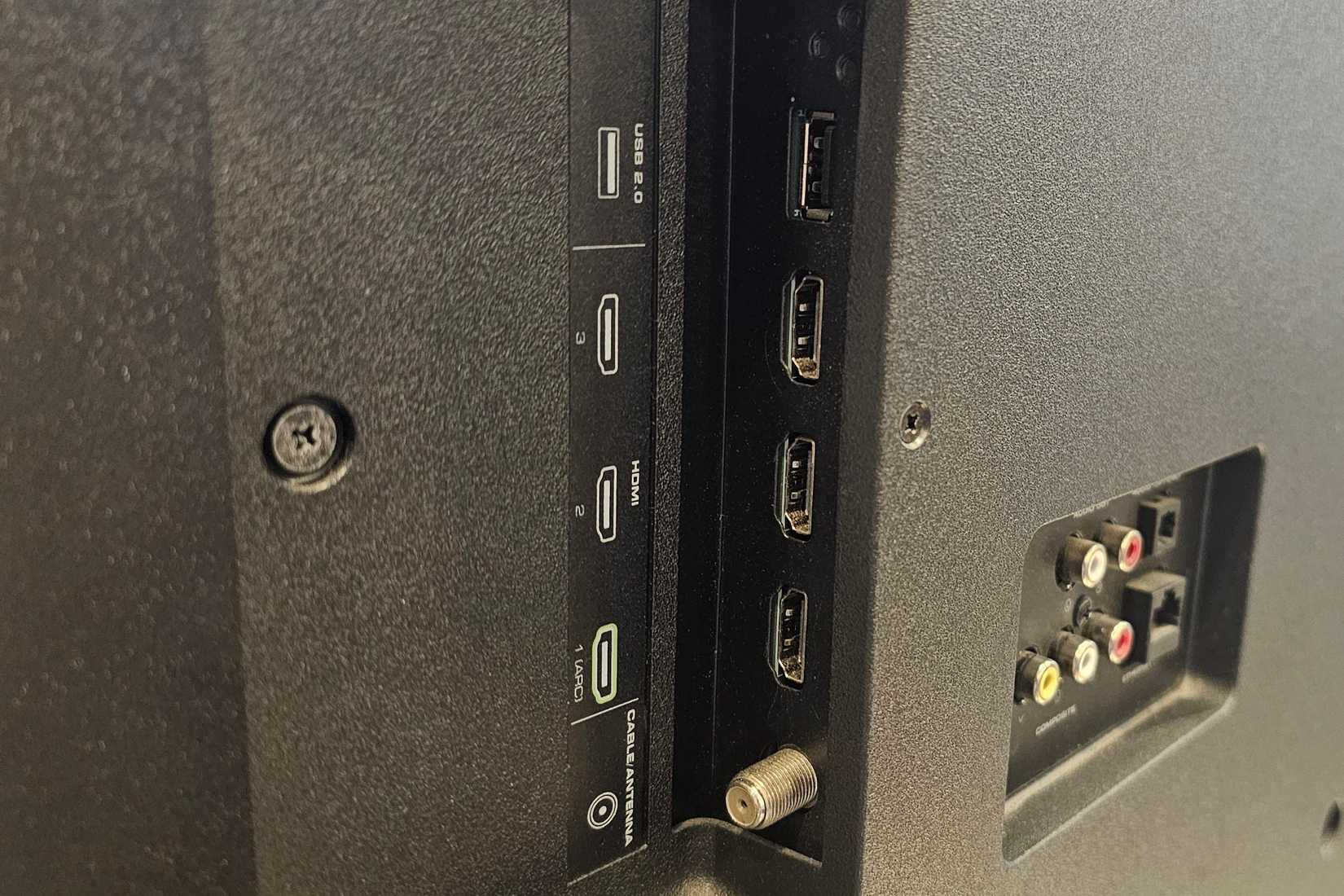
Try plugging the HDMI cable into a different port on the TV. Some ports may not work properly. Switching ports helps identify if a port is faulty. Use a port labeled HDMI 1 or HDMI 2 for testing.
Testing With Different Devices
Connect another device to the TV using the same HDMI cable. This test shows if the problem is with the TV or the original device. If the second device works, the issue lies with the first device.
Adjusting Vizio Tv Settings
Adjusting the settings on your Vizio TV can solve many HDMI recognition issues. Small changes in the TV settings often fix connection problems quickly. This section guides you through simple steps to adjust your TV for better HDMI performance.
Selecting The Right Input Source
Start by checking the input source on your Vizio TV. Press the input or source button on your remote. Cycle through the list until you find the correct HDMI port. The TV must be set to the port connected to your device. Wrong input selection can cause the TV not to detect HDMI signals.
Resetting Picture Settings
Resetting picture settings can clear glitches affecting HDMI detection. Go to the TV’s menu and find the picture settings option. Select “Reset” or “Restore Default” to revert changes. This step can fix issues caused by wrong picture mode settings or adjustments.
Disabling Hdmi-cec
HDMI-CEC allows devices to control each other but may cause conflicts. Disable HDMI-CEC in the TV settings to stop interference. Navigate to the system settings and turn off HDMI-CEC or CEC control. Turning this off can improve HDMI signal recognition and stability.
Updating Tv Firmware
Updating the firmware of your Vizio TV can fix many issues, including HDMI recognition problems. Firmware is the software that runs your TV. It controls how the TV works and interacts with other devices.
Manufacturers often release updates to improve performance and fix bugs. Keeping your TV’s firmware up to date helps it work smoothly with HDMI devices. The update process is simple and usually takes only a few minutes.
Checking For Updates
Start by turning on your Vizio TV and connecting it to the internet. Go to the TV’s settings menu. Look for the “System” or “About” section. Find the option to check for firmware or software updates.
The TV will search for the latest update available. If a new update exists, the TV will prompt you to download and install it. Follow the on-screen instructions carefully. Do not turn off the TV during the update process.
Manual Vs Automatic Update Methods
Vizio TVs offer two ways to update firmware: manual and automatic. Manual updates require you to check for updates yourself and start the installation. This method gives you full control over when to update.
Automatic updates download and install updates automatically. This option saves time and ensures the TV always has the latest firmware. Check your TV’s settings to choose the method that suits you best.
Power Cycle And Reset Options
Power cycling and resetting your Vizio TV can fix many HDMI recognition issues. These methods clear temporary glitches and refresh the TV’s system. They are simple steps that often solve connection problems quickly.
Try these power cycle and reset options before calling for help. They save time and might restore your HDMI connection fast.
Performing A Soft Reset
A soft reset restarts the TV without erasing settings. It clears minor bugs that block HDMI detection.
To do a soft reset, turn off the TV. Unplug it from the power outlet. Wait about 60 seconds. Plug the TV back in and turn it on. Check if the HDMI port works now.
Factory Reset Steps
A factory reset restores the TV to original settings. It can fix deeper software issues but erases all custom settings.
Press the Menu button on the remote. Navigate to System, then Reset & Admin. Choose Factory Reset. Enter the TV’s PIN if asked. Confirm the reset and wait for the TV to restart.
After the reset, reconnect your HDMI devices. The TV should recognize them properly.
When To Replace Hardware
Knowing when to replace hardware is key to fixing your Vizio TV HDMI issues. Sometimes, the problem is not with settings or software. Faulty cables or broken ports can stop your TV from recognizing HDMI devices. Replacing damaged parts can save you time and frustration.
Identifying Faulty Hdmi Cables
HDMI cables can wear out or get damaged. Check the cable for visible cuts or bends. Try using a different HDMI cable to see if the TV recognizes the device. A faulty cable often causes no signal or flickering screen. Replace the cable if the problem goes away with a new one.
Dealing With Broken Hdmi Ports
Ports can get loose or damaged from frequent use. Look inside the HDMI port for bent or missing pins. Gently wiggle the cable while connected to check for loose connections. If the port feels loose or the picture cuts out, the port may be broken. Replacing the port or using another HDMI input might be necessary.
Tips To Prevent Future Hdmi Issues
Preventing HDMI issues on your Vizio TV saves time and frustration. Small steps keep connections stable and clear. Follow simple habits to avoid common HDMI problems in the future.
Proper Cable Handling
Handle HDMI cables gently to protect them from damage. Avoid bending cables sharply or pulling them forcefully. Keep cables organized and away from heavy objects. Use cable ties or clips to prevent tangling. Damaged cables often cause connection issues.
Regular Firmware Updates
Update your Vizio TV’s firmware regularly. Updates fix bugs and improve HDMI compatibility. Check the TV settings menu for update options. Use a stable internet connection during updates. Staying current helps prevent communication errors with devices.
Safe Power Practices
Turn off your TV and devices before connecting or disconnecting HDMI cables. Avoid unplugging cables while devices are on. Use a surge protector to guard against power spikes. Sudden power loss can harm HDMI ports and devices. Safe power use extends the life of your TV and accessories.
Credit: www.makeuseof.com
Frequently Asked Questions
Why Is My Vizio Tv Not Detecting Hdmi Input?
Check if the HDMI cable is firmly connected and the TV input matches the HDMI port used.
How Can I Fix No Hdmi Signal On Vizio Tv?
Try restarting the TV and device, or use a different HDMI cable or port.
Does Hdmi Cable Quality Affect Vizio Tv Recognition?
Yes, poor or damaged cables can cause connection issues and signal loss.
Can Vizio Tv Firmware Update Solve Hdmi Issues?
Updating the TV software can fix bugs that prevent HDMI detection.
How To Reset Vizio Tv Hdmi Ports?
Unplug the TV for a few minutes, then plug it back in to reset ports.
Conclusion
Vizio TV not recognizing HDMI can be frustrating. Try checking the cable connection first. Restart your TV and the connected device. Switch to a different HDMI port to test. Update your TV’s firmware for better compatibility. Sometimes, resetting the TV to factory settings helps.
Small fixes often solve big problems. Patience and careful steps make a difference. Keep these tips handy for future HDMI issues. Enjoy your viewing without interruptions soon.