
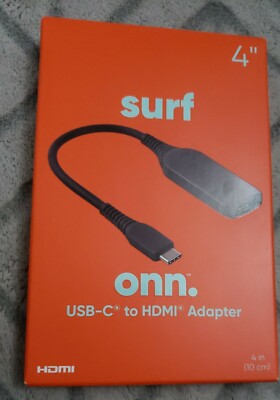
Are you struggling with your Onn USB-C to HDMI not working on your Android device? It’s frustrating when you want to connect your phone or tablet to a bigger screen, but nothing shows up.
You’re not alone—many users face this issue, and it can feel like your device just won’t cooperate. But don’t worry, there are simple fixes that can get your connection back on track quickly. Keep reading, and you’ll learn exactly what to check and how to solve this problem step by step.
Your next movie night or presentation is about to get a whole lot easier.
Common Causes Of Connection Issues
Connection issues between your Onn USB-C to HDMI adapter and Android device can be frustrating. Several common causes can disrupt the signal. Understanding these problems helps you fix the issue faster. Here are the main reasons why your adapter might not work properly.
Compatibility Problems
Not all Android devices support video output through USB-C. Some phones lack the necessary hardware or software. The adapter needs a device with DisplayPort Alternate Mode support. Check if your Android model supports video output via USB-C. Without this, the adapter cannot send a signal to your HDMI device.
Faulty Cables Or Adapters
Damaged or low-quality cables often cause connection problems. The USB-C or HDMI cable may be broken inside. Adapters can also fail due to wear or manufacturing defects. Try using a different cable or adapter to see if the issue persists. Clean the ports to remove dust or debris that might block connections.
Incorrect Device Settings
Your Android device settings may prevent video output. Some phones require enabling USB-C video or screen casting options. Check the display settings or connection preferences. Make sure the phone is set to output video through the USB-C port. Resetting display settings can sometimes resolve the problem.
Software Glitches
Software bugs can disrupt the adapter’s function. Outdated or buggy Android versions may cause issues. Restart your device to clear temporary glitches. Installing the latest system updates can fix compatibility problems. Some apps might interfere with video output, so testing in safe mode can help identify conflicts.
Credit: www.ebay.com
Checking Hardware Components
Problems with your Onn USB-C to HDMI adapter may come from hardware issues. Checking each part helps find the cause fast. Hardware problems are common and easy to fix.
Start by looking at the adapter, the cable, and the Android device port. Each part plays a role in the connection. A small fault in any component can stop the display.
Inspecting The Usb-c To Hdmi Adapter
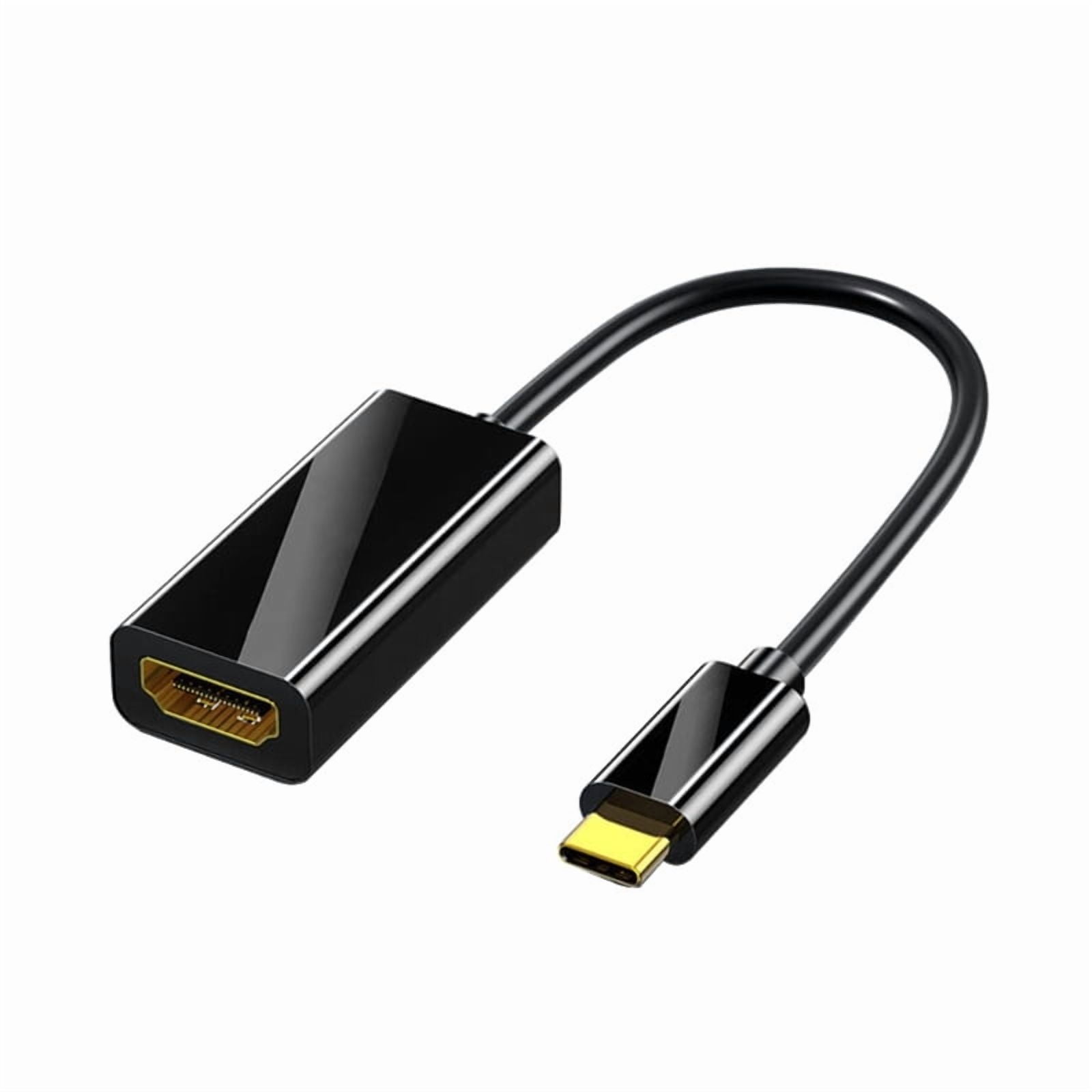
Look closely at the USB-C to HDMI adapter for visible damage. Check for bent pins or broken parts on the connectors. Dirt or dust can block the connection. Clean the adapter gently with a soft cloth. Try using the adapter with another device. This test shows if the adapter works well.
Testing The Hdmi Cable
Check the HDMI cable for cuts or bends. Damaged cables can cause poor signals or no display. Use another HDMI cable to test the connection. A good cable ensures clear video and sound. Make sure the cable fits tightly in the ports. Loose connections often cause the problem.
Verifying The Android Device Port
Inspect the USB-C port on the Android device for dirt or damage. Dust can stop the adapter from connecting properly. Use a flashlight to see inside the port. Clean the port carefully with a soft brush or compressed air. Test the port with another USB-C device. This check confirms if the port is working right.
Adjusting Android Settings
Adjusting Android settings can solve many issues with the Onn USB C to HDMI connection. Sometimes, the problem lies in how the phone handles the external display. Small tweaks in settings often fix the problem quickly. Follow the steps below to check and change the right options.
Enabling Hdmi Output
Many Android devices need HDMI output enabled manually. Go to your phone’s Settings. Find the Connected Devicesor Displaysection. Look for an option like HDMIor Cast Screen. Turn it on to allow the phone to send video to the TV or monitor. Without enabling this, the phone may not detect the HDMI connection.
Changing Display Preferences
Adjusting display preferences helps improve the connection. Open Settingsand go to Display. Check options for Screen Resolutionor Screen Mirroring. Set the resolution to match your TV or monitor. Lower resolutions may work better on some screens. Also, try toggling Screen Castor External Displaymodes to activate the HDMI output.
Updating System Software
Outdated software causes many connection problems. Check for updates in Settings > System > Software Update. Download and install any available updates. Updated software improves compatibility with devices like the Onn USB C to HDMI adapter. Restart your phone after updating to apply changes. This step often fixes bugs related to external display connections.
Credit: www.walmart.com
Troubleshooting Software Issues
Software problems can stop your Onn USB-C to HDMI adapter from working on Android devices. These problems are common and often easy to fix. Checking the software can save time and avoid extra costs. Follow these simple steps to find and fix software issues quickly.
Restarting The Device
Restarting your phone or tablet can fix many problems. It clears temporary bugs and resets the system. Turn off your Android device, wait for 10 seconds, then turn it back on. Try the Onn USB-C to HDMI again after the restart.
Clearing Cache And Data
Cached files sometimes cause app or connection issues. Go to Settings > Apps > find the app you use for HDMI output. Tap Storage > Clear Cache. If problems continue, tap Clear Data too. This resets the app without deleting your files.
Using Third-party Apps
Some Android devices need extra apps to support HDMI output. Look for trusted apps that help connect USB-C to HDMI. These apps can improve compatibility and fix display problems. Download from the Google Play Store and follow the setup instructions carefully.
Alternative Connection Methods
When the Onn USB C to HDMI adapter does not work with your Android device, other options exist. Alternative connection methods can help display your phone’s screen on a bigger display. These methods avoid cables and often provide smoother performance.
Wireless Screen Mirroring
Wireless screen mirroring lets you show your phone’s screen on a TV or monitor without cables. Most modern Android phones support this feature through Miracast or similar technology. To use it, open your phone’s settings and find the “Cast” or “Screen Mirroring” option. Select your TV or compatible device from the list. The screen will then appear on the larger display.
This method is easy and quick. It also removes cable connection problems. The quality depends on your Wi-Fi network and device compatibility.
Using Chromecast Or Similar Devices
Chromecast is a popular tool for connecting Android devices to TVs wirelessly. Plug the Chromecast into your TV’s HDMI port and connect it to your Wi-Fi network. Use the Google Home app on your Android phone to set it up. Then, you can cast videos, apps, or your entire screen to the TV.
Other devices like Amazon Fire Stick or Roku offer similar casting features. They work well with many Android phones. This method provides a stable connection and good video quality.
When To Seek Professional Help
Knowing when to seek professional help for your Onn USB-C to HDMI not working with Android can save time and frustration. Some problems need expert care to fix properly. Recognizing these signs early helps avoid further damage and ensures your device works well again.
Identifying Hardware Failures
Hardware failures often cause connection issues. If the adapter or your phone does not show any response, it may be a hardware problem. Physical damage, like bent ports or broken cables, also points to hardware failure. Testing the adapter on another device can confirm this. When the adapter does not work elsewhere, the problem likely lies with the adapter itself.
Hardware issues cannot be fixed by software updates or simple resets. If your device heats up or smells burnt during use, stop immediately and seek professional help. These signs indicate serious internal damage that requires expert repair.
Warranty And Replacement Options
Check if your Onn USB-C to HDMI adapter is still under warranty. Most products come with a limited warranty covering defects and faults. Contact the seller or manufacturer to learn about replacement or repair options. Keep your purchase receipt or order details handy for smooth processing.
Using warranty services often saves money and ensures the product is fixed correctly. Avoid trying to open or repair the adapter yourself. Doing so may void the warranty and cause more harm than good.
Credit: www.walmart.com
Frequently Asked Questions
Why Is My Onn Usb C To Hdmi Not Working On Android?
The adapter may not support your Android device or the connection could be loose.
How Do I Fix Onn Usb C To Hdmi Connection Issues?
Try reconnecting the cable, restarting your device, or checking for software updates.
Does My Android Phone Support Onn Usb C To Hdmi?
Not all Android phones support video output via USB C. Check your phone’s specs.
Can A Faulty Hdmi Cable Cause Display Problems?
Yes, a damaged or low-quality HDMI cable can stop the display from working.
What Settings Should I Check For Hdmi Output On Android?
Enable screen mirroring or HDMI output in your phone’s display or connection settings.
Conclusion
Troubles with the Onn USB C to HDMI on Android can be fixed. Check your cable and port for damage. Restart your phone and try reconnecting. Make sure your phone supports video output. Update your Android system for better compatibility.
Sometimes, switching to another cable helps. Keep it simple and test each step. This guide should help you see your screen on the big display. Don’t give up if it doesn’t work right away. Small fixes often solve the problem fast.