
Is your Logitech K270 keyboard suddenly not working? It’s frustrating when your trusted keyboard stops responding just when you need it most.
You rely on your keyboard every day, and any disruption can slow you down or even bring your work to a halt. But don’t worry—you’re not alone, and this problem can usually be fixed quickly. You’ll discover simple, step-by-step solutions to get your Logitech K270 back in action.
Keep reading, and you’ll soon be typing smoothly again.
Common Causes Of K270 Keyboard Issues
The Logitech K270 keyboard is a popular choice for many users. Still, it can face issues that stop it from working properly. Understanding common causes helps to fix problems faster. Many problems come from simple issues that anyone can solve.
Below are some frequent reasons why the K270 keyboard might not work as expected.
Battery Problems
Weak or dead batteries often cause keyboard failure. The K270 uses AA batteries that need replacement from time to time. Low power can make the keyboard stop responding or act unpredictably. Always check battery levels before other troubleshooting steps.
Wireless Connection Glitches
The K270 connects via a small USB receiver. This wireless link can sometimes break or weaken. Objects or distance can block the signal. Interference from other devices can also cause connection drops. Reconnecting the receiver or moving closer can help restore the link.
Driver Conflicts
Software drivers control how the keyboard works with your computer. Outdated or corrupted drivers can cause issues with key response. Sometimes, new updates can create conflicts. Updating or reinstalling the keyboard driver often resolves these problems quickly.
Physical Damage
Damage to the keyboard or receiver can cause failure. Spills, drops, or heavy use may harm internal parts. Sticky or stuck keys are common signs of physical damage. Inspect the keyboard for visible problems and clean it gently if needed.
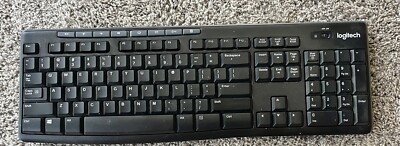
Credit: www.ebay.com
Basic Troubleshooting Steps
Basic troubleshooting steps can fix many issues with your Logitech K270 keyboard. These steps are simple and quick. They help identify common problems and solve them fast.
Try these steps before looking for more complex solutions. They often restore your keyboard’s function in minutes.
Check Battery And Replace If Needed
Start by checking the keyboard’s battery. Open the battery compartment and remove the old batteries. Use new, fresh batteries for best results. Dead or weak batteries cause the keyboard to stop working. Insert the batteries in the right direction. Close the compartment tightly before testing the keyboard again.
Reconnect The Wireless Receiver
The wireless receiver connects the keyboard to your computer. Unplug the receiver from the USB port. Wait a few seconds, then plug it back in. This resets the connection and can solve many issues. Try different USB ports if the first one does not work. Make sure the receiver is clean and not damaged.
Restart Your Computer
Restarting your computer can fix device recognition problems. Save your work and close all programs. Click on the Start menu and select Restart. After your computer turns back on, test the keyboard. This step refreshes the system and often restores keyboard function.
Advanced Fixes For Connectivity
Advanced fixes help solve tricky connection problems with the Logitech K270 keyboard. These steps go beyond basic checks. They dig deeper into software and system settings. Follow these tips to restore your keyboard’s smooth operation.
Reinstall Keyboard Drivers
Drivers allow your computer to communicate with the keyboard. Old or broken drivers cause connection issues. Open Device Manager on your PC. Find the keyboard under “Keyboards” or “Human Interface Devices.” Right-click and choose “Uninstall device.” Restart your computer. Windows will reinstall the drivers automatically. This process often fixes hidden driver errors.
Update Operating System
Operating system updates improve hardware compatibility. Missing updates may block your keyboard’s signals. Open your system settings. Check for the latest updates. Download and install all available patches. Restart your PC after updating. Updated systems handle device connections better and reduce errors.
Use Logitech Unifying Software
Logitech Unifying Software manages multiple devices with one receiver. Download it from Logitech’s official website. Install and open the software. Follow the prompts to pair your keyboard again. This tool helps fix pairing and connection troubles. It ensures your keyboard and receiver communicate perfectly.

Credit: www.quill.com
Hardware Checks And Repairs
Hardware problems often cause the Logitech K270 keyboard to stop working. Checking the keyboard’s physical parts helps find the problem fast. Repairs or simple fixes might bring it back to life.
Inspect Keyboard For Damage
Look closely at the keyboard for visible damage. Check for cracks, broken keys, or loose parts. Pay attention to the USB receiver and cable. Damage here can stop the keyboard from working.
Clean Keyboard Components
Dust and dirt can block key signals. Use a soft cloth or compressed air to clean the keys. Remove debris from between the keys carefully. Clean the USB receiver and connection points as well.
Test Keyboard On Another Device
Try the keyboard on a different computer or laptop. This step shows if the problem is with the keyboard or the original device. If it works on another device, the issue is likely with your computer settings or drivers.
Preventive Tips For Long-term Use
Keeping your Logitech K270 keyboard working well for a long time needs simple care steps. These steps help avoid common problems and keep your keyboard ready to use. Follow these tips to enjoy smooth typing every day.
Keep Batteries Fresh
Old batteries cause your keyboard to stop working. Change batteries often to keep a strong power supply. Use good quality batteries for best results. Check battery levels regularly and replace them if low.
Maintain Wireless Receiver Placement
Place the wireless receiver close to the keyboard. Avoid putting it near metal objects or devices that cause interference. Keep the receiver in a clear, open spot. This helps maintain a steady connection and prevents typing delays.
Regular Software Updates
Update the keyboard software and drivers regularly. Updates fix bugs and improve keyboard performance. Visit Logitech’s official website to download the latest software. This keeps your keyboard compatible with your computer and running smoothly.

Credit: www.amazon.com
Frequently Asked Questions
Why Is My Logitech K270 Keyboard Not Responding?
Check the battery and USB receiver connection. Replace batteries if needed.
How Do I Reset My Logitech K270 Keyboard?
Remove the USB receiver, turn off the keyboard, wait 10 seconds, then turn it back on and reconnect.
Can Interference Cause Logitech K270 Keyboard Issues?
Yes, wireless devices or metal objects nearby may block the signal.
How Do I Update Logitech K270 Keyboard Drivers?
Visit Logitech’s official website and download the latest driver for your keyboard.
What To Do If Logitech K270 Keys Type Incorrectly?
Try reconnecting the keyboard and check the language settings on your computer.
Conclusion
Troubleshooting the Logitech K270 keyboard can be simple and quick. Check the batteries and connection first. Clean the keyboard to remove dust or debris. Restart your computer to refresh settings. Try using the keyboard on another device. These steps often solve common issues fast.
Stay patient and follow each tip carefully. Your keyboard will likely work well again soon. Keep this guide handy for future reference.