
Are you having trouble with your Tapo C210 camera and need a quick fix? Resetting your device might be the easiest way to solve many common issues like connectivity problems or forgotten passwords.
In this guide, you’ll learn exactly how to reset your Tapo C210 step-by-step. By the end, you’ll feel confident in restoring your camera to its factory settings and getting it back up and running smoothly. Keep reading to discover simple tips that save you time and frustration!
Credit: www.tp-link.com
Preparing To Reset Tapo C210
Preparing to reset your Tapo C210 camera is an important step. It helps avoid losing data and ensures a smooth reset process. Before starting, take time to get ready. This makes the reset easier and safer for your device.
Check Camera Power And Connection
Make sure your Tapo C210 is powered on. Check the power cable and adapter for any damage. The camera needs a stable power supply to reset properly. Also, confirm the camera is connected to your Wi-Fi network. A weak or lost connection can cause reset failure.
Backup Important Settings
Save your current camera settings before resetting. This includes Wi-Fi details, motion detection zones, and recording schedules. Backing up helps restore your preferences quickly. You can use the Tapo app to note down or screenshot important settings. Avoid starting fresh without a backup to save time later.
Methods To Reset Tapo C210
Resetting the Tapo C210 camera can solve many common issues. It helps restore default settings and clear errors. There are two simple methods to reset the device. Each method is easy and quick. Choose the one that fits your situation best.
Using The Reset Button
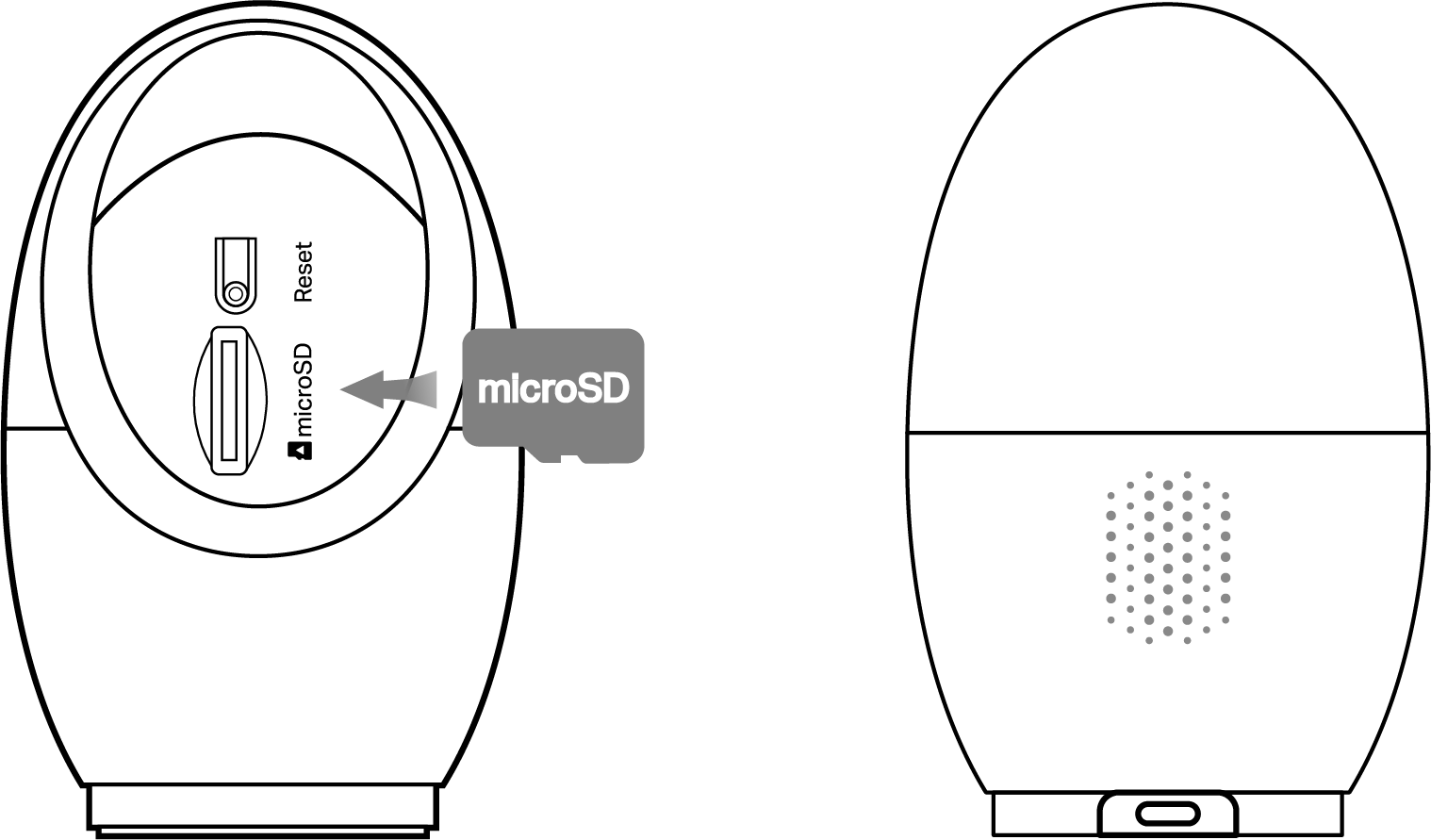
Locate the reset button on the back of the Tapo C210. Use a pin or paperclip to press and hold it. Keep holding for about 5 to 10 seconds. Release the button when the camera’s light blinks. The camera will restart and reset to factory settings. This method works well if you cannot access the app.
Reset Via Tapo App
Open the Tapo app on your smartphone. Select the Tapo C210 camera from your device list. Go to the camera settings menu. Find the option labeled “Reset” or “Factory Reset.” Confirm your choice to start the reset process. The camera will reboot and erase all custom settings. This method is perfect for users who want a remote reset.
Step-by-step Reset Guide
Resetting your Tapo C210 camera can fix many issues. This guide walks you through the reset process step-by-step. Follow these simple instructions to reset your device safely and quickly.
Locate The Reset Button
First, find the reset button on your Tapo C210. It is usually small and recessed. Check near the power port or under the camera base. Use a pin or a paperclip to press it. Knowing the exact location helps you avoid mistakes.
Performing A Hard Reset
To do a hard reset, press and hold the reset button. Keep it pressed for about 10 seconds. Wait until the camera light blinks or changes color. This signals the reset is done. Release the button and allow the camera to restart.
Reset Through App Settings
Open the Tapo app on your smartphone. Select your Tapo C210 camera from the device list. Find the settings menu and look for the reset option. Tap reset and confirm your choice. The camera will reset and restart automatically.
After Reset Actions
Resetting your Tapo C210 camera clears previous settings. You must take key steps after reset to get it working again. These steps ensure your camera connects to your network and works as needed. Follow simple actions to set up your device smoothly.
Reconnecting To Wi-fi
After resetting, the camera forgets your Wi-Fi details. Connect it to your home network again for internet access. Open the Tapo app on your phone. Follow the prompts to add a new device. Choose your Wi-Fi network and enter the password carefully. Wait for the camera to connect and show online status. A stable Wi-Fi connection is vital for smooth camera operation.
Reconfiguring Camera Settings
Resetting removes all your custom settings. Set up your preferences again in the Tapo app. Adjust motion detection sensitivity to avoid false alarms. Set up notifications to get alerts on your phone. Change video quality to balance clarity and bandwidth use. Rename your camera to identify it easily. Customize these settings to fit your security needs.
Troubleshooting Reset Issues
Resetting your Tapo C210 can solve many issues, but sometimes problems arise during the reset process. Troubleshooting reset issues helps get your camera back to normal quickly. Understanding common problems makes fixing easier and faster.
Reset issues usually involve the reset button or the app. Both methods are simple but can fail due to small errors. Knowing what to check saves time and avoids frustration.
Reset Button Not Working
Sometimes, pressing the reset button does not start the reset. Check if you press and hold the button for 5 to 10 seconds. Use a thin object like a paperclip for better reach.
Make sure the camera is powered on during the reset attempt. If the button still does not respond, the device might have a hardware problem. Try to clean around the button area gently to remove dust.
App Reset Fails
Resetting via the Tapo app can fail due to app or network issues. Confirm your phone has a stable internet connection before starting.
Update the Tapo app to the latest version to avoid bugs. Log out and log back into the app to refresh the connection.
Restart your phone if the app reset keeps failing. If problems continue, uninstall and reinstall the app for a fresh start.

Credit: www.youtube.com
Tips To Avoid Future Resets
Resetting the Tapo C210 camera can be frustrating. Avoiding frequent resets saves time and keeps your device working smoothly. Simple actions help maintain camera performance and prevent issues.
Regular Firmware Updates
Keep your camera’s firmware up to date. Updates fix bugs and improve security. Check for updates through the Tapo app regularly. Installing the latest firmware reduces crashes and connection problems. This keeps your camera stable and reliable over time.
Proper Camera Placement
Place the camera in a good spot. Avoid areas with extreme weather or direct sunlight. Strong heat or cold can cause malfunctions. Ensure the camera has a strong Wi-Fi signal. Weak connections often lead to errors and resets. A stable environment helps the camera work without interruptions.
Credit: www.tapo.com
Frequently Asked Questions
How Do I Reset The Tapo C210 Camera?
Press and hold the reset button on the camera for about 5 seconds until the light blinks.
What Happens After Resetting The Tapo C210?
The camera returns to factory settings, erasing all your previous settings and data.
Can I Reset The Tapo C210 Without The App?
Yes, use the physical reset button on the camera to reset it manually.
How Long Does The Tapo C210 Reset Process Take?
It usually takes less than a minute for the camera to reset and restart.
Will Resetting Delete My Saved Videos On Tapo C210?
Yes, resetting removes all saved settings and videos stored on the device.
Conclusion
Resetting your Tapo C210 is simple and quick. Just follow the steps carefully. This helps fix many common problems. You can restore the camera to its original settings. It also helps if you want to set it up again. Always ensure your device is powered on while resetting.
After reset, you can configure the camera as new. Keep this guide handy for any future resets. Your Tapo C210 will work smoothly once reset. Easy steps, clear results.