
Is your Fire TV not turning on? It’s frustrating when you’re ready to relax and your device just won’t respond.
You might feel stuck, wondering what went wrong and how to fix it quickly. Don’t worry—you’re not alone, and there are simple steps you can take right now to get your Fire TV back up and running. Keep reading, and you’ll learn easy solutions that save you time and frustration.
Your next binge-watch is closer than you think.
Check Power Connection
Before diving into complex fixes, start by checking the power connection. A loose or faulty power connection often causes the Fire TV not to turn on. Ensuring the device gets proper power helps avoid unnecessary troubleshooting steps.
Inspect Power Cable And Adapter
Look closely at the power cable for any cuts or damage. A broken wire can stop the Fire TV from receiving power. Check the adapter too. Sometimes, adapters can stop working due to wear or electrical issues.
Make sure the cable is firmly plugged into both the Fire TV and the power adapter. Loose connections prevent power flow and keep the device off.
Try Different Power Outlet
Switch the Fire TV’s power plug to another outlet. The outlet you use might not work properly. Test the outlet with another device like a lamp to confirm it has power.
Using a different outlet can quickly solve power problems. Sometimes, outlets stop working due to wiring issues or tripped breakers.
Use Original Power Accessories
Use the power cable and adapter that came with your Fire TV. Third-party accessories might not supply the right power levels. They can cause the device to fail to turn on.
Original accessories match the device’s power needs perfectly. They ensure stable power delivery and reduce the chance of damage.

Credit: www.youtube.com
Restart Fire Tv Device
Restarting your Fire TV device often fixes many power and software issues. This simple step refreshes the system and clears minor glitches. Follow these easy methods to restart your Fire TV device safely.
Unplug And Replug Device
First, unplug the Fire TV device from the power source. Wait about 30 seconds to let it fully power down. Then, plug it back in and turn it on. This helps reset the hardware and can fix the problem quickly.
Perform Soft Reset
Try a soft reset by holding the Select and Play/Pause buttons on your remote simultaneously. Hold them for about 10 seconds. The device will restart without deleting any data. This method is safe and often solves minor issues.
Factory Reset As Last Resort
If nothing else works, perform a factory reset. This erases all settings and data, returning the device to its original state. Go to Settings > My Fire TV > Reset to Factory Defaults. Use this option only if necessary, as you will lose all saved content.
Examine Remote Control
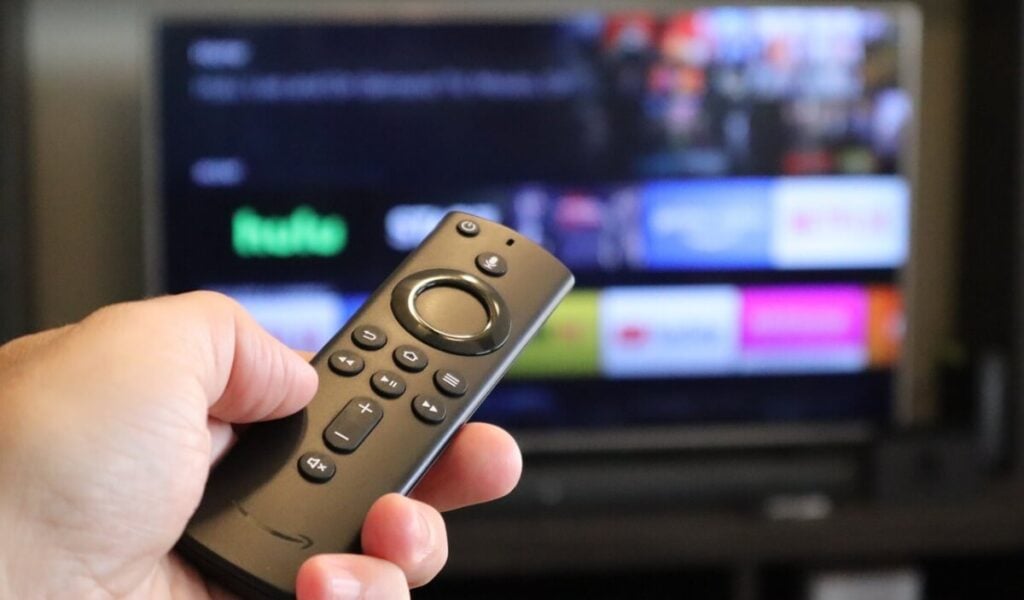
When your Fire TV does not turn on, the remote control might cause the problem. The remote sends commands to the Fire TV. If it does not work, the TV may not respond. Checking the remote is a simple first step.
Start by making sure the remote has power and can connect to the Fire TV device. Small issues with the remote often stop the TV from turning on. Try these easy fixes to get your remote working again.
Replace Remote Batteries
Old or weak batteries can stop the remote from working. Open the battery cover on the back of the remote. Take out the old batteries and put new ones in. Use fresh batteries for the best result. Press buttons to see if the remote lights up or works.
Pair Remote Again
The remote might lose connection to the Fire TV. Pairing it again can fix this issue. Hold the Home button for about 10 seconds. The TV should recognize the remote and connect automatically. Try pressing buttons to check if the remote controls the Fire TV now.
Use Fire Tv App As Alternative
The Fire TV app can work as a remote control. Download the app on your phone or tablet. Connect the app to the same Wi-Fi network as your Fire TV. Use the app to control the TV and turn it on. This method helps when the physical remote is not working.
Credit: helpdeskgeek.com
Check Hdmi Connection
When your Fire TV does not turn on, the HDMI connection might be the issue. The HDMI cable sends video and sound from your Fire TV to your TV screen. A loose or faulty HDMI connection can stop your screen from showing anything.
Check the HDMI connection carefully to make sure it works well. Follow these steps to find and fix HDMI problems.
Secure Hdmi Cable
Make sure the HDMI cable is plugged in tightly at both ends. Check the port on your Fire TV and your TV for any dirt or damage. Push the cable gently but firmly to secure it. A loose cable can cause the screen to stay black.
Try Different Hdmi Port
Switch the HDMI cable to another port on your TV. Some ports can stop working or have poor contact. Testing a different port helps find if the issue is with the port itself. Use the remote to select the right HDMI input on your TV.
Test With Another Tv
Connect your Fire TV to a different TV using the same HDMI cable. This test shows if the problem is with your Fire TV or the original TV. If it works on another TV, the first TV might have a faulty HDMI port or setting.
Look For Hardware Issues
Hardware problems can stop your Fire TV from turning on. Checking the device closely helps find these issues. Small damages or loose parts often cause power problems. Start by looking carefully at the device and its connections.
Inspect Device For Physical Damage
Look over the Fire TV device carefully. Check for cracks, dents, or broken parts. Examine the power cord and adapter for wear or cuts. Damaged cables can stop power flow. Make sure all plugs fit tight and secure. Loose connections might cause the device to fail to start.
Listen For Indicator Lights
Turn on the Fire TV and watch for lights. Indicator lights show if the device gets power. No light means no power or a hardware fault. A blinking light may signal an error or update. Note the light’s color and pattern for clues. This helps decide the next step for fixing.
Contact Amazon Support
Contact Amazon Support if hardware issues persist. They offer help with repairs or replacements. Provide details about what you noticed during checks. Support staff can guide you through advanced fixes. They also confirm if the device needs professional service.
Update Fire Tv Software
Updating the Fire TV software can fix many problems, including the device not turning on. Software updates improve system stability and fix bugs. Keeping the Fire TV updated ensures it runs smoothly and avoids crashes.
Sometimes, the device updates itself automatically. Other times, you may need to update it manually. Both methods are simple to follow and can solve the issue quickly.
Check For Automatic Updates
Fire TV usually checks for updates on its own. It downloads and installs updates when connected to the internet. Make sure your Fire TV has a good Wi-Fi connection. Leave the device on and plugged in overnight. It may update during this time without your help.
Manually Update Via Settings
Go to the Fire TV Home screen. Select the “Settings” option. Scroll to “My Fire TV” or “Device.” Choose “About” and then “Check for Updates.” If an update is available, follow the prompts to install it. The Fire TV will restart after the update.

Credit: www.reddit.com
Frequently Asked Questions
Why Is My Fire Tv Not Turning On?
Check if the power cable is plugged in and the outlet works.
How Do I Fix A Fire Tv That Won’t Power Up?
Try unplugging it for 60 seconds, then plug it back in and turn on.
Can A Faulty Remote Cause Fire Tv Not To Turn On?
Yes, a dead remote battery or remote issue can prevent the TV from turning on.
What To Do If Fire Tv Shows No Signal But Won’t Turn On?
Make sure the TV input matches the Fire TV HDMI port and the cable is secure.
Is A Software Update Needed If Fire Tv Won’t Start?
Sometimes, yes. Try restarting the device to trigger any pending updates automatically.
Conclusion
Troubles with Fire TV not turning on can feel frustrating. Start with simple checks like power connections and remote batteries. Restart your device to clear small glitches. If problems continue, reset the Fire TV or contact support. Staying calm helps you solve issues faster.
Small steps often fix common problems easily. Keep these tips handy for future use. Your Fire TV should work smoothly soon. Don’t give up; help is available.