
Is your Fios remote showing a red light and refusing to work? That little blinking signal can be more frustrating than you think.
You rely on your remote to control your TV easily, and when it stops responding, it feels like everything comes to a halt. But don’t worry—you’re not alone, and this problem is fixable. Keep reading to discover simple, effective steps you can take right now to get your Fios remote back in action quickly.
Credit: www.boostvision.tv
Common Causes Of Red Light Issue
The red light on a Fios remote can stop it from working. This issue happens for a few common reasons. Knowing these causes helps you fix the problem fast. Most issues are easy to solve at home without extra tools.
Understanding the main reasons makes troubleshooting simple. The remote may show a red light due to power, signal, or connection problems. Each cause affects how the remote talks to the Fios box.
Battery Problems
Weak or dead batteries often cause the red light. The remote needs fresh batteries to send signals properly. Old batteries lose power and confuse the remote. Changing batteries usually clears the red light quickly.
Signal Interference
Objects or devices can block the remote’s signal. Walls, furniture, or other electronics create interference. This stops the remote from reaching the Fios box. Moving closer or removing obstacles helps improve the signal.
Remote Pairing Issues
The remote must be paired with the Fios receiver to work. Sometimes the connection breaks or fails. A red light can mean the remote lost its link. Re-pairing the remote with the box solves this problem.
Quick Battery Solutions
Quick battery solutions can fix the red light issue on your Fios remote fast. Many problems start with weak or dead batteries. Checking and replacing them often restores normal function.
Before trying complex fixes, focus on the batteries. This is the easiest way to bring your remote back to life. Follow these simple steps for quick results.
Replacing Batteries
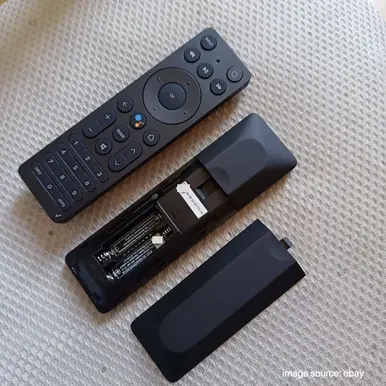
Open the battery compartment on the back of the remote. Remove old batteries carefully. Use new, fresh batteries of the correct size. Insert them following the + and – signs inside the compartment. Close the cover tightly. Test the remote to see if the red light stops blinking.
Checking Battery Contacts
Sometimes, the battery contacts get dirty or corroded. This stops power from reaching the remote’s circuits. Look inside the battery compartment for any dirt or rust on the metal parts. Clean contacts gently with a dry cloth or a cotton swab. Avoid using water or liquids. After cleaning, insert new batteries and try the remote again.
Resetting The Remote
Resetting the remote can fix many common issues. The red light on your Fios remote may show due to a simple glitch. Resetting helps clear this glitch and restores normal function. Follow these easy steps to reset your remote and get it working again.
Power Cycling The Remote
Start by removing the batteries from the remote. Wait for about 30 seconds. Press any button on the remote while the batteries are out. This discharges leftover power inside. Insert the batteries back carefully. Test the remote to see if the red light disappears. Power cycling often solves small software problems.
Factory Reset Steps
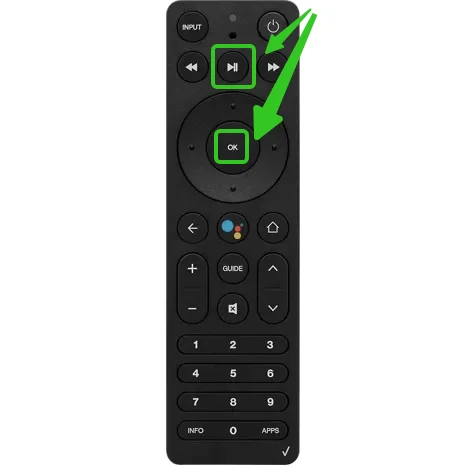
For a deeper reset, try the factory reset option. Hold the “OK” and “9” buttons at the same time. Keep holding them for about 5 seconds. The red light will flash indicating reset mode. Release the buttons and wait for the remote to restart. This resets all settings to default. You must reprogram the remote after this step.
Re-pairing With The Fios Box
Re-pairing the Fios remote with the Fios box is a key step to fix the red light issue. This process reconnects the remote to the box, restoring full control. It is simple and takes just a few minutes. Follow the steps carefully to ensure success.
Pairing Process
Start by turning on the Fios box. Point the remote at the box. Press and hold the “OK” and “1” buttons together. Keep holding until the remote light blinks twice. This means the remote is now paired with the box. Test by pressing any button to check if it works.
Troubleshooting Pairing Failures
If the remote does not pair, try these steps. Remove the batteries and wait 30 seconds. Put the batteries back in. Restart the Fios box by unplugging it for 10 seconds. Try the pairing process again. Make sure there are no objects blocking the remote’s signal. If the problem continues, the remote may need replacement.
Clearing Signal Interference
Signal interference can cause the Fios remote’s red light to stop working. Small obstacles or electronic devices can block the remote’s signal. Clearing interference helps the remote connect better to the TV or set-top box. Try simple steps to reduce signal problems and restore remote control function.
Moving Away From Electronics
Electronic devices can block or weaken the remote’s signal. Keep the remote away from devices like routers, cordless phones, and microwaves. These devices emit signals that interfere with the remote control. Moving the remote or your body away from these electronics can improve signal strength. Give the remote a clear area to work properly.
Checking Line Of Sight
The Fios remote uses infrared light to send commands. This light needs a clear path to the TV sensor. Make sure nothing is blocking the front of the remote or the TV sensor. Even glass or mirrors can reflect or block the signal. Hold the remote pointing directly at the TV for the best response.
Credit: www.boostvision.tv
When To Contact Support
Knowing when to contact support for your Fios remote with a red light helps save time. Some problems need expert help. Trying to fix serious issues alone can cause more damage. Recognizing the right moment to ask for help keeps your device safe and working.
Signs Of Hardware Failure
Hardware failure shows in clear ways. The remote may not respond at all. Buttons could stop working or stick. The red light might flash constantly without control. Strange noises or smells from the remote are bad signs. These issues suggest internal damage. Repair or replacement might be necessary.
Getting Professional Help
Contact support if your remote shows these signs. Professionals can diagnose the problem fast. They have the right tools and knowledge. Trying to fix it yourself might void warranties. Support teams also provide clear instructions and solutions. Calling them ensures your remote works again safely.

Credit: www.reddit.com
Frequently Asked Questions
Why Is My Fios Remote Showing A Red Light?
A red light means the remote is trying to send a signal but may not be connected properly.
How Can I Fix The Fios Remote Red Light Issue?
Replace batteries, check device connection, or reset the remote to fix the red light problem.
What Does A Flashing Red Light On Fios Remote Mean?
A flashing red light usually indicates low battery or a pairing problem with your device.
Can A Fios Remote Red Light Mean A Device Connection Error?
Yes, it often signals that the remote is not properly paired with your Fios device.
How Do I Reset A Fios Remote With A Red Light?
Hold the Setup button until the light turns green, then enter code 982 to reset.
Conclusion
A red light on your Fios remote means a connection issue. Check the batteries and try restarting the remote. Make sure the remote points at the TV box without obstacles. Resetting the remote often fixes common problems. Keep the remote clean and dry to avoid damage.
Small steps can solve most remote troubles quickly. Stay patient and follow simple fixes one by one. Your Fios remote should work well again soon.