
Have you ever tried to reconnect your AirPods after forgetting the device, only to find they just won’t connect? It’s frustrating, especially when you rely on your AirPods for calls, music, or workouts.
But don’t worry—this problem is more common than you think, and there are simple fixes you can try right now. Keep reading, and you’ll discover easy steps to get your AirPods working smoothly again, so you won’t miss a beat.
Common Causes Of Connection Issues
AirPods not connecting after using “Forget This Device” is a common frustration. Understanding the causes helps fix the problem faster. Connection issues often happen due to simple reasons. Identifying these helps you solve the issue without extra hassle.
Bluetooth Glitches
Bluetooth glitches are a top cause of connection problems. Devices may fail to pair due to temporary signal errors. Interference from other electronics can block Bluetooth signals. Restarting Bluetooth on your device often clears these glitches. Keeping devices close during pairing improves connection success.
Software Bugs
Software bugs can disrupt AirPods connection after forgetting the device. Outdated iOS or firmware may cause pairing issues. Bugs in the operating system interfere with Bluetooth functions. Updating your device software often fixes these bugs. Resetting network settings can also resolve hidden software conflicts.
Hardware Problems
Hardware problems can stop AirPods from reconnecting. Dirt or damage on AirPods or charging case affects connection. Faulty Bluetooth chips in the device cause pairing failures. Physical wear and tear reduces AirPods’ performance over time. Checking for visible damage and cleaning helps maintain good connection.
Credit: www.switchingtomac.com
Resetting Your Airpods
Resetting your AirPods can fix many connection problems. It clears old settings and gives your AirPods a fresh start. This step is simple and often solves the issue quickly.
Resetting is useful if your AirPods do not connect after you forget the device on your phone or computer. It helps your AirPods pair properly again.
Steps To Factory Reset
Put your AirPods in the charging case and close the lid. Wait for 30 seconds.
Open the lid. On the back of the case, press and hold the small button.
Keep holding the button for about 15 seconds until the light flashes amber, then white.
Release the button. Your AirPods are now reset to factory settings.
Try pairing your AirPods with your device again after this reset.
When To Reset
Reset your AirPods if they do not connect after forgetting the device.
Use reset when your AirPods keep disconnecting or not showing in Bluetooth.
Resetting also helps if the sound is not clear or only one AirPod works.
Try reset if your AirPods behave strangely or have other connection issues.
Reconnecting Airpods To Your Device
Reconnecting AirPods to your device is a simple task. After forgetting the device, you need to pair them again. This process helps your AirPods work smoothly with your phone or computer. Follow clear steps to avoid common issues.
Pairing Process
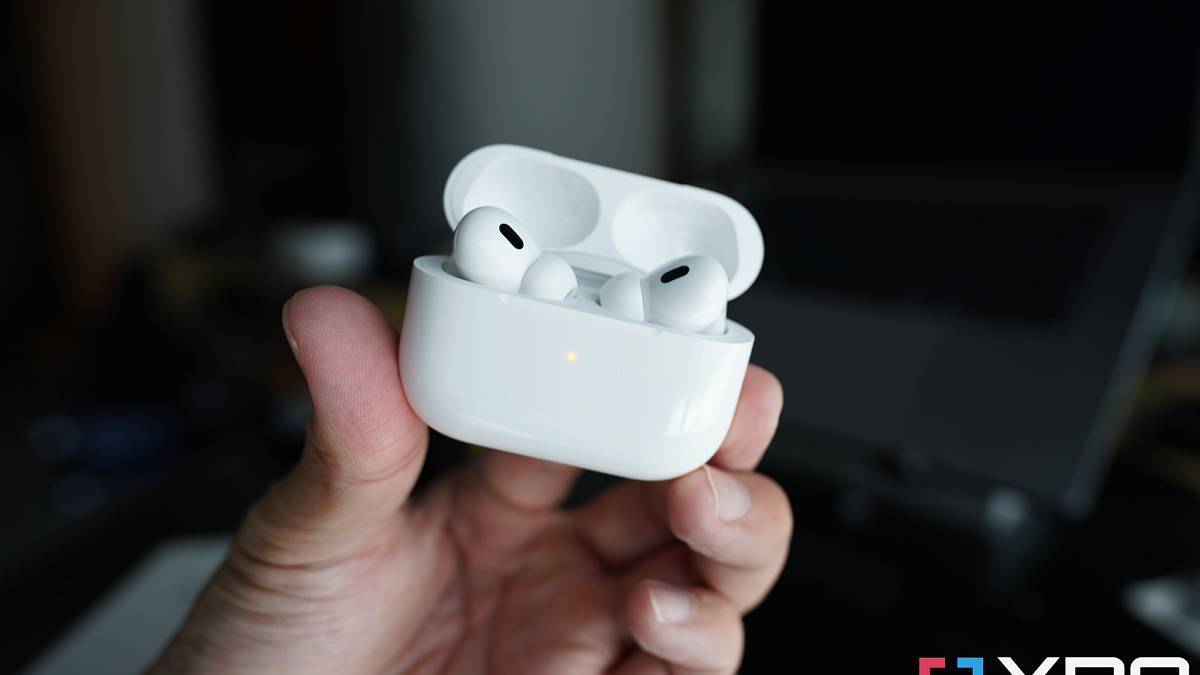
First, put your AirPods in the charging case. Keep the lid open. Press and hold the small button on the back of the case. Hold it until the light starts blinking white. This means the AirPods are in pairing mode.
Next, open the Bluetooth settings on your device. Look for your AirPods in the list of available devices. Tap on their name to connect. Wait a few seconds for the connection to complete. Your AirPods are now ready to use.
Troubleshooting Pairing Failures
Sometimes AirPods do not connect. Start by turning Bluetooth off and on again. Restart your device to refresh the connection.
Make sure your AirPods have enough battery. Low power can stop pairing. Try resetting your AirPods by holding the button on the case for about 15 seconds. The light will flash amber, then white.
Clear other Bluetooth connections. Too many devices can cause interference. Move closer to your device to improve signal strength. Repeat the pairing steps carefully.
Updating Firmware And Software
Updating the firmware and software can fix connection problems with your AirPods. These updates improve device performance and fix bugs. Keeping your AirPods and your phone or computer updated helps maintain smooth connection. Follow simple steps to check and update your devices.
Checking Airpods Firmware
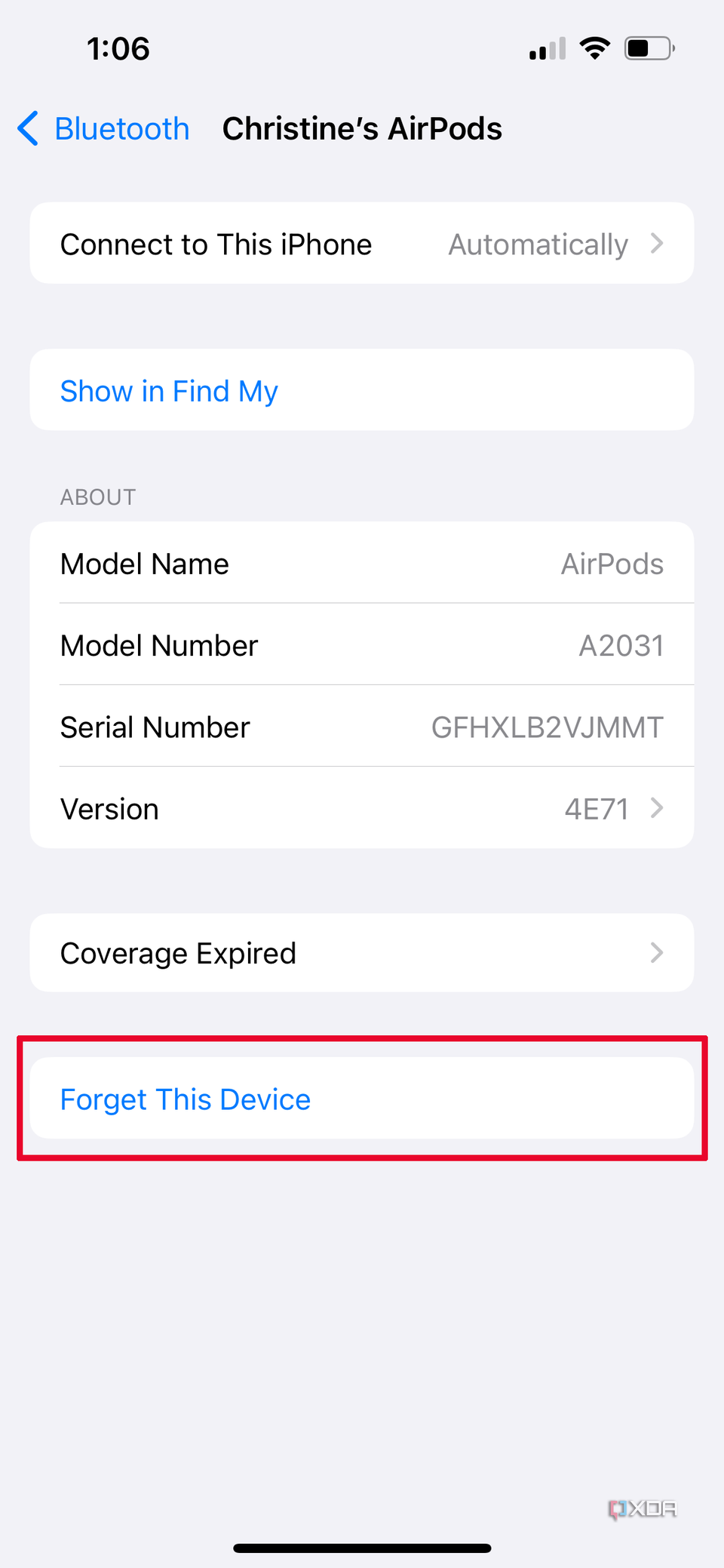
To check your AirPods firmware, connect them to your iPhone or iPad. Open the Settings app and go to General > About. Scroll down and select your AirPods. Here, you see the current firmware version. Compare this with the latest version available online. If your firmware is outdated, your AirPods might not work properly.
Updating Your Device Os
Make sure your phone or computer runs the latest operating system. On iPhone, open Settings > General > Software Update. Install any available updates. For Mac, go to System Preferences > Software Update. Updates often fix bugs that can cause connection issues. After updating, try reconnecting your AirPods to see if the problem is solved.
Clearing Bluetooth Cache
Clearing the Bluetooth cache can fix connection problems with AirPods. This process removes old data that may cause issues. It helps your device start fresh and connect smoothly. Both iOS and Android devices have ways to clear this cache. Follow the steps below to clear the Bluetooth cache on your device.
On Ios Devices
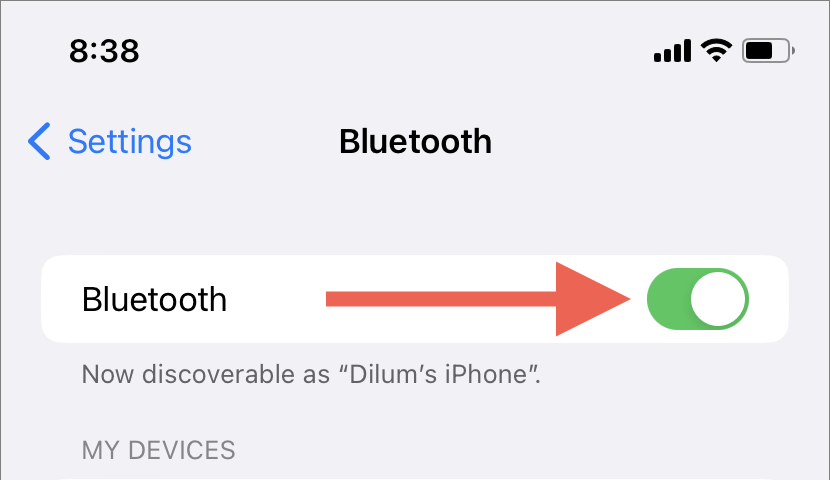
iOS does not offer a direct way to clear Bluetooth cache. Instead, toggle Bluetooth off and on. Open Settings, then tap Bluetooth. Switch the toggle off, wait a few seconds, then turn it back on. Restart your iPhone for better results. This refreshes the Bluetooth system and clears temporary data. After restarting, try reconnecting your AirPods.
On Android Devices
Android allows clearing Bluetooth cache directly. Open Settings and tap Apps or Application Manager. Find Bluetooth in the list and tap it. Tap Storage, then choose Clear Cache. This removes old Bluetooth data from your device. Restart your phone after clearing the cache. Try pairing your AirPods again to check if the problem is fixed.
Credit: www.xda-developers.com
Checking Device Compatibility
Checking device compatibility is an important step when AirPods do not reconnect after using the “Forget This Device” option. Sometimes, connection issues arise because the device may not fully support the AirPods. Knowing which devices work best helps avoid frustration and saves time.
Compatibility depends on the device’s Bluetooth version and software updates. Older devices may face challenges connecting to AirPods after removal. Understanding these details ensures smoother reconnection and better user experience.
Supported Devices
AirPods work well with Apple devices like iPhones, iPads, and Macs. These devices use the latest Bluetooth technology and software that support AirPods fully.
Some Android phones and Windows PCs can also connect to AirPods. But the experience might not be as seamless as with Apple devices.
Checking your device model and software version can help confirm if it supports AirPods properly.
Potential Limitations
Older devices may lack the necessary Bluetooth version for stable AirPods connections.
Devices without the latest software updates might struggle to recognize AirPods after forgetting the device.
Some features, like automatic ear detection and battery status, may not work outside the Apple ecosystem.
These limitations can cause AirPods to fail reconnecting or work incorrectly after removal from paired devices.
Using Alternative Connection Methods
Sometimes AirPods do not connect after you forget the device on Bluetooth settings. Using other connection methods can help fix this problem. Trying different ways to pair your AirPods often solves the issue quickly.
Manual Bluetooth Pairing
Manual pairing helps your AirPods connect without automatic recognition. First, put your AirPods in the case and open the lid. Press and hold the setup button on the back until the light flashes white. Now, on your device, go to Bluetooth settings and find your AirPods in the list. Tap to connect. This method forces your device to search and connect manually.
Connecting To Different Devices
Trying to connect your AirPods to another device can check if the problem is with the AirPods or the first device. Use a phone, tablet, or computer that has Bluetooth. Follow the normal pairing steps to connect. If AirPods connect to another device, the issue may be with your original device’s settings. This can help narrow down the problem.
When To Contact Apple Support
Sometimes, AirPods may not connect even after trying to forget and re-pair the device. At this point, contacting Apple Support might be necessary. Knowing when to reach out helps save time and avoid frustration. Apple Support can guide through advanced fixes or hardware checks.
Signs Of Hardware Failure
AirPods might show hardware issues if they do not charge or connect properly. One AirPod may not work, or sound quality may drop suddenly. The case might not charge the AirPods or the indicator light may not turn on. Physical damage or water exposure can cause hardware failure. These signs suggest a problem beyond simple software glitches.
Warranty And Repair Options
Apple offers warranty coverage for AirPods, usually one year from purchase. If hardware issues appear within this period, repairs or replacements could be free. Out of warranty, Apple still provides paid repair services. Contacting Apple Support helps check warranty status and repair costs. They also provide official repair centers and authorized service providers.
Credit: www.xda-developers.com
Frequently Asked Questions
Why Won’t My Airpods Connect After Forgetting The Device?
AirPods need to be reset and paired again after forgetting the device on your phone.
How Can I Reset Airpods To Fix Connection Issues?
Place AirPods in the case, hold the button until the light flashes, then reconnect.
Can Bluetooth Settings Cause Airpods Connection Problems?
Yes, turning Bluetooth off and on or restarting the device can help restore connection.
Does Updating Ios Help With Airpods Not Connecting?
Updating your iPhone or iPad can fix bugs that affect AirPods pairing and connection.
What If Airpods Still Won’t Connect After Trying All Fixes?
Try resetting network settings on your device or test AirPods with another phone.
Conclusion
Fixing AirPods connection after forgetting the device can be simple. Try resetting your AirPods and reconnecting them to your phone. Make sure Bluetooth is turned on and your device is nearby. Keep the AirPods charged to avoid connection problems. Sometimes restarting your phone helps too.
These steps usually solve the issue quickly. Stay patient and follow the tips carefully. Your AirPods will connect again, and you can enjoy your music without trouble.