
Is your HP printer suddenly refusing to connect with your computer? It’s frustrating when you need to print important documents, but your devices just won’t talk to each other.
You might feel stuck, wondering what’s causing this communication breakdown. The good news is, you’re not alone—and there’s a way to fix it. You’ll discover the common reasons behind this issue and simple steps you can take to get your HP printer working smoothly again.
Keep reading, because the solution might be easier than you think.

Credit: support.hp.com
Common Communication Issues
HP printers may stop talking to your computer for many reasons. Common communication issues cause frustration and delay tasks. Understanding these problems helps fix them fast. This section explores frequent causes of printer and computer communication failures.
Connection Types And Problems
Printers connect to computers in different ways. USB cables, wireless networks, or Ethernet cables are usual methods. A loose or damaged USB cable often blocks communication. Wireless printers need a strong Wi-Fi signal. Weak or lost signals stop the printer from responding. Ethernet connections require a stable router and correct cable.
Check cables for damage or loose plugs first. Restarting the printer and computer can refresh connections. Confirm the printer is set to the right connection type. Switching connection methods might solve the issue quickly.
Driver And Software Conflicts
Printer drivers are small programs that help computers talk to printers. Outdated or corrupted drivers cause communication problems. Installing wrong or incompatible drivers also breaks the link. Software conflicts happen when other programs interfere with printing tasks.
Always update your printer driver from the official HP website. Remove old or duplicate drivers to avoid confusion. Restart the computer after driver installation to apply changes. Running the HP Print and Scan Doctor tool can detect and fix driver issues automatically.
Network And Firewall Restrictions
Network settings can block printer communication. Firewalls and security software may prevent the computer from seeing the printer. Incorrect IP addresses or subnet masks stop network printers from connecting. Sometimes, network printers need manual setup in the router or computer settings.
Check firewall settings to allow printer access. Add the printer’s IP address to trusted devices in the network. Restart the router to refresh network connections. Disable VPNs or proxy servers temporarily to test connectivity.
Checking Hardware Connections
Checking hardware connections is the first step to fix communication problems between your HP printer and computer. Many issues start with loose or faulty cables. Ensuring all connections are secure can save time and effort.
Sometimes, the problem lies in the wireless setup. A quick check of the network status helps identify if the printer is online or offline. Restarting devices often resets errors and restores communication.
Inspecting Usb And Cable Connections
Look closely at the USB cable linking your printer and computer. A damaged or loose cable can stop data transfer. Try unplugging the cable and plugging it back firmly. Replace the cable if it looks worn out or broken.
Also, check the power cord. The printer needs steady power to work properly. Make sure the power cable is fully connected to the printer and the wall socket. A loose power plug can cause the printer to lose connection.
Verifying Wireless Network Status
For wireless printers, check if the printer is connected to the right Wi-Fi network. Open the printer’s control panel and find the network settings. Confirm the printer shows a strong Wi-Fi signal.
Check your router to ensure it is working well. If the Wi-Fi is weak or unstable, the printer cannot communicate with the computer. Move the printer closer to the router for a better signal.
Restarting Printer And Computer
Turn off your printer and computer. Wait about 30 seconds. Then, turn both devices on again. Restarting clears temporary errors that block communication.
This simple step often fixes many connection issues. After restarting, try printing a test page to see if the problem is resolved.
Updating And Reinstalling Drivers
Updating and reinstalling drivers is a key step to fix communication problems between an HP printer and a computer. Drivers are small programs that help the computer and printer talk to each other. Outdated or corrupted drivers often cause connection issues. Keeping drivers up-to-date ensures smooth printing and proper device function.
Downloading Latest Drivers
Start by visiting the official HP website. Search for your printer model in the support section. Download the latest driver version for your computer’s operating system. Avoid third-party sites to prevent malware or incorrect drivers. A fresh download ensures you have the newest fixes and features.
Uninstalling Old Drivers
Remove old or corrupted drivers before installing new ones. Open the Device Manager on your computer. Find your printer under “Printers” or “Print queues.” Right-click and select “Uninstall device.” This step clears conflicts and prevents driver clashes that cause errors.
Installing Drivers Correctly
Run the driver installation file you downloaded. Follow the on-screen instructions carefully. Connect your printer only when prompted. Restart your computer after installation finishes. Proper installation sets up the printer to communicate correctly with your PC.
Adjusting Printer And Network Settings
Adjusting printer and network settings often fixes communication issues between your HP printer and computer. These settings help ensure your devices connect properly. Small changes can make a big difference.
Start by making sure your printer is set as the default device. This tells your computer to send print jobs to the right printer without confusion.
Setting Printer As Default
Open the control panel or settings on your computer. Find the “Devices and Printers” section. Right-click your HP printer and select “Set as Default Printer.” This step helps your computer recognize your printer as the main device. It stops print jobs from going to the wrong printer.
Checking Ip Address And Network Configuration
Your printer needs the correct IP address to communicate with your computer. Print a network configuration page from your printer’s menu. Check if the IP address matches the one your computer uses. If the IP address changes, update it in your computer’s printer settings. This keeps both devices on the same network path.
Disabling Firewall Or Antivirus Temporarily
Firewalls and antivirus software may block printer communication. Turn off these programs for a short time to test the connection. If the printer works, adjust your firewall or antivirus settings to allow printer access. This prevents future blocks without reducing security.
Using Hp Diagnostic Tools
Using HP diagnostic tools can help fix communication issues between your HP printer and computer. These tools check for problems and guide you through simple steps to solve them. They save time and avoid frustration.
HP offers a free software called HP Print and Scan Doctor. It scans your devices and finds errors quickly. This tool works on most Windows computers and supports many HP printers.
Running Hp Print And Scan Doctor
Download and open the HP Print and Scan Doctor from HP’s official site. Click “Start” to begin scanning your printer and computer connection. The tool checks network settings, printer status, and driver issues.
Choose your printer from the list or let the tool find it automatically. Follow on-screen instructions to run the diagnostics. The process takes a few minutes.
Analyzing Diagnostic Results
After the scan, the tool shows a list of problems found. Each issue has a simple explanation. You can see if the printer is offline, drivers are missing, or the connection is broken.
Look at the suggested causes carefully. The tool helps you understand what stops your printer from communicating with your computer.
Applying Suggested Fixes
HP Print and Scan Doctor offers easy fixes for each problem. Click the “Fix” button next to the issue. The tool updates drivers, restarts services, or resets printer settings as needed.
Follow any extra steps it asks for. Most fixes happen automatically. After the process, test your printer by printing a test page. The connection should work smoothly now.
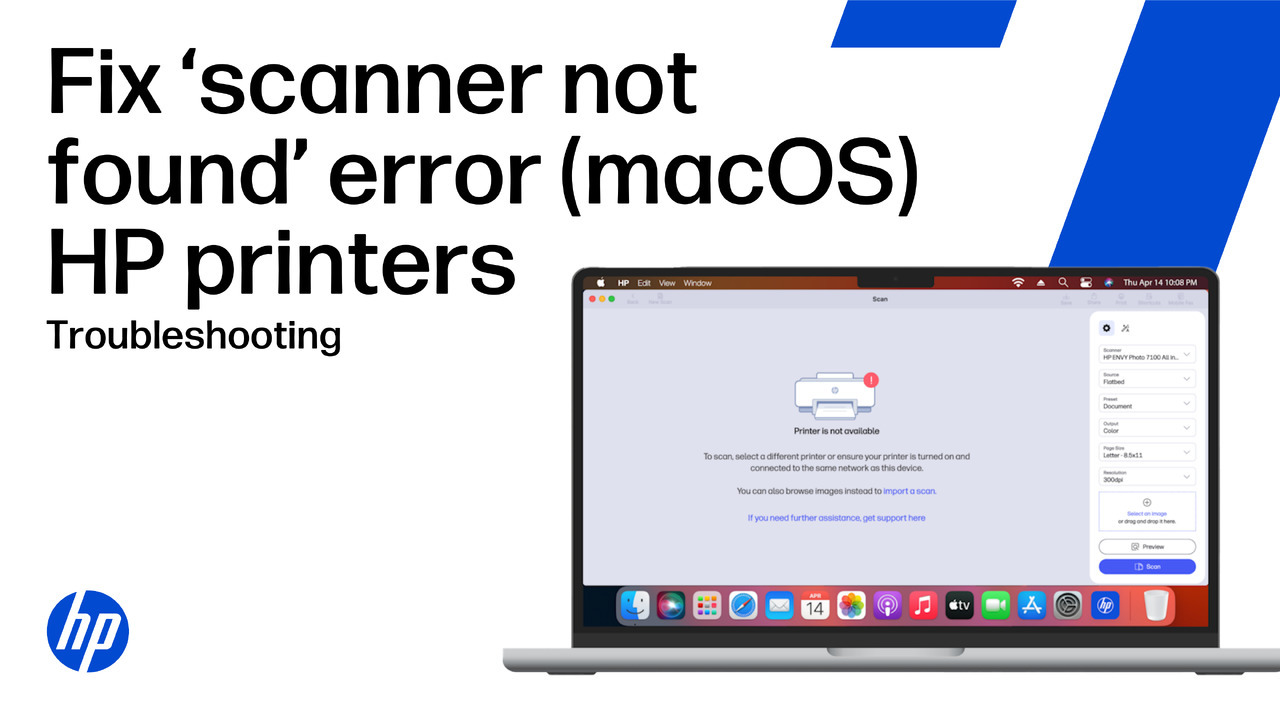
Credit: support.hp.com
Advanced Troubleshooting Steps
Advanced troubleshooting steps help fix communication problems between your HP printer and computer. These steps go beyond basic checks. They target deeper issues that simple fixes might miss.
Try these methods carefully to improve your printer’s connection. Each step can solve common software or hardware glitches. Follow the instructions one by one for best results.
Resetting Printer To Factory Settings
Resetting your printer clears all custom settings. This can fix errors caused by incorrect configurations. Find the reset option in the printer’s menu under settings. Choose “Restore Factory Defaults” or similar. After reset, reconnect the printer to your computer. This often restores normal communication.
Clearing Print Spooler
The print spooler manages print jobs on your computer. Sometimes, it gets stuck or corrupted. Clearing it can solve printing delays or errors. Open the Services app on your PC. Stop the Print Spooler service. Then, delete files in the spool folder (usually C:\Windows\System32\spool\PRINTERS). Restart the Print Spooler service. Try printing again to check if communication improves.
Checking For System Updates
Outdated system software may cause printer issues. Check for updates on your computer regularly. Updates fix bugs and improve hardware compatibility. Go to your computer’s settings and select “Update & Security.” Download and install all available updates. Restart your computer after updating. This step ensures your system supports your HP printer well.
Credit: www.makeuseof.com
Frequently Asked Questions
Why Is My Hp Printer Not Connecting To Wi-fi?
The printer may have a weak signal or wrong Wi-Fi password. Restart the router and reconnect.
How Do I Fix Hp Printer Communication Errors On Windows?
Check USB cables, restart the printer and computer, and update printer drivers.
Can Outdated Drivers Cause Hp Printer Connection Issues?
Yes, old drivers can stop communication. Update drivers from HP’s official website.
Why Does My Computer Not Recognize The Hp Printer?
The printer might be off, unplugged, or drivers missing. Check power and install drivers.
How To Reset Hp Printer To Fix Communication Problems?
Turn off the printer, unplug it for 60 seconds, then plug it back and turn on.
Conclusion
Troubles with HP printer communication can be frustrating. Check cables, connections, and software first. Restart both printer and computer to refresh settings. Update drivers to fix common issues fast. Clear print queues to avoid blockages. Sometimes, a quick reset solves many problems.
Keep your devices clean and well-maintained. Regular updates help prevent future errors. Stay patient and follow simple steps carefully. Your printer should connect smoothly again soon.