
Is your Arlo Base Station acting up or not connecting properly? Resetting it might be the simple fix you need.
In this guide, you’ll learn exactly how to reset your Arlo Base Station quickly and easily. Whether you want to troubleshoot issues or start fresh, this step-by-step walkthrough will get your system back on track without any hassle. Keep reading, and you’ll have your Arlo working smoothly again in no time.
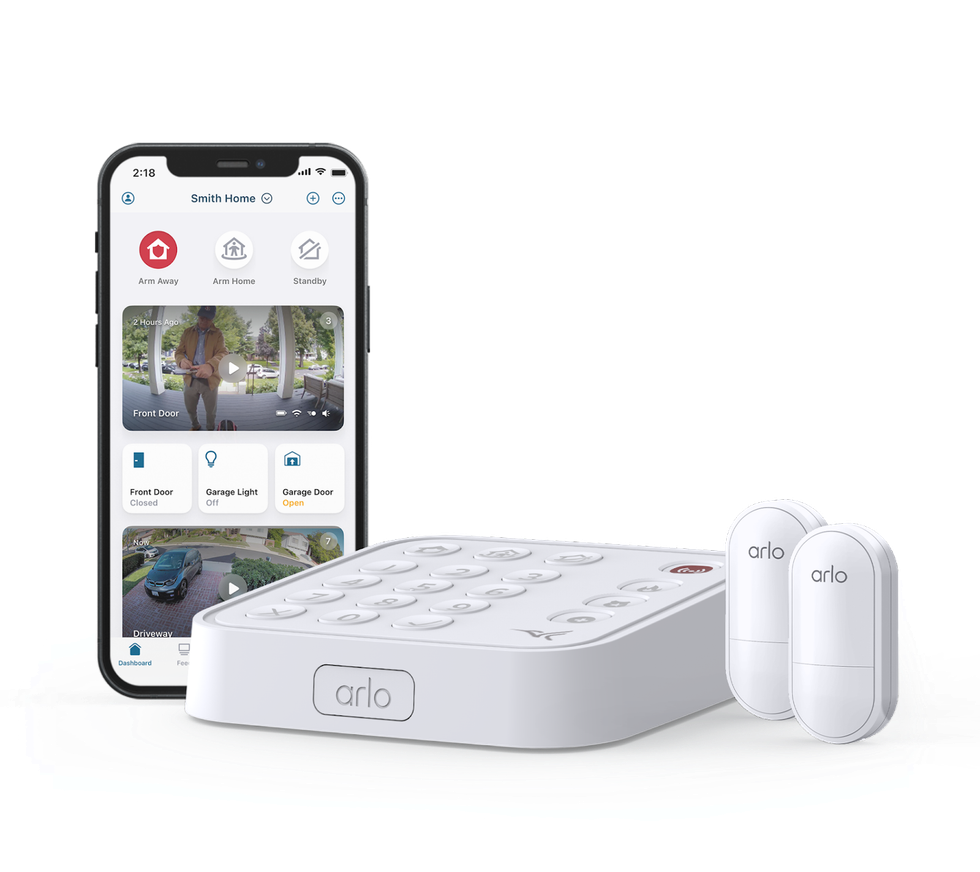
Credit: www.gearbrain.com
Prepare For Reset
Preparing to reset your Arlo base station is important. It helps avoid problems during the reset process. Take a few simple steps before starting. These steps protect your data and ensure the device works properly after reset.
Check Power And Connections
Make sure your base station is plugged in and powered on. Check the power cable and adapter for any damage. Verify the Ethernet cable is securely connected if you use wired internet. A stable power and network connection prevents reset failures.
Backup Your Settings
Save your current settings before resetting the base station. This includes camera configurations and user preferences. Use the Arlo app or web portal to export your settings. Backing up helps restore your system quickly after the reset.

Credit: www.youtube.com
Locate The Reset Button
Locating the reset button on your Arlo Base Station is the first step in restoring it to factory settings. This button is small and often hidden to prevent accidental resets. Knowing exactly where to find it saves time and frustration during the reset process.
The reset button is usually recessed, requiring a pointed object to press. It is important to handle this step carefully to avoid damaging the device. Follow the guide below to locate the reset button quickly and safely.
Find The Button On Base Station
The reset button is on the back of the Arlo Base Station. Look near the power port or Ethernet connection. It is a tiny hole with the word “Reset” next to it. The button is recessed to prevent accidental presses.
Use a flashlight if needed to see clearly. The button is small but clearly labeled. Avoid pressing other buttons by mistake.
Tools You May Need
You will need a thin, pointed tool to press the reset button. A paperclip or a SIM card ejector tool works well. Straighten the paperclip if it is bent.
Do not use sharp objects that can damage the button. Apply gentle pressure to avoid breaking the button inside the hole. Having the right tool makes the reset process smooth and safe.
Perform The Reset
Resetting your Arlo Base Station can fix many common issues. It helps refresh the system and clears minor errors. There are two types of resets: soft reset and hard reset. Each one serves a different purpose and follows a simple process.
Performing the reset correctly ensures your base station works smoothly again. Follow the steps carefully for the best results.
Soft Reset Steps
A soft reset restarts the base station without deleting settings. It is the first step to try if you face minor problems.
- Unplug the power adapter from the base station.
- Wait for 10 seconds.
- Plug the power adapter back in.
- Wait for the base station to power on fully.
- Check if the issue is fixed.
Hard Reset Steps
A hard reset restores the base station to factory settings. This removes all settings and connections. Use this only if the soft reset does not help.
- Locate the reset button on the back of the base station.
- Use a paperclip to press and hold the reset button.
- Hold the button for about 10 seconds until the LED blinks amber.
- Release the button and wait for the base station to reboot.
- Set up your Arlo Base Station again using the app.
Reconfigure Your Base Station
After resetting your Arlo Base Station, the next step is to reconfigure it. This process helps your device work smoothly with your network and cameras. Follow these simple steps to reconnect and set up your system properly.
Reconnect To Wi-fi
Start by connecting your base station to your home Wi-Fi. Use the Arlo app or web interface for this. Enter your Wi-Fi name and password carefully. A strong connection is key for good performance.
Restore Settings
Next, restore your previous settings if you have a backup. This saves time and keeps your preferences. If no backup exists, set up your preferences manually. Adjust motion detection, alerts, and other options.
Sync Cameras
Finally, sync your cameras with the base station. Press the sync button on both the base and each camera. Wait until the cameras show as connected in the app. This step ensures all cameras work together well.
Troubleshooting Tips
Troubleshooting your Arlo base station can help fix many common problems. Simple steps often solve issues quickly. Follow these tips for smooth performance and better connectivity.
Reset Not Working
Sometimes the reset button does not respond. Make sure the base station is powered on. Hold the reset button for at least 10 seconds. Try a different power outlet to rule out power issues. If the reset still fails, unplug the base station, wait one minute, and try again.
Connectivity Issues
Check the internet connection first. The base station needs a strong Wi-Fi signal. Move it closer to the router if the signal is weak. Restart both the base station and router to refresh connections. Confirm all cables are securely plugged in.
Contacting Support
If problems continue, contact Arlo support. Have your device information ready. Explain the steps you tried. Support agents can offer advanced help and guide you through fixes. They may suggest replacement if needed.
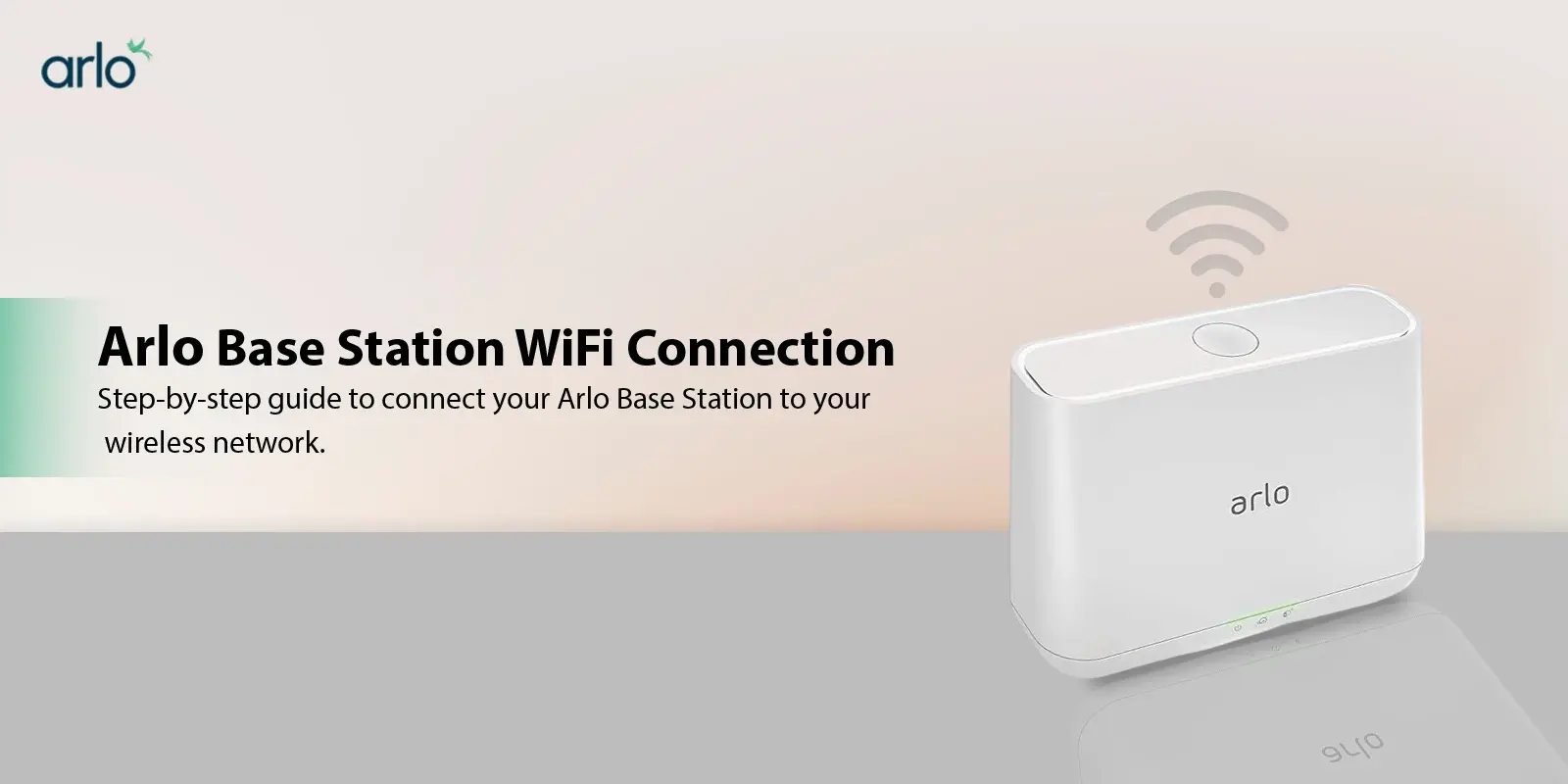
Credit: www.myarlolog.com
Frequently Asked Questions
How Do I Reset My Arlo Base Station?
Press and hold the sync button for about 10 seconds until the LED blinks amber.
What Happens After Resetting The Arlo Base Station?
The base station returns to factory settings, removing all device connections.
Can I Reset Arlo Base Station Without Losing Settings?
No, resetting deletes all your settings and paired devices from the base station.
How Long Does The Arlo Base Station Reset Take?
The reset process usually completes within 30 seconds after pressing the button.
Will Resetting Fix Connection Issues With Arlo Cameras?
Resetting can solve many connection problems by clearing old settings and errors.
Conclusion
Resetting your Arlo Base Station is a simple way to fix many issues. Just follow the steps carefully to avoid mistakes. This process helps refresh your device and improves its performance. Remember to back up important settings before starting. Regular resets can keep your system running smoothly.
Now you know how to reset your Arlo Base Station quickly and easily. Keep your security system working well with this handy tip.