
Is your Nest Thermostat acting up or not responding the way you want? Sometimes, a simple reset is all it takes to get things back on track.
Whether you want to fix glitches, clear old settings, or start fresh, knowing how to reset your Nest Thermostat can save you time and frustration. Keep reading, and you’ll discover easy steps to reset your device quickly and confidently—no tech expertise needed.
Let’s get your thermostat working perfectly again!

Credit: www.makeuseof.com
Reasons To Reset Nest Thermostat
Resetting your Nest Thermostat is sometimes necessary to keep it working well. It helps solve common problems and clears old settings. A reset can also prepare your device for a new user. Understanding these reasons can help you decide when to reset your thermostat.
Fixing Performance Issues
Sometimes the Nest Thermostat may freeze or stop responding. Resetting can fix these glitches quickly. It clears minor bugs and refreshes the system. This often restores smooth operation without extra tools.
Clearing Personal Settings
Over time, your thermostat saves many personal preferences. Resetting removes these settings and returns the device to default. This is useful if you want to start fresh. It ensures no old schedules or temperature limits remain.
Preparing For Resale Or Transfer
Giving your Nest Thermostat to someone else needs a reset. It deletes your account and personal data. The new owner can then set it up as new. This protects your privacy and makes setup easy for the next user.
Types Of Resets
Resetting your Nest Thermostat can solve many issues. Different reset types serve different purposes. Knowing these helps you choose the right one quickly. Below are the main reset types you will use.
Soft Reset
A soft reset restarts the thermostat without erasing your settings. It fixes minor glitches and slow performance. This reset clears temporary data but keeps your preferences intact. To do this, press and hold the thermostat ring for about 10 seconds. The screen will go dark, then reboot. Use this reset for quick troubleshooting.
Factory Reset
A factory reset erases all your settings and returns the thermostat to original state. This is helpful if you want to start fresh or give the device to someone else. The reset deletes Wi-Fi info, schedules, and personal preferences. To perform a factory reset, go to Settings > Reset > Factory Reset on the thermostat menu. Confirm your choice to begin. Use this reset only if necessary, as it removes all custom data.
Steps For Soft Reset
Resetting your Nest Thermostat can help fix small issues. A soft reset restarts the device without deleting your settings. It is quick and safe.
Follow these simple steps to perform a soft reset. This process will refresh the system and may solve minor glitches.
Accessing The Menu
Press the thermostat ring to open the main screen. Turn the ring to scroll through options. Find and select the “Settings” menu. This is where you start the reset process.
Restarting The Thermostat
In the “Settings” menu, scroll to “Reset.” Choose “Restart” from the list. Confirm your choice by pressing the ring. The thermostat will turn off and back on shortly. Wait for the screen to light up again.

Credit: www.reddit.com
Steps For Factory Reset
Resetting your Nest Thermostat to factory settings can fix many issues. It clears all your settings and restores the device to its original state. Follow these clear steps for a smooth reset process.
Navigating To Reset Options
Start by pressing the thermostat ring to open the menu. Turn the ring to find the “Settings” option. Select “Settings” by pressing the ring again. Scroll through the list until you see “Reset.” Click on “Reset” to enter the reset menu.
Confirming The Reset
In the reset menu, choose “All Settings” to perform a full factory reset. The thermostat will ask for confirmation. Confirm by selecting “Yes.” The device will begin the reset process. Wait a few moments for the reset to complete. Your Nest Thermostat will restart with factory settings.
After Reset Setup
After resetting your Nest Thermostat, it requires a fresh setup to work properly. This process lets you connect the device to your home network and adjust settings to fit your comfort. Follow the steps below to complete the setup quickly and easily.
Connecting To Wi-fi
First, connect the thermostat to your Wi-Fi network. On the thermostat screen, select the Wi-Fi option. Choose your home network from the list. Enter the password carefully using the keypad. Wait a few moments as the device connects. A confirmation message will appear once it joins the network. This step lets your thermostat communicate with your phone and the internet.
Reconfiguring Temperature Settings
Next, set your preferred temperature range. Use the dial or touch screen to adjust heating and cooling limits. Choose temperatures that keep your home comfortable and save energy. You can also set schedules for different times of the day. This helps the thermostat learn your daily routine. Adjust these settings anytime to match your changing needs.
Linking To Google Account
Finally, link your Nest Thermostat to your Google Account. Open the Google Home app on your phone. Add a new device and select your thermostat. Follow the app instructions to sign in and connect. Linking allows remote control from your phone. It also enables voice commands with Google Assistant. This step completes your thermostat setup for smart home use.
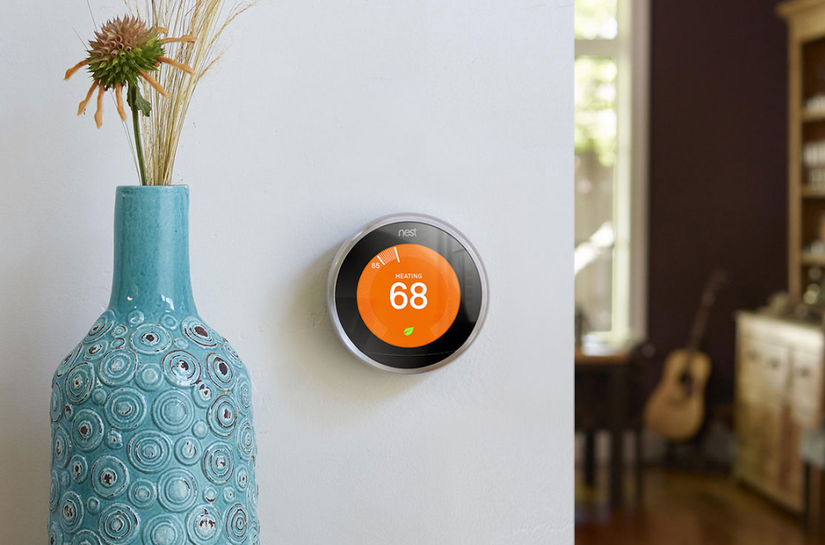
Credit: www.makeuseof.com
Troubleshooting Reset Issues
Resetting your Nest Thermostat should be simple. Sometimes, the reset might not work as expected. This section helps solve common problems during reset. Follow these tips to fix reset issues fast.
Reset Not Working
Check if the thermostat has enough power. Low battery can stop the reset. Try charging or replacing batteries if needed. Make sure the device is connected to Wi-Fi. A poor connection can block the reset process. Restart your router to improve Wi-Fi signal. Also, try a manual reset by pressing the thermostat ring. Hold it for about 10 seconds until the screen changes. This often forces the reset to start.
Thermostat Unresponsive
Unresponsive means the screen does not react to touch or button presses. First, unplug the thermostat from power. Wait 30 seconds before plugging it back in. This hard reboot can fix many issues. Clean the thermostat screen gently with a soft cloth. Dirt or dust may cause touch problems. If still unresponsive, check wiring behind the thermostat. Loose wires can cause power or signal loss. Tighten any loose connections carefully.
Tips To Avoid Frequent Resets
Frequent resets of your Nest Thermostat can be frustrating and interrupt your home’s comfort. Avoiding these resets helps keep your system running smoothly. Small steps can prevent many common issues that cause resets. Below are some useful tips to reduce the need for frequent resets.
Regular Software Updates
Keep your Nest Thermostat’s software up to date. Updates fix bugs and improve performance. Check for updates often through the Nest app. Updated software helps your thermostat work better and avoid glitches. Ignoring updates can cause errors that lead to resets.
Proper Installation
Install the thermostat correctly. Follow the manufacturer’s instructions carefully. Improper wiring or placement can cause frequent resets. Make sure the thermostat is securely mounted and connected. Poor installation affects the device’s function and stability.
Routine Maintenance
Clean your thermostat regularly. Dust and dirt can affect sensors and buttons. Check batteries and replace them if needed. Inspect wiring for wear or damage. Routine care keeps your thermostat reliable and reduces reset problems.
Frequently Asked Questions
How Do I Reset My Nest Thermostat To Factory Settings?
Press the thermostat ring, go to Settings > Reset > All Settings, then confirm to restore factory defaults.
Can I Reset Nest Thermostat Without Losing My Data?
No, a full reset deletes all settings and data from the device permanently.
Why Should I Reset My Nest Thermostat?
Resetting fixes issues like freezing, unresponsiveness, or wrong temperature readings.
How Long Does A Nest Thermostat Reset Take?
The reset process takes about 2-3 minutes to complete fully.
Will Resetting Nest Thermostat Affect My Wi-fi Connection?
Yes, resetting removes Wi-Fi info; you must reconnect to your network afterward.
Conclusion
Resetting your Nest thermostat is simple and quick. Just follow the steps carefully. This helps fix issues or start fresh. You can control your home’s temperature better afterward. Keep your device updated for best results. Try resetting whenever the thermostat acts strange.
Now, enjoy a comfortable home with ease. Remember, a reset can solve many problems fast. Give it a try and see the difference.