
Are your AirPods 2nd Generation acting up or not connecting properly? Sometimes, a simple reset can fix those annoying issues and get your earbuds working like new again.
If you want a quick and easy way to troubleshoot your AirPods without any hassle, you’re in the right place. Keep reading, and you’ll learn exactly how to reset your AirPods 2 Gen step-by-step, so you can enjoy flawless sound and connection every time.
Don’t let small glitches ruin your listening experience—let’s get your AirPods back on track now.
Credit: www.xda-developers.com
Prepare Your Airpods
Preparing your AirPods before resetting is important. It helps avoid problems during the reset process. Follow these simple steps to get your AirPods ready for a smooth reset.
Check Battery Levels
Make sure your AirPods and charging case have enough battery. Low battery can stop the reset from working properly. Place both AirPods in the case and charge them for at least 15 minutes. Check the battery status on your iPhone or iPad. A full or near-full battery ensures the reset will complete without issues.
Disconnect From Devices
Disconnect your AirPods from all devices they are connected to. This includes your iPhone, iPad, Mac, or any other Bluetooth device. Go to Bluetooth settings on each device and select “Forget This Device” for your AirPods. This step clears previous connections and prepares your AirPods for a fresh start.

Credit: support.apple.com
Locate The Setup Button
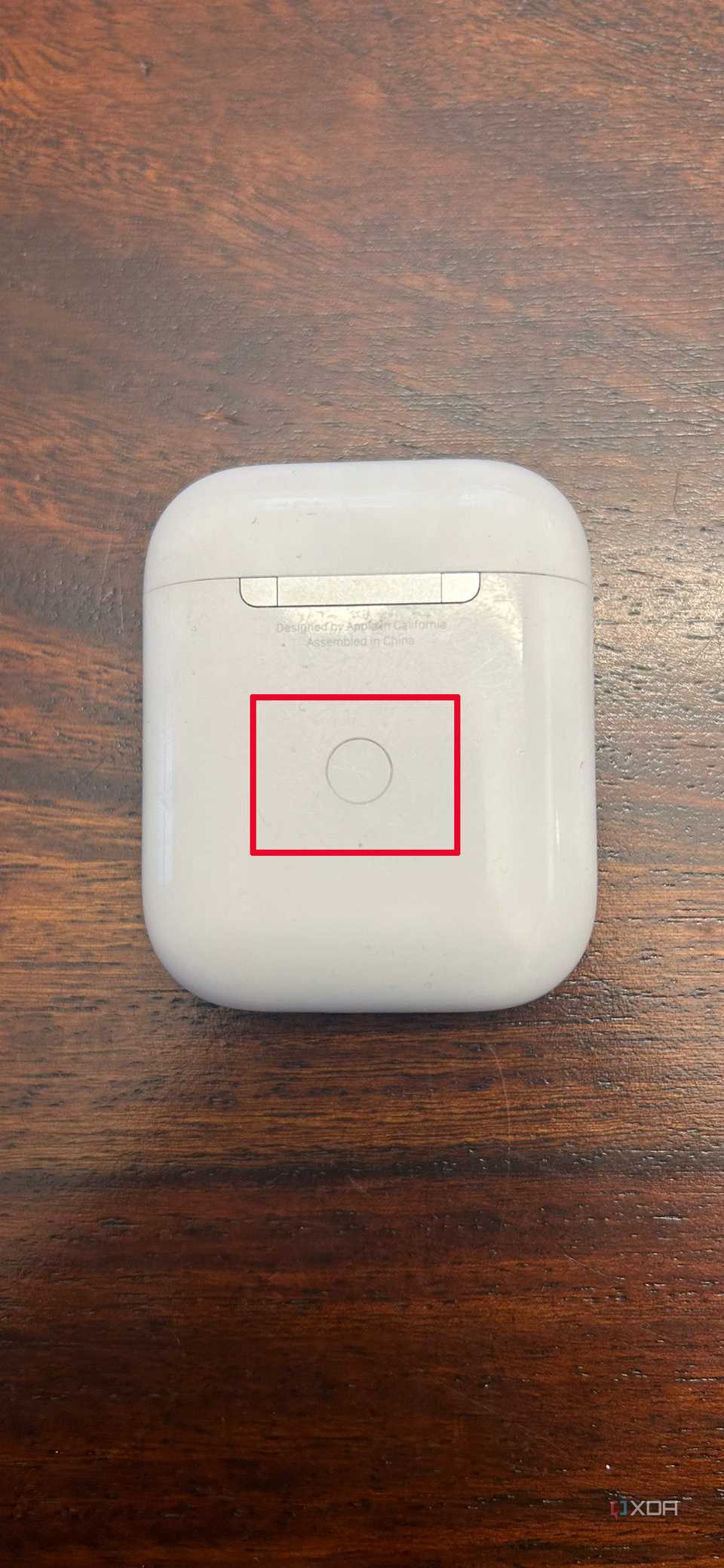
The setup button is located on the back of the AirPods 2 charging case. Press and hold it to start the reset process. This small button helps clear previous connections easily.
Understanding The Setup Button Location
The setup button is key to resetting your AirPods 2nd generation. Knowing its exact place saves time and avoids frustration. This small button allows the AirPods to enter pairing mode and reset settings.
Finding this button is easy once you know where to look. It is not on the AirPods themselves but on the charging case. The case holds the power and connection controls for your AirPods.
Where To Find The Setup Button On The Charging Case
Open the AirPods charging case. Look at the back side of the case. Near the bottom, you will see a small, round button. This is the setup button.
The button is tiny and flush with the case surface. It may be hard to notice at first. Use a good light source to spot it easily.
How To Use The Setup Button For Reset
Press and hold the setup button for about 15 seconds. The LED light on the case will start flashing white. This signals the AirPods are ready to reset.
Release the button once the light flashes. Your AirPods will now reset to factory settings. You can then reconnect them to any device as new.
Perform The Reset
Performing a reset on your AirPods 2nd generation can fix many common issues. It clears old settings and helps your AirPods connect fresh. This process is quick and easy to do at home. Follow the steps carefully to reset your AirPods successfully.
Press And Hold The Button
Start by placing both AirPods in the charging case. Close the lid and wait for 30 seconds. Open the lid and find the small button on the back of the case. Press and hold this button for about 15 seconds. Keep holding until the light on the front starts to flash.
Wait For The Indicator Light
Watch the indicator light closely after pressing the button. It will first flash white. Keep holding the button until the light flashes amber a few times. Then, the light should flash white again. This shows the reset is complete. You can now reconnect your AirPods to your device.

Credit: www.youtube.com
Reconnect To Your Device
After resetting your AirPods 2 Gen, reconnecting them to your device is essential. This step ensures your AirPods work smoothly with your phone, tablet, or computer. Follow these simple steps to reconnect your AirPods quickly.
Open Bluetooth Settings
Start by opening the Bluetooth settings on your device. On an iPhone or iPad, go to the Settings app, then tap Bluetooth. Make sure Bluetooth is turned on. On a Mac, click the Bluetooth icon in the menu bar or open System Preferences and select Bluetooth. Keep this screen open to see your AirPods listed.
Pair Airpods Again
Place your AirPods in the charging case and open the lid. Press and hold the setup button on the back of the case until the light flashes white. This signals your AirPods are ready to pair. Look at your device’s Bluetooth list. Tap your AirPods name to connect. Wait a few seconds for the connection. Your AirPods should now be ready to use.
Troubleshooting Tips
Having trouble resetting your AirPods 2nd Gen? This guide covers simple fixes to common problems. These tips help solve issues quickly and get your AirPods working again.
Follow the steps carefully. They are easy to understand and apply. Keep your AirPods and charging case nearby for testing.
Reset Not Working
Sometimes the reset process may not respond. First, check if both AirPods are inside the case. Close the lid and wait for 30 seconds. Open the lid and press the setup button firmly for 15 seconds. The light should blink amber, then white. If it does not, try charging the case fully and repeat. Make sure no dirt blocks the button or charging contacts.
Battery Issues
Low battery can stop resetting. Charge your AirPods and case for at least 30 minutes. Use the original charging cable and adapter. After charging, try to reset again. If battery drains fast, clean the charging contacts gently. Avoid extreme temperatures as they harm the battery life.
Firmware Updates
Outdated firmware causes performance problems. Connect AirPods to your iPhone or iPad. Keep the devices close and connected to Wi-Fi. The update installs automatically when AirPods charge and are nearby. Check the firmware version in the Bluetooth settings. Update your iOS device to the latest version for smooth updates.
Frequently Asked Questions
How Do I Reset Airpods 2nd Gen Quickly?
Press and hold the setup button on the case for about 15 seconds until the light flashes amber, then white.
Why Should I Reset My Airpods 2 Gen?
Resetting fixes connection or charging problems and refreshes the device settings.
Can Resetting Airpods 2nd Gen Erase All Data?
Yes, resetting removes all paired devices and restores factory settings.
How To Know If Airpods 2 Gen Reset Was Successful?
The status light flashes white after holding the setup button for 15 seconds.
Do I Need To Reconnect Airpods 2 Gen After Reset?
Yes, you must pair your AirPods again with your device after reset.
Conclusion
Resetting your AirPods 2nd Gen is quick and simple. Just follow the steps carefully to fix most issues. A reset can help with connection or sound problems. Keep your AirPods charged and close to your device during the process. If problems continue, try resetting again or check Apple support.
This guide helps you keep your AirPods working well. Enjoy clear sound and smooth use every day. Easy to do and worth the effort.