
Are you frustrated because your Apple TV won’t connect to your WiFi? You’re not alone.
When your streaming device can’t get online, it feels like all your entertainment options suddenly disappear. But don’t worry—this problem is usually easier to fix than you think. You’ll discover simple and effective solutions to get your Apple TV back online fast.
Keep reading, and you’ll be streaming your favorite shows in no time.
Common Causes Of Wifi Issues
WiFi issues with Apple TV often stop streaming and cause frustration. Knowing common causes helps fix problems faster. Many factors can disrupt the connection and affect performance.
Understanding these causes makes troubleshooting easier. Start by checking simple things before moving to complex fixes. The following sections explain key reasons for WiFi problems on Apple TV.
Network Interference
WiFi signals can be blocked by walls, furniture, or other devices. Microwaves, cordless phones, and Bluetooth gadgets cause interference. Multiple networks in the same area also weaken signals.
Distance from the router matters. The farther your Apple TV is, the weaker the signal. Interference reduces speed and causes frequent disconnections.
Router Problems
Routers may face issues like overheating or outdated firmware. Sometimes, routers restart or freeze, cutting off connections. Poor router placement affects signal strength.
Old routers might not support the latest WiFi standards. This can cause compatibility issues with Apple TV. Regular router updates and restarts improve stability.
Software Glitches
Apple TV software can have bugs affecting WiFi. Outdated tvOS versions may cause connection problems. Temporary glitches happen after long use or crashes.
Restarting Apple TV or updating the software often solves these glitches. Keeping the device updated ensures smooth performance.
Incorrect Wifi Settings
Wrong WiFi password or network name stops connection. Apple TV may connect to a different network by mistake. Incorrect IP or DNS settings cause failure to connect.
Checking and correcting network settings on Apple TV fixes most issues. Resetting network settings can help in stubborn cases.
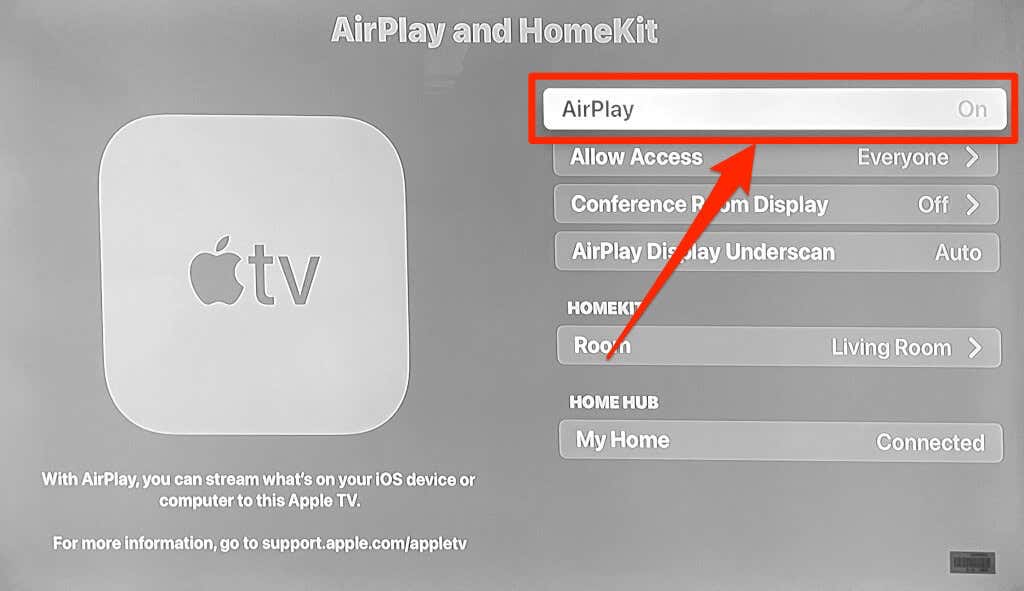
Credit: www.switchingtomac.com
Basic Troubleshooting Steps
Basic troubleshooting steps can solve many Apple TV WiFi connection problems. These steps are simple and fast. They help fix common issues without needing extra tools or help. Follow these steps carefully to get your Apple TV online again.
Restart Apple Tv
Restarting Apple TV clears minor glitches. Press and hold the Menu and Home buttons on the remote. Wait for the Apple TV to restart. This refreshes the system and can fix connection bugs.
Restart Router And Modem
Turn off your router and modem. Wait 30 seconds. Turn them back on. Restarting these devices resets your internet connection. This often solves network issues affecting Apple TV.
Check Wifi Password
Make sure you enter the correct WiFi password. A wrong password stops Apple TV from connecting. Double-check the password on other devices or your router label.
Ensure Wifi Is Enabled
Check that WiFi is turned on your Apple TV. Go to Settings > Network. Make sure WiFi is active. Without WiFi enabled, Apple TV cannot connect to the internet.
Advanced Network Fixes
Advanced network fixes help solve tricky Apple TV Wi-Fi problems. These methods go beyond basic checks and can fix hidden issues. Follow each step carefully to improve your connection. This guide covers key fixes like resetting settings and updating software.
Forget And Rejoin Network
Start by forgetting your current Wi-Fi network on Apple TV. This clears old data that may cause conflicts. Go to Settings, select Network, then choose your Wi-Fi name. Click “Forget Network” and confirm. After that, reconnect by selecting the network and entering your password. This refreshes the connection and often solves issues.
Update Apple Tv Software
Outdated software can cause connection problems. Check for updates in Settings under System and Software Updates. If an update is available, download and install it. Updates fix bugs and improve network stability. Keep your Apple TV software current to avoid Wi-Fi troubles.
Reset Network Settings
Resetting network settings clears all saved Wi-Fi data. It restores default network configurations on Apple TV. Go to Settings, select General, then Reset. Choose “Reset Network Settings” and confirm. After resetting, reconnect to your Wi-Fi network. This step fixes deep network glitches that simple restarts miss.
Change Dns Settings
DNS settings affect how Apple TV connects to the internet. Using a reliable DNS can improve Wi-Fi performance. In Settings, select Network and then your Wi-Fi. Choose “Configure DNS” and switch to Manual. Enter a public DNS like 8.8.8.8 or 1.1.1.1. Save changes and test the connection. This often speeds up and stabilizes your network.
Hardware And Environmental Checks
Hardware and environmental factors often affect Apple TV’s Wi-Fi connection. Checking these can solve many connection issues quickly. Simple physical checks help find hidden problems. Follow these steps to ensure your device and surroundings support a strong Wi-Fi signal.
Check For Physical Obstructions
Objects like walls, furniture, and electronics block Wi-Fi signals. Metal and concrete cause the most interference. Keep your Apple TV away from thick walls and large metal items. Place it in an open space for better signal strength.
Test With Another Device
Use a phone or laptop near your Apple TV to test Wi-Fi. If other devices connect fine, the problem might be your Apple TV. If all devices struggle, the issue could be your router or environment. This step helps narrow down the source of the problem.
Inspect Hdmi And Power Cables
Loose or damaged cables can cause connection problems. Check that the HDMI cable fits securely into your TV and Apple TV. Verify the power cable is firmly connected and undamaged. Replace any worn cables to avoid signal issues.
When To Contact Support
Knowing when to contact support for your Apple TV not connecting to WiFi is important. Sometimes, basic fixes don’t solve the problem. At this point, professional help can save you time and frustration.
Support teams have tools and knowledge to find deeper issues. They can guide you step-by-step or arrange repairs if needed. Don’t wait too long to get help. Early support can prevent more serious problems.
Persistent Connection Failures
If your Apple TV keeps failing to connect after many tries, it signals a bigger issue. Restarting your device and router may not fix it. Check for software updates and reset network settings. If problems continue, it’s time to seek expert help. Persistent failures often require technical diagnosis beyond user fixes.
Hardware Repair Options
Sometimes, WiFi problems come from hardware faults. Internal components like the WiFi chip may be damaged. Apple offers repair services for such cases. You can visit an Apple Store or authorized service provider. They will inspect your device and suggest repair or replacement. Hardware repair ensures your Apple TV works properly again.
Apple Support Resources
Apple provides many support options online. Their website has guides, FAQs, and troubleshooting tips. You can chat with support agents or schedule a call. Apple’s support app also helps with device issues. Using these resources can often solve problems fast. Reach out to Apple support to get professional advice and solutions.

Credit: www.reddit.com

Credit: www.yahoo.com
Frequently Asked Questions
Why Is My Apple Tv Not Connecting To Wifi?
The WiFi signal may be weak, or the network password might be incorrect. Check both first.
How Can I Fix Apple Tv Wifi Connection Issues?
Restart your Apple TV and router, then reconnect to the WiFi network with the correct password.
Can Outdated Software Cause Apple Tv Wifi Problems?
Yes, old software can cause issues. Update your Apple TV to the latest version to improve connectivity.
Does Distance Affect Apple Tv Wifi Connection?
Yes, being too far from the router weakens the signal. Move closer for a better connection.
How Do I Reset Network Settings On Apple Tv?
Go to Settings > System > Reset, then choose to reset network settings to fix WiFi problems.
Conclusion
Troubles with Apple TV connecting to WiFi can be frustrating. Restart your devices and check network settings first. Make sure your WiFi password is correct and the signal is strong. Updating the Apple TV software often helps fix connection issues.
Sometimes, resetting network settings solves the problem quickly. If problems continue, contacting Apple support is a good step. Staying patient and trying these tips will get your Apple TV online. Enjoy your streaming once the connection works smoothly again.