
Is your TCL Roku TV acting up or stuck on a screen? Resetting it might be the quick fix you need to get things back to normal.
But how exactly do you reset your TCL Roku TV without losing important settings or causing more issues? In this guide, you’ll discover simple, clear steps to reset your TV safely and effectively. By the end, you’ll feel confident to fix common problems and enjoy your TV like new again.
Keep reading to find out how!

Credit: www.youtube.com
Reasons To Reset Your Tcl Roku Tv
Resetting your TCL Roku TV can solve many issues and improve performance. Sometimes, the TV may act strangely or become slow. A reset clears temporary glitches and restores smooth operation.
Understanding why and when to reset helps you maintain your TV’s best condition. It also saves time and avoids unnecessary repairs.
Common Problems Needing A Reset
Frequent freezing or slow response often requires a reset. Apps may crash or fail to load. Picture or sound quality might suddenly drop. Network connection issues can also cause trouble. A reset can fix these common problems quickly.
When To Consider A Factory Reset
Try a factory reset when simple resets do not help. Use it if the TV keeps crashing or freezing. Choose this option before selling or giving away your TV. It erases all personal settings and data. Factory reset restores the TV to original factory settings.
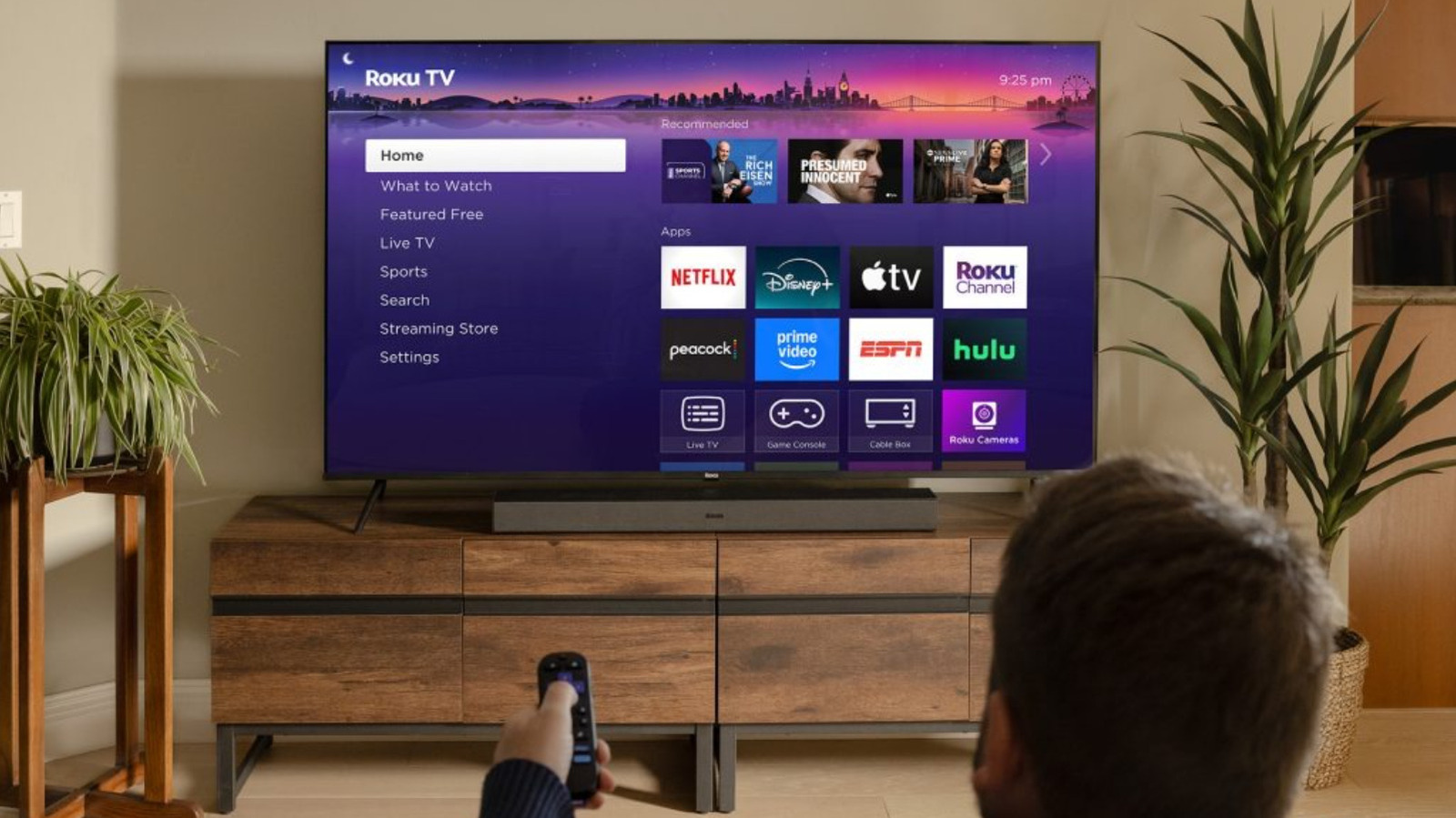
Credit: www.slashgear.com
Preparing To Reset Your Tv
Preparing to reset your TCL Roku TV is important for a smooth process. Resetting can erase settings and data. Taking a few steps before the reset protects your information. It also ensures the reset goes without problems.
Follow these simple steps to get ready. This helps avoid losing important files or facing connection issues during the reset.
Backing Up Important Data
Back up your favorite apps and channels. Note any custom settings you want to keep. Screenshots or writing down settings works well. This saves time after the reset.
Remember, resetting removes all personal data. Save account details for easy login later. Backing up keeps your preferences safe.
Checking Remote And Connections
Make sure your remote has fresh batteries. A working remote is needed to navigate the reset menu. Test the remote buttons before starting.
Check that your TV is connected to the internet. A stable connection helps update the TV after reset. Also, confirm all cables are secure. Loose cables can cause problems during reset.
Soft Reset Methods
Soft reset methods help fix minor issues on your TCL Roku TV. These methods restart the TV without deleting any settings or apps. They are quick and easy to try first. Soft resets can clear glitches and improve performance. Here are two simple ways to do a soft reset.
Using The Remote Control
Press the Home button on your remote. Then, press the Up arrow once. Next, press the Rewind button twice. Finally, press the Fast Forward button twice. This sequence will restart your TCL Roku TV. Wait for the TV to turn off and on again. Your settings and apps will stay the same.
Power Cycle Technique
Turn off your TCL Roku TV using the power button. Unplug the TV from the wall outlet. Wait for about 60 seconds. Plug the TV back into the outlet. Turn on the TV using the power button or remote. This process clears temporary memory and resets the TV. It often fixes minor issues fast.
Factory Reset Options
Factory reset options help restore your TCL Roku TV to its original settings. This can fix many problems like freezing or slow performance. It also removes all your personal data and apps, making the TV like new again.
There are two main ways to perform a factory reset on your TCL Roku TV. One is through the settings menu on the TV. The other is using the physical reset button on the TV itself. Both methods are simple and effective.
Reset Via Settings Menu
Start by pressing the Home button on your Roku remote. Scroll to and select Settings. Go to System and then choose Advanced System Settings. Select Factory Reset. Enter the code shown on the screen to confirm. Your TV will restart and erase all data. This method is quick and easy.
Using Physical Reset Button
Locate the reset button on the back or bottom of your TV. Use a paperclip or pin to press and hold the button for about 10 seconds. The TV screen will go blank and then restart. Release the button once the TCL logo appears. This method works even if the screen is unresponsive.
Troubleshooting After Reset
Resetting your TCL Roku TV can fix many issues. After the reset, some settings return to default. You may need to set up the TV again. Troubleshooting helps you get back to normal quickly. Focus on Wi-Fi, apps, and firmware for smooth use.
Reconnecting To Wi-fi
Your TV loses its Wi-Fi connection after a reset. Go to the Settings menu on your Roku home screen. Select “Network” and then “Set up connection.” Choose your Wi-Fi network and enter the password carefully. Wait for the TV to connect. Check the signal strength to avoid interruptions.
Reinstalling Apps
Reset removes all installed apps from your TV. Visit the Roku Channel Store to add your favorite apps again. Use the search function to find apps quickly. Click “Add channel” to reinstall each app. Sign in to your accounts inside the apps to access content.
Updating Firmware
Firmware updates improve TV performance and fix bugs. After a reset, check for updates in Settings under “System.” Select “System update” and then “Check now.” Install any available updates. Keep your TV connected to Wi-Fi during the process to prevent errors.

Credit: www.youtube.com
Tips To Prevent Future Issues
Preventing issues on your TCL Roku TV helps keep it running smoothly. Small habits can avoid many common problems. Follow these simple tips to reduce the chance of needing another reset.
Regular Software Updates
Keep your TV’s software up to date. Updates fix bugs and add new features. Check for updates at least once a month. This keeps your TV secure and stable. Automatic updates can be turned on in settings. Staying current helps prevent crashes and slowdowns.
Proper Power Management
Turn off your TV properly using the remote or power button. Avoid unplugging it while it is on. Use a surge protector to protect from power spikes. Unstable power can cause errors and damage. Let the TV cool down before turning it back on. These steps extend your TV’s lifespan and reduce errors.
Frequently Asked Questions
How Do I Reset My Tcl Roku Tv To Factory Settings?
Press the Home button, go to Settings > System > Advanced system settings > Factory reset, then follow the instructions.
Can I Reset Tcl Roku Tv Without The Remote Control?
Yes, use the physical reset button on the TV or unplug it for a few minutes to restart.
Will Resetting Tcl Roku Tv Erase All My Apps And Settings?
Yes, a factory reset deletes all apps, settings, and personal data on your TV.
How Long Does It Take To Reset A Tcl Roku Tv?
The reset process usually takes about 5 to 10 minutes to complete fully.
Why Should I Reset My Tcl Roku Tv?
Resetting can fix software issues, slow performance, or forgotten passwords on your TV.
Conclusion
Resetting your TCL Roku TV can fix many common problems fast. Follow the steps carefully to avoid errors. A reset clears glitches and helps your TV run smoothly again. Keep your remote handy for easy access to menus. Remember to back up any important settings before you start.
Regular resets can keep your TV working well over time. Now, you can enjoy watching your favorite shows without interruptions. Simple, quick, and effective. That’s the way to keep your TCL Roku TV in top shape.