
Is your Logitech M525 mouse suddenly not working? It’s frustrating when a reliable device stops responding right when you need it most.
You might feel stuck, unsure of what to do next. But don’t worry—this guide will help you quickly find the cause and fix your mouse. By the end, you’ll be back to smooth, hassle-free clicking in no time. Keep reading to discover simple solutions that anyone can follow.

Credit: alemaoblog.com.br
Common Causes Of Logitech M525 Issues
Many users face issues with the Logitech M525 mouse. Understanding common causes helps fix problems quickly. Problems often arise from basic issues like power or connectivity. Other times, software conflicts cause the mouse to stop working properly. Knowing these causes saves time and effort in troubleshooting.
Battery And Power Problems
Low or dead batteries are a frequent cause of mouse failure. The mouse may not turn on or respond if power is weak. Check the battery level and replace old batteries. Make sure the battery is inserted correctly. Sometimes, the power switch might be off. Always confirm the mouse has power before testing other solutions.
Connectivity Glitches
Wireless mice rely on a stable connection. The Logitech M525 uses a USB receiver to connect to the computer. Interference from other devices can disrupt the signal. Physical distance between the mouse and receiver also matters. Keep the receiver close and remove obstacles. Reconnecting or resetting the USB receiver can resolve many connection problems.
Driver And Software Conflicts
Outdated or corrupt drivers cause mouse malfunctions. The computer may not recognize the mouse correctly. Updating or reinstalling Logitech drivers often fixes these issues. Conflicts with other software or mouse settings also disrupt operation. Checking for software updates and resetting settings helps maintain smooth performance.
Credit: www.ifixit.com
Basic Troubleshooting Steps
When your Logitech M525 mouse stops working, start with basic troubleshooting steps. These steps help find simple issues fast. Most mouse problems are easy to fix.
Try each step carefully. They often solve the problem without extra help. Keep your mouse ready for use again.
Check And Replace Batteries
First, check the mouse batteries. Old or weak batteries cause connection problems. Open the battery compartment and remove the batteries. Replace them with new ones. Use fresh, high-quality batteries for best results. Close the compartment tightly after replacing.
Reconnect The Mouse Receiver
Next, reconnect the wireless receiver. Unplug the receiver from the USB port. Wait a few seconds, then plug it back in. Try different USB ports if needed. This resets the connection between the mouse and receiver. It helps fix recognition issues.
Restart Your Computer
Restart your computer after checking batteries and reconnecting the receiver. A reboot refreshes the system and clears errors. Save your work before restarting. After the restart, test the mouse again. This simple step often restores mouse function.
Advanced Fixes For Performance
Advanced fixes can help improve the Logitech M525 mouse’s performance. Simple checks may not solve deeper issues. These steps focus on software and settings for better functionality. Follow each method carefully for best results.
Update Or Reinstall Mouse Drivers
Outdated or corrupted drivers can cause the mouse to stop working. Updating drivers ensures compatibility with your computer. Visit the Logitech website or use Device Manager to update drivers. To reinstall, uninstall the current driver first. Restart your computer to let Windows find and install the driver again. This process often fixes hidden driver problems.
Adjust Mouse Settings In Control Panel
Incorrect settings can affect mouse performance and responsiveness. Open the Control Panel and select “Mouse” to access settings. Check pointer speed and acceleration options. Disable pointer precision for smoother movement. Adjust double-click speed to suit your use. These tweaks can make the mouse feel more natural and responsive.
Reset The Mouse To Factory Defaults
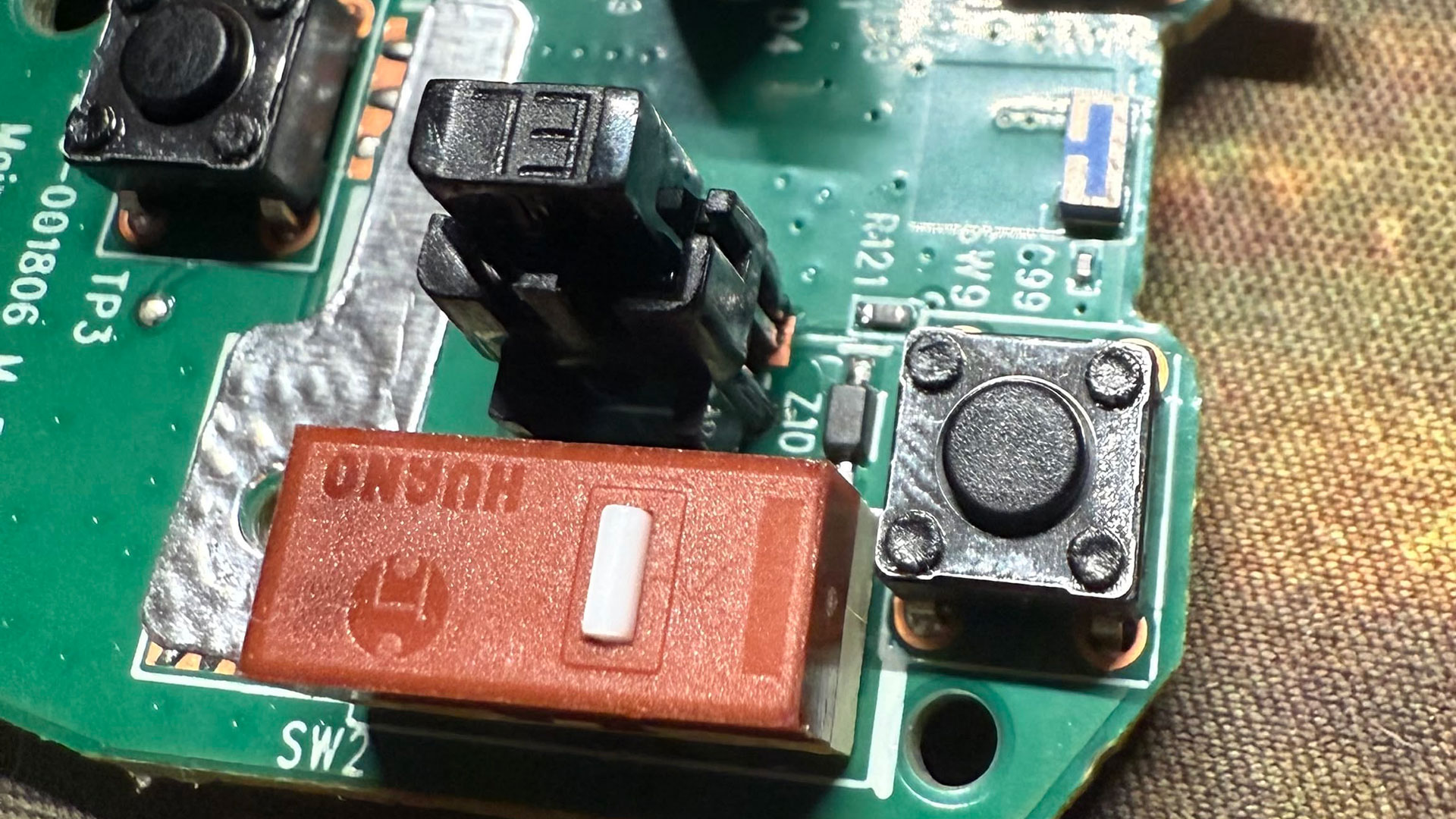
Resetting clears any custom settings that may cause issues. Some Logitech mice have a reset button or key combination. Check the user manual for exact instructions. Resetting restores the original factory settings. This can fix performance problems caused by misconfigured options or software conflicts.
Credit: www.tomshardware.com
Preventive Tips To Maintain Speed
Keeping your Logitech M525 mouse fast and responsive is important. Small habits can prevent lag and connection issues. Simple steps help maintain smooth mouse speed. Follow these tips to avoid common problems.
Keep Firmware Updated
Firmware controls how your mouse works. Updates fix bugs and improve performance. Check Logitech’s website often for new firmware. Install updates as soon as they are available. This keeps your mouse running at its best.
Avoid Wireless Interference
Wireless signals can slow your mouse. Other devices like routers and phones cause interference. Keep the mouse and receiver away from them. Use the mouse closer to the receiver for a strong signal. This reduces lag and keeps movements smooth.
Regular Cleaning And Maintenance
Dirt and dust can block the sensor or buttons. Clean the mouse surface and sensor regularly with a soft cloth. Avoid using harsh chemicals that damage the mouse. Proper care prevents speed slowdowns and keeps your mouse accurate.
Frequently Asked Questions
Why Is My Logitech M525 Mouse Not Connecting?
Check the USB receiver and battery; ensure the mouse is switched on and close to the receiver.
How To Fix Logitech M525 Mouse Lagging Issues?
Replace old batteries, update drivers, and remove wireless interference for smoother performance.
Can A Dirty Sensor Cause Logitech M525 Mouse Problems?
Yes, clean the sensor gently with a soft cloth to restore proper tracking.
What To Do If Logitech M525 Mouse Scroll Wheel Stops Working?
Try cleaning the scroll wheel and reconnecting the mouse to fix scrolling issues.
How To Update Logitech M525 Mouse Drivers Easily?
Visit Logitech’s official website and download the latest drivers for your mouse model.
Conclusion
Troubles with the Logitech M525 mouse can be fixed step by step. Check the battery and USB connection first. Clean the mouse and update its drivers. Try reconnecting the mouse to your computer. These simple actions often solve common problems quickly.
Keep calm and follow the guide carefully. Your mouse should work well again soon. Don’t forget to restart your device if problems continue. Small fixes can make a big difference. Stay patient and give these tips a try.