
Is your Galaxy A12 microphone not working when you need it most? Whether you’re on a call, recording a voice note, or using your favorite apps, a faulty microphone can be incredibly frustrating.
But don’t worry—you’re not alone, and there are simple steps you can take to fix it. You’ll discover easy solutions that will get your microphone back to perfect working order. Keep reading, because your phone’s sound should never hold you back.
Common Causes
Several reasons can cause the Galaxy A12 microphone to stop working. Identifying the cause helps fix the problem faster. Common causes include software glitches, hardware damage, app conflicts, and a blocked microphone. Each of these can affect your phone’s sound quality and call experience.
Software Glitches
Software glitches can disrupt the microphone’s function. Bugs in the operating system or recent updates may cause issues. Restarting the phone often solves minor software problems. Checking for system updates can also help fix these glitches.
Hardware Damage
Physical damage to the microphone can stop it from working. Dropping the phone or exposure to water may harm internal parts. Dirt and dust can also damage the microphone over time. A professional check is needed if hardware damage is suspected.
App Conflicts
Some apps might interfere with the microphone’s operation. Apps with microphone access can cause conflicts or bugs. Closing or uninstalling recently installed apps may solve the problem. Checking app permissions helps ensure proper microphone use.
Blocked Microphone
A blocked microphone causes sound issues during calls or recordings. Dust, dirt, or cases can cover the microphone opening. Cleaning the microphone gently with a soft brush or cloth can help. Removing phone covers may also improve microphone performance.
Basic Troubleshooting
Basic troubleshooting is the first step to fix the Galaxy A12 microphone issue. These easy checks help find simple problems fast. Most microphone problems do not need expert help. Follow these steps to see if your microphone starts working again.
Restart Your Phone
Restarting the phone can fix many small glitches. Turn off your Galaxy A12 and wait for 30 seconds. Turn it back on and test the microphone. This process refreshes the system and clears minor errors.
Check Microphone Settings
Make sure the microphone is not muted or blocked by apps. Open Settings and go to Privacy or App Permissions. Look for Microphone access and allow apps to use it. Disable any settings that stop the microphone from working.
Test Using Voice Recorder
Use the built-in Voice Recorder app to check the microphone. Record a short message and play it back. If you hear your voice clearly, the microphone works. If not, the problem may be hardware-related.
Clean The Microphone Port
Dust or dirt can block the microphone port. Use a soft brush or a clean cloth to gently clean the microphone area. Avoid using sharp objects to prevent damage. Cleaning often improves sound quality and fixes the problem.
Advanced Fixes
Advanced fixes can help solve complex microphone issues on the Galaxy A12. These methods go beyond basic troubleshooting and target deeper software problems. Follow these steps carefully to restore your microphone’s function.
Update Software
Updating your Galaxy A12 can fix bugs affecting the microphone. Go to Settings, then tap Software Update. Download and install the latest version available. This can improve system stability and fix microphone errors.
Reset App Preferences
Resetting app preferences clears default apps and disabled services. This can fix conflicts blocking the microphone. Open Settings, select Apps, then tap Reset App Preferences. Confirm the action to restore all app settings without deleting data.
Boot In Safe Mode
Safe Mode disables third-party apps temporarily. This helps identify if an app causes the microphone issue. To enter Safe Mode, press and hold the power button. Tap and hold Power Off, then select Safe Mode. Test the microphone and restart to exit Safe Mode.
Factory Reset
A factory reset restores your phone to original settings. It deletes all data and apps, so back up first. Go to Settings, select General Management, then tap Reset. Choose Factory Data Reset and follow the prompts. This can fix deep software problems affecting the microphone.

Credit: www.youtube.com
When To Seek Repair
Knowing when to seek repair for your Galaxy A12 microphone is important. Some issues need professional help. Other problems you can fix at home. Learning the signs helps save time and money.
Persistent microphone problems that affect calls or recordings often mean hardware damage. Ignoring these signs can make the issue worse. Early repair keeps your phone working well.
Identifying Hardware Issues
Hardware issues cause microphone failure. Dust or dirt inside the mic can block sound. Physical damage from drops can break microphone parts. Software problems usually clear after restarting or updating.
Test your microphone using voice recorder apps. If sound is low or missing, hardware is likely the cause. Try cleaning the microphone area gently with a soft brush. If that fails, hardware repair is needed.
Authorized Service Centers
Authorized service centers offer safe repairs. They use original parts for Galaxy A12. Technicians have training and knowledge of Samsung devices. Repairs done here maintain your phone’s warranty.
Using unauthorized repair shops can cause more damage. Fake parts may reduce microphone quality. Always choose a trusted service center near you. This ensures good repair results and phone safety.
Cost Of Repairs
Repair costs vary by damage type. Minor cleaning or part replacement costs less. Major microphone or motherboard repairs cost more. Authorized centers provide clear estimates before work starts.
Compare prices from different centers before deciding. Avoid very cheap repair offers. Low costs may mean poor quality parts or service. Investing in quality repair protects your phone’s life.
Preventive Tips
Preventing microphone problems on your Galaxy A12 starts with simple daily care. Keeping your phone safe helps avoid common issues before they begin. Small actions can protect the microphone and keep it working well.
Protect From Dust And Moisture
Dust and moisture can block the microphone hole. Avoid using your phone in very dusty or wet places. Use a soft cloth to clean the microphone area gently. Do not poke the microphone with sharp objects.
Handle With Care
Dropping your phone can damage the microphone. Hold your phone securely to prevent falls. Use a protective case that covers edges well. Avoid pressing hard on the microphone area.
Regular Software Updates
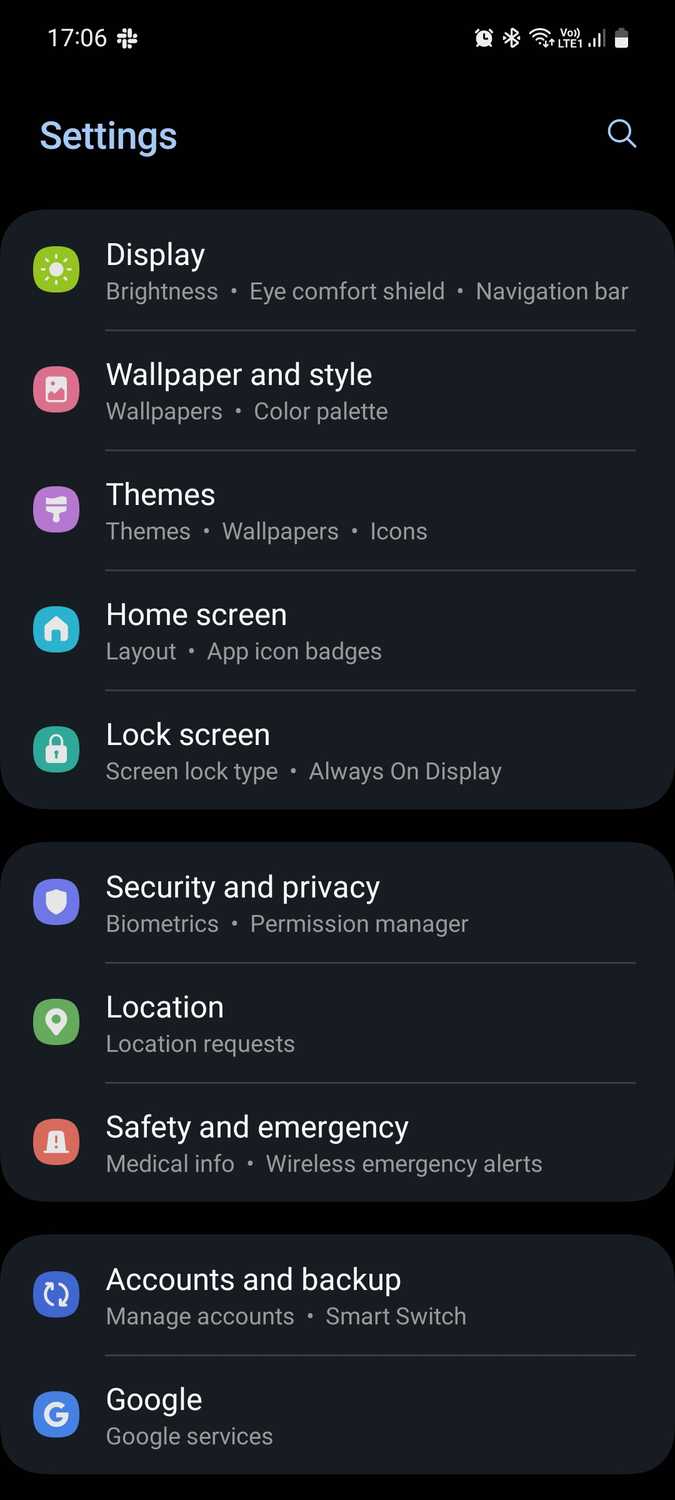
Software updates fix bugs that affect the microphone. Check for updates often in your phone settings. Install updates as soon as they are available. This keeps your phone running smoothly and the microphone working properly.
Credit: www.makeuseof.com

Credit: www.youtube.com
Frequently Asked Questions
Why Is My Galaxy A12 Microphone Not Working During Calls?
The microphone may be blocked, dirty, or have a software issue affecting call audio.
How Can I Fix The Galaxy A12 Microphone Problem Quickly?
Restart your phone, check microphone permissions, and clean the microphone area gently.
Does A Software Update Affect The Galaxy A12 Microphone Function?
Yes, updates can fix bugs or sometimes cause new microphone issues.
Can Using Headphones Cause Galaxy A12 Microphone Problems?
Yes, faulty or incompatible headphones can disable the phone’s built-in microphone.
When Should I Seek Professional Help For Galaxy A12 Mic Issues?
If cleaning and settings don’t work, visit a repair center for hardware checks.
Conclusion
Fixing the Galaxy A12 microphone can be simple. Check settings and clean the microphone area first. Restart the phone to refresh its system. Test the microphone using voice recorder or calls. Software updates often solve many problems quickly. If the issue stays, a professional repair might help.
Taking care of your phone prevents future troubles. Small steps can bring your microphone back to life. Keep patience and try each fix one by one. Your phone will work well again soon.