
Is your Turtle Beach Recon 70 mic not working right when you need it most? It’s frustrating, especially during an intense game or an important chat.
You might feel stuck, unsure how to fix it quickly. But don’t worry—you’re not alone, and there are simple steps you can take to get your mic back to perfect working order. Keep reading, and you’ll discover easy solutions that will have your voice heard loud and clear again.
Common Mic Issues
The Turtle Beach Recon 70 mic may stop working due to a few common issues. These problems are easy to check and fix. Understanding these can save time and frustration. Below are some typical reasons your mic might fail.
Loose Connections
Loose connections often cause mic problems. The cable might not be fully plugged in. Check the headset jack on your device. Make sure the plug fits tightly. Wiggle the cord gently to test the connection. A loose cable can cut the sound or mute the mic completely.
Muted Settings
Muted settings are another common cause. The mic or device volume could be turned down. Look for a mute button on the headset. Also check the sound settings on your console or PC. Sometimes the mic is muted without you knowing. Adjust the volume to hear your voice again.
Software Conflicts
Software conflicts can block the mic’s function. Other programs might use the mic at the same time. Update your device’s audio drivers regularly. Disable any apps that may control the mic. Restarting the device can clear software bugs. These steps often restore mic performance quickly.

Credit: www.reddit.com
Basic Troubleshooting Steps
Basic troubleshooting steps help find simple problems fast. These steps fix most issues with the Turtle Beach Recon 70 mic. Follow clear, easy checks to save time and effort. Try each step before moving to complex solutions.
Check Physical Connections
Make sure the mic is fully plugged into the headset jack. Loose connections cause sound problems. Remove and reconnect the plug firmly. Look for dirt or damage on the cable and jack. Clean gently if needed. Avoid bending the cord sharply.
Test On Different Devices
Try the headset on another device like a phone or computer. This shows if the problem is with the mic or your system. If the mic works elsewhere, focus on your original device settings. If it fails on multiple devices, the headset may have a fault.
Restart Your System
Turn off your console or PC and then turn it on again. Restarting refreshes the system and fixes small glitches. After reboot, check if the mic starts working. This step often resolves connection or software issues quickly.
Adjusting Audio Settings
Adjusting audio settings often solves mic issues with the Turtle Beach Recon 70. Small tweaks in Windows settings can bring your microphone back to life. Simple steps like setting the device as default or changing volume levels help a lot. Below are easy ways to fix the mic not working problem.
Set Turtle Beach As Default Device
Open Sound settings on your computer. Find the “Input” section to see recording devices. Select Turtle Beach Recon 70 from the list. Click “Set as Default” to make it the main mic. This ensures the system uses the correct microphone for sound input.
Increase Mic Volume
Go to the microphone properties in Sound settings. Click the “Levels” tab. Slide the mic volume bar to a higher level, around 80 to 100. Low volume can make your mic sound weak or silent. Raising the volume improves your microphone’s pickup.
Disable Exclusive Mode
In the microphone properties, open the “Advanced” tab. Uncheck the boxes under “Exclusive Mode.” These options allow apps to take control of the mic. Disabling them stops apps from blocking other sounds. This helps keep the mic working consistently.

Credit: www.reddit.com
Driver And Firmware Updates
Driver and firmware updates play a key role in fixing the Turtle Beach Recon 70 mic not working issue. These updates help your device communicate properly with your computer or console. Outdated drivers or firmware can cause audio problems and stop your mic from working. Keeping them current ensures smooth performance and clear sound.
Update Audio Drivers
Audio drivers connect your headset to your computer or console. Old drivers may not support new devices or features. Visit your device’s official website to download the latest audio drivers. Install them carefully by following the instructions. After updating, restart your system to apply the changes. This step often resolves mic detection problems.
Check For Firmware Updates
Firmware controls the internal software of your Turtle Beach Recon 70. Outdated firmware can cause the mic to stop working properly. Check Turtle Beach’s support page for any firmware updates. Use the official update tool to safely install the latest firmware. This can fix bugs and improve microphone performance. Regular firmware checks keep your headset working well.
Using The Turtle Beach Software
The Turtle Beach Recon 70 headset works best with its dedicated software. This software helps control many features. It allows you to adjust the microphone and sound settings easily. Using this software can fix common mic problems.
Installing the software is simple and free. Once installed, it connects to your headset. This connection lets you change settings directly. It can solve issues like the mic not working or low volume.
Configure Mic Settings
Open the Turtle Beach software on your computer. Find the microphone settings tab. Here, you can adjust the mic volume and sensitivity. Increase the volume if your mic sounds too quiet. Lower sensitivity if it picks up too much noise. Make small changes and test the mic each time. This process helps find the best sound for your voice.
Reset To Default
Sometimes, custom settings cause problems. The software allows you to reset all settings. Click the reset button to return to factory defaults. This step clears any wrong changes that might block the mic. After resetting, check if the mic works again. Resetting often fixes issues quickly and easily.
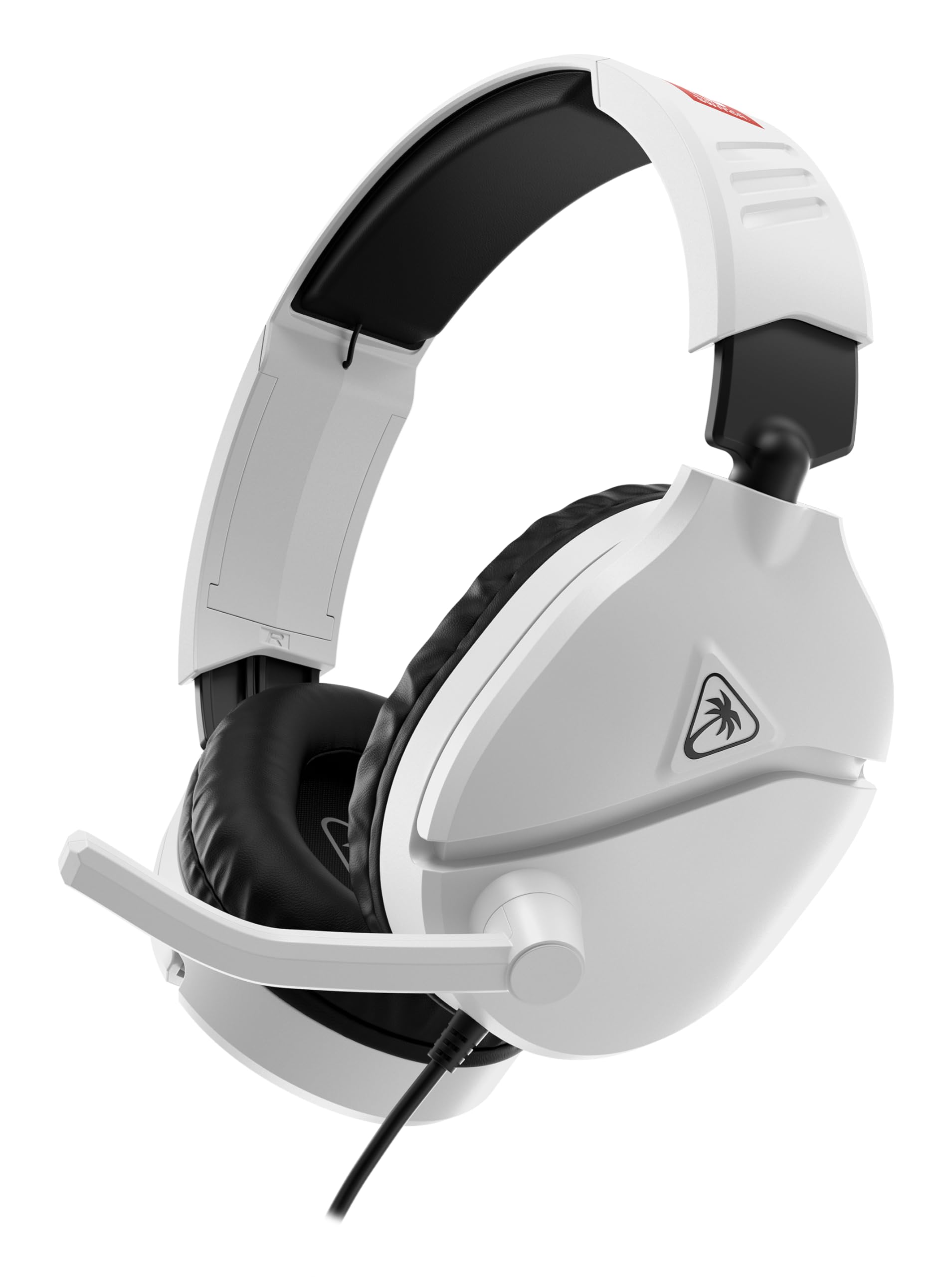
Credit: www.amazon.com
Hardware Checks And Repairs
Hardware problems often cause the Turtle Beach Recon 70 mic to stop working. Checking the physical condition of the headset can help find the issue. Simple repairs may fix the problem quickly. Some problems need expert help to avoid damage.
Inspect For Physical Damage
Look closely at the mic and headset for cracks or breaks. Check the cable for cuts or bends. Loose parts can stop the mic from working. Make sure the mic is firmly attached. Dust or dirt in the mic hole can block sound. Clean gently with a soft brush or cloth.
Consider Professional Repair
Some issues need more than just cleaning or checking. Internal wiring or parts may be damaged. Trying to fix these can cause more harm. A professional repair service has the right tools and skills. They can fix or replace broken parts safely. This service can help bring your mic back to life.
Alternative Solutions
Sometimes the Turtle Beach Recon 70 mic may not work properly. You can try other ways to fix the problem. These alternative solutions can help you keep using your headset for chats and calls. They are simple and do not need special skills.
Try An External Mic
Using an external microphone is a quick fix. Connect a separate mic to your device. This can bypass the broken headset mic. Many external mics work with PCs, consoles, and smartphones. Choose one with a simple plug-and-play feature. It often solves sound issues fast.
Use A Usb Sound Card
A USB sound card can improve audio quality. It acts as a separate audio device. Plug the sound card into your computer or console. Then connect your headset to it. This can fix problems with the mic input. It also boosts sound clarity and reduces noise.
Frequently Asked Questions
Why Is My Turtle Beach Recon 70 Mic Not Working?
The mic might be muted, unplugged, or have a loose connection. Check all connections and settings.
How Do I Fix A Turtle Beach Recon 70 Mic Issue?
Try unplugging and plugging the headset back in. Also, check the mute switch and device settings.
Can Software Updates Cause Turtle Beach Mic Problems?
Yes, outdated or corrupted drivers can stop the mic from working. Update your audio drivers to fix this.
Does The Turtle Beach Recon 70 Mic Work On All Devices?
It works on most consoles and PCs, but some devices may need adapters or settings changes.
How To Test If My Turtle Beach Recon 70 Mic Is Faulty?
Try the headset on another device. If the mic still doesn’t work, it may be damaged.
Conclusion
Turtle Beach Recon 70 mic problems can be fixed with simple steps. Check the connection and settings carefully. Make sure the mic is not muted or blocked. Test the headset on another device to find the issue. Keep your drivers and software updated.
Small fixes often solve big problems. Patience and careful checks bring the best results. Enjoy clear sound and smooth gaming again. Don’t let mic issues stop your fun. Try these tips and get back to chatting easily.