
Is your Comcast Remote XR2 not working when you need it most? It’s frustrating when the remote won’t respond, leaving you stuck and annoyed.
But don’t worry—you’re not alone, and there are simple fixes that can get your remote back in action quickly. You’ll discover easy steps to troubleshoot your Comcast Remote XR2, so you can enjoy your favorite shows without interruption. Keep reading to find out how to solve this common problem fast and hassle-free.

Credit: www.amazon.com
Common Issues With Comcast Remote Xr2
The Comcast Remote XR2 is a popular choice for many users. It helps control TV and set-top box functions easily. Despite its many benefits, users often face some common problems. These issues can interrupt your viewing experience. Understanding these problems helps fix them quickly.
Unresponsive Buttons
Sometimes, buttons on the remote stop working. Pressing them does not change the channel or volume. Dirt, dust, or worn-out buttons can cause this. Cleaning the remote carefully might restore button function. If that fails, the remote may need replacement.
Remote Not Pairing
Pairing connects the remote to the TV or box. The remote might fail to pair after a reset or battery change. This happens due to signal interference or incorrect pairing steps. Restarting the devices often solves this issue. Follow pairing instructions exactly for best results.
Power And Battery Problems
Power issues are common with the XR2 remote. Dead or weak batteries stop the remote from working. Using old or low-quality batteries causes this. Replace batteries with fresh, good-quality ones. Also, check battery contacts for corrosion or dirt. Proper power keeps the remote functioning well.
Basic Troubleshooting Steps
Basic troubleshooting helps fix most remote control problems. Start with easy steps before trying complex fixes. These steps often save time and effort.
Check And Replace Batteries
Remove the remote’s back cover. Take out old batteries. Replace with new ones. Make sure batteries are placed correctly. Weak batteries can cause the remote to stop working.
Reset The Remote
Press and hold the setup button until the light blinks twice. Enter the remote code for your device. This clears errors and resets the remote’s functions. Resetting often fixes small glitches.
Power Cycle The Receiver
Turn off your Comcast receiver. Unplug it from the power source. Wait for 30 seconds. Plug it back in and turn it on. This refreshes the receiver and can restore remote control connection.
Re-pairing The Remote To The Receiver
Re-pairing the Comcast Remote XR2 to the receiver can fix many connection issues. This process helps the remote communicate properly with the box. Without pairing, the remote may not control your TV or cable functions. Follow easy steps to restore the link between your remote and receiver. Choose the method that suits you best.
Manual Pairing Process
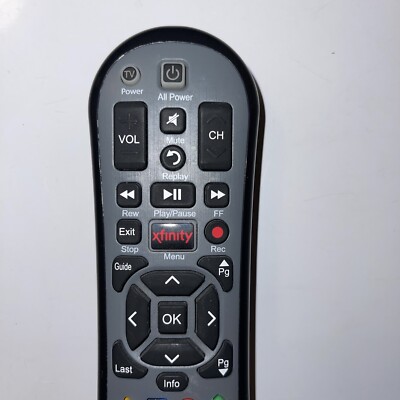
Start by turning on your TV and Comcast receiver. Hold the remote close to the receiver. Press and hold the Setup button until the LED light changes from red to green. Next, press the Xfinity button on the remote. The LED should blink green twice. This means the remote is in pairing mode. Wait for the remote to connect. The LED will turn off when pairing is complete. Test the remote by pressing any button to check if it works.
Using The Comcast App For Pairing
Download the official Comcast app on your smartphone. Open the app and sign in with your account details. Select the Remote option in the app menu. Follow instructions to pair your XR2 remote with the receiver. The app sends a signal to the receiver to connect with the remote. Once connected, test your remote to ensure proper control. This method is helpful if the manual process does not work.
Credit: www.ebay.com
Advanced Fixes To Try
Advanced fixes can solve stubborn Comcast Remote XR2 issues. These steps go beyond basics and target common hidden problems. Follow each carefully to improve your remote’s response and functionality.
Cleaning The Remote Sensor
Dirt or dust on the remote sensor may block signals. Use a soft, dry cloth to wipe the sensor area gently. Avoid using liquids or harsh cleaners that can damage the sensor. Clean both the remote’s front and the receiver’s sensor window. This simple step often restores proper communication between devices.
Software Updates For Receiver
Outdated software can cause remote control problems. Check your receiver’s menu for available updates. Installing the latest software fixes bugs and improves device compatibility. Keep the receiver connected to the internet during updates. Regular updates ensure smooth remote operation and new feature access.
Factory Reset Of The Receiver
Resetting the receiver clears any settings causing remote errors. Locate the reset option in the receiver’s settings menu. Confirm the reset and wait for the device to restart. This returns the receiver to its original state but deletes saved preferences. Use this step only if other fixes fail to work.
When To Contact Comcast Support
Knowing when to contact Comcast support can save time and frustration. Some remote issues need expert help. Others can be fixed at home. Understanding the signs helps you decide the next step.
Identifying Hardware Issues
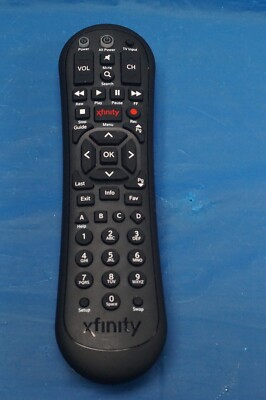
Check the remote’s buttons and battery compartment first. If the remote does not power on or respond, it may be a hardware problem. Look for broken or stuck buttons. Also, test with fresh batteries. If the remote still does not work, the internal hardware might be damaged.
Hardware issues are not always visible. Strange noises or overheating are red flags. In such cases, contacting Comcast support is best. They can run tests or suggest repairs.
Warranty And Replacement Options
Comcast remotes usually come with a warranty. Check your purchase date and warranty terms. If the remote is under warranty, Comcast may replace it at no cost.
Contact support to learn about replacement procedures. They often send a new remote quickly. This option ensures you get a fully working device without extra charges.
Credit: www.ebay.com
Tips To Maintain Remote Performance
Keeping your Comcast Remote XR2 working well is simple with the right care. Small habits help your remote last longer and respond faster. Follow easy steps to keep it in good shape. These tips save you from remote troubles and improve your TV experience.
Proper Storage And Handling
Store the remote in a safe, dry place. Avoid places with heat or moisture. Do not drop or press buttons too hard. Keep it away from direct sunlight. Handle the remote gently to avoid damage. Clean it with a soft cloth to remove dust.
Regular Battery Checks
Check batteries often to prevent power loss. Replace weak batteries quickly to keep signal strong. Use good quality batteries for longer life. Remove batteries if not using the remote for a long time. This stops battery leaks and protects the remote.
Frequently Asked Questions
Why Is My Comcast Xr2 Remote Not Responding?
The batteries may be dead or inserted wrong. Try replacing them and check again.
How Do I Reset My Comcast Remote Xr2?
Press and hold the Setup button until the LED blinks twice to reset the remote.
Can The Comcast Xr2 Remote Control Other Devices?
Yes, it can be programmed to control TVs, audio receivers, and cable boxes.
What Should I Do If The Remote Buttons Are Stuck?
Clean the remote gently and press the buttons several times to free them.
How To Pair Comcast Xr2 Remote With The Cable Box?
Press Setup, then Enter, and follow on-screen instructions to complete pairing.
Conclusion
Troubles with the Comcast Remote XR2 can be fixed with simple steps. Check the batteries and make sure the remote is pointed at the box. Restart the TV or cable box to refresh the connection. Resetting the remote can also solve many problems.
Keep your device’s software updated for best performance. If issues continue, contact Comcast support for help. Small fixes often bring big improvements. Don’t give up on your remote just yet. It can work like new again.