
Is your WPS button on your Xfinity router not working when you need it most? It can be frustrating when you try to connect a device quickly, and the button just won’t respond.
You’re not alone—many users face this issue, and it often stops you from getting online fast. But don’t worry, this problem has simple fixes that you can try right now. Keep reading to discover easy steps that will get your WPS button working again, so you can enjoy a smooth and secure connection without hassle.
Why Wps Button Fails
The WPS button on an Xfinity router can stop working for several reasons. This button helps connect devices to Wi-Fi quickly. When it fails, it causes frustration and connection issues. Understanding why the WPS button fails can help fix the problem fast.
Many factors affect the WPS button’s function. Some are easy to fix, while others need more attention. Below are the main causes that make the WPS button stop working on your router.
Common Causes
One common cause is a physical problem with the button. It may be stuck or broken. Dust and dirt can block the button’s mechanism. Sometimes, the router settings disable WPS by default. Also, too many devices trying to connect can overload the function.
Router Firmware Issues
Firmware controls your router’s functions, including WPS. Outdated or corrupted firmware can stop the WPS button from working. Bugs in the firmware may cause the button to respond slowly or not at all. Regular updates fix these bugs and improve router performance.
Device Compatibility
Not all devices support WPS connections. Some older or budget devices lack WPS capability. Even if the router’s WPS button works, incompatible devices cannot connect this way. Check if your device supports WPS before relying on the button.
Basic Troubleshooting Steps
Basic troubleshooting helps fix common issues with the WPS button on your Xfinity router. These steps are easy to follow and often solve the problem quickly. Try them before calling for technical support.
Restart Your Router
Turn off your Xfinity router and unplug it from the power source. Wait for about 30 seconds. Plug it back in and turn it on. Restarting can clear temporary bugs and reset the WPS function. This step often restores normal operation.
Check Wps Button Functionality
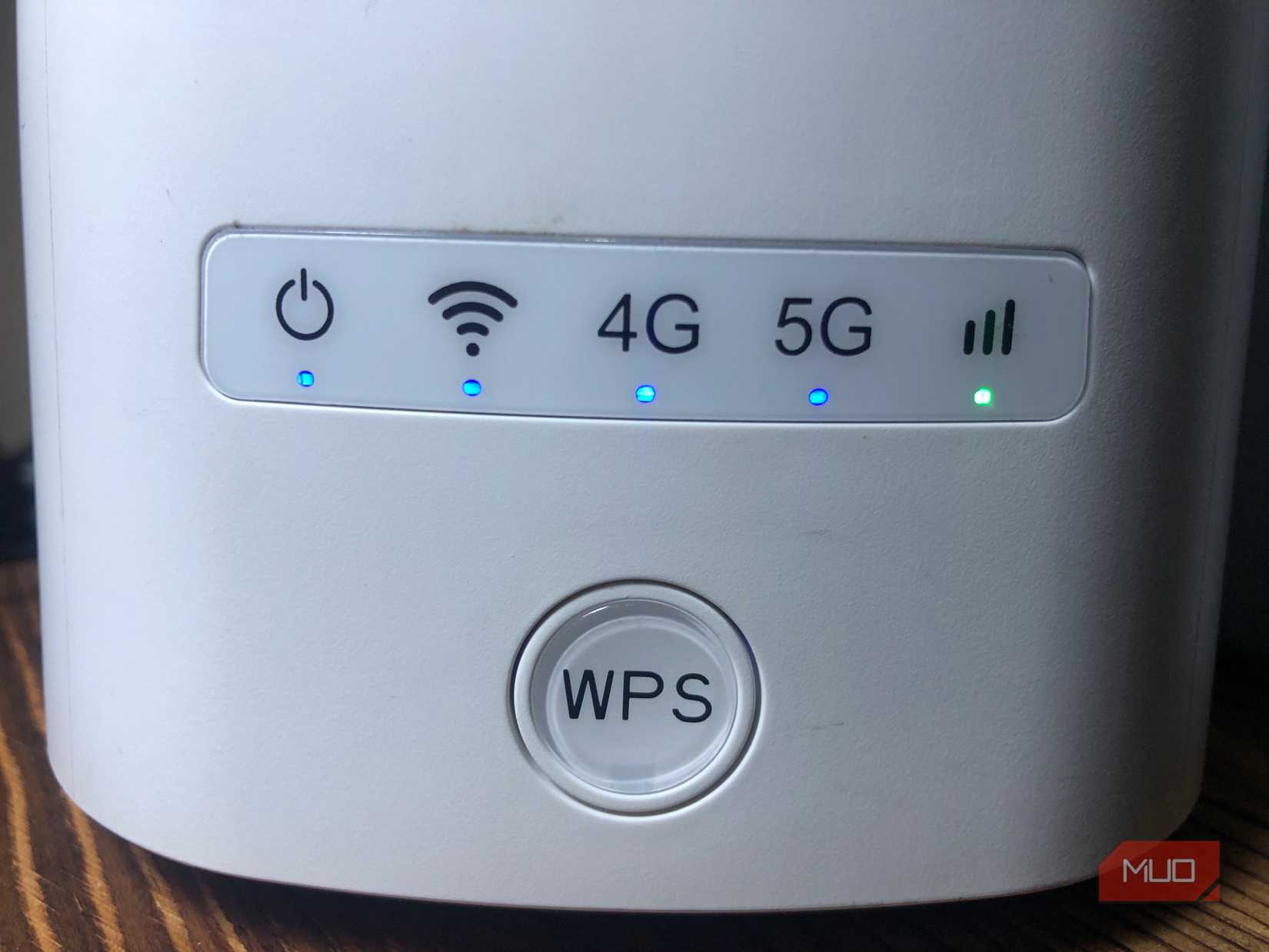
Press the WPS button firmly and hold it for a few seconds. See if the WPS light blinks or changes color. If the light does not respond, the button might be faulty. Test the button multiple times to confirm. A non-working button may need repair or replacement.
Verify Device Settings
Make sure the device you want to connect supports WPS. Check the device’s Wi-Fi settings to enable WPS connection. Some devices disable WPS by default for security reasons. Enable WPS in the settings and try connecting again. Confirm the device is close to the router for a strong signal.
Advanced Fixes
Advanced fixes can help solve the WPS button issue on your Xfinity router. These steps go beyond basic troubleshooting. They require a bit more effort but often solve the problem.
Try these advanced methods carefully. Each can restore your router’s WPS function or offer a good alternative.
Update Router Firmware
Firmware controls your router’s internal software. Outdated firmware may cause the WPS button to stop working. Check your router’s settings for a firmware update option. Download and install the latest version. This process can fix bugs and improve the router’s performance. Keep your router updated regularly to avoid future issues.
Reset Router To Factory Defaults
Resetting your router erases all custom settings. This can fix software glitches affecting the WPS button. Find the reset button, usually a small hole on the back. Hold it down for 10-15 seconds using a pin. The router will restart and restore its original settings. You must reconfigure your network after this reset.
Use Alternative Connection Methods
When the WPS button fails, other options exist. Connect devices using a network password instead of WPS. Access the router’s Wi-Fi settings to find the password. Enter this password on your device to connect. This method is simple and secure. It works on all devices without relying on WPS.
Credit: www.makeuseof.com
Preventing Future Wps Issues
Preventing future WPS issues on your Xfinity router helps keep your connection stable. Simple steps reduce the chance of the WPS button failing again. Regular care and checks make your network run smoothly.
Regular Firmware Updates
Firmware updates fix bugs and improve router functions. Check for updates on your router’s settings page often. Install new versions as soon as they are available. This keeps your router secure and WPS working well.
Secure Network Settings
Strong security settings protect your network from interference. Use a strong password and WPA2 or WPA3 encryption. Disable WPS if you do not need it. This prevents unauthorized access and reduces errors.
Proper Router Placement
Place your router in an open space, away from walls. Avoid placing it near other electronics that cause interference. A clear signal path helps the WPS button work better. Good placement improves connection speed and reliability.
When To Contact Xfinity Support
Knowing when to contact Xfinity support can save time and effort. Some router issues need professional help. Recognizing these signs helps you get the right assistance quickly.
Below are key situations where reaching out to Xfinity support is best.
Hardware Malfunctions
Physical damage can cause the WPS button to stop working. Cracks, loose parts, or worn-out buttons need expert checks. If the router feels hot or smells strange, contact support. These issues may signal internal hardware failure. Attempting self-repair might worsen the problem.
Persistent Connectivity Problems
Intermittent or no connection despite pressing the WPS button needs attention. Constant dropping of Wi-Fi signals or inability to connect devices signals a deeper issue. Basic troubleshooting not fixing the problem is a clear sign. Xfinity support can run diagnostics remotely or guide you through fixes. Persistent problems often require professional intervention to restore stable service.
Credit: www.xda-developers.com

Credit: www.reddit.com
Frequently Asked Questions
Why Is My Xfinity Router’s Wps Button Not Working?
The WPS button may be disabled or the router firmware needs updating.
How Do I Fix A Non-responsive Wps Button On Xfinity Router?
Restart the router and check the WPS settings in the admin panel.
Can A Faulty Wps Button Affect Router Security?
Yes, a broken WPS button can prevent secure device connections.
Is The Wps Feature Safe To Use On Xfinity Routers?
WPS is convenient but can be less secure than entering passwords manually.
What Alternatives Exist If The Wps Button Fails On Xfinity Routers?
Connect devices using the Wi-Fi password instead of WPS for reliable access.
Conclusion
Troubles with the WPS button on your Xfinity router can be frustrating. Try restarting the router first. Check the button for any physical damage. Ensure your device supports WPS connections. Updating the router’s firmware may help fix the issue. Sometimes, using the router’s web settings to connect is easier.
Keep these tips handy for quick troubleshooting. A little patience goes a long way. Your internet connection can be stable again soon.