
Is your Kwikset Halo Bluetooth not working when you need it most? That frustrating moment when your smart lock won’t connect can leave you feeling locked out—literally.
You rely on this device for security and convenience, so when it fails, it disrupts your entire routine. But don’t worry, you’re not alone, and there are simple steps you can take to fix it quickly. Keep reading to discover easy solutions that will get your Kwikset Halo back to working smoothly, so you can regain control and peace of mind.
Common Bluetooth Issues
Bluetooth is the main way Kwikset Halo connects to your phone. Many users face issues with Bluetooth that stop the lock from working well. These common problems can cause frustration and make the lock useless. Understanding these issues helps fix them faster.
Connection Problems
Connection problems are the most frequent Bluetooth issue. The lock may not pair with your phone. Sometimes it drops connection after pairing. Walls, metal objects, or distance can block signals. Restarting both the lock and phone often helps. Make sure Bluetooth is turned on your phone.
App Sync Failures
The Kwikset app must sync with the lock for control. Sync failures prevent commands from working. This happens if the app is outdated or buggy. Clearing the app cache or reinstalling it can solve this. Check that the app has permission to use Bluetooth.
Battery And Power Concerns
Low battery affects Bluetooth strength and connection. Weak power may cause the lock to lose signal. Replace the batteries if the lock acts strangely. Use fresh, good-quality batteries for best results. Keep an eye on battery level in the app.

Credit: device.report
Quick Troubleshooting Steps
Experiencing issues with your Kwikset Halo Bluetooth? Quick troubleshooting can often fix the problem. These steps help restore connection without much hassle. Follow each step carefully to get your lock working again fast.
Restart The Lock And Phone
Turn off your phone’s Bluetooth and close the Kwikset app. Next, power off the Kwikset Halo lock. Wait for about 30 seconds. Turn the lock back on and enable Bluetooth on your phone. Open the app and try connecting again. This simple restart can solve many connection issues.
Check Bluetooth Settings
Make sure your phone’s Bluetooth is active and visible. Remove any old or unused Bluetooth devices from the list. This avoids conflicts between devices. Keep your phone close to the lock during pairing. A stable Bluetooth signal is key for proper connection.
Reset The Kwikset Halo
Locate the reset button on your Kwikset Halo. Press and hold it for 10 seconds. The lock will beep or flash to confirm the reset. This clears previous settings and allows fresh pairing. After reset, set up the lock again through the app. Resetting can fix deeper software glitches.
App Updates And Compatibility
App updates and compatibility play a key role in the Kwikset Halo Bluetooth lock’s performance. Keeping the app updated ensures smooth connection and access to new features. Compatibility issues between the app and your device can cause the lock to stop working properly.
Update The Kwikset App
Open your device’s app store to check for updates. Installing the latest version fixes bugs and improves security. An outdated app may not connect well with the lock. Regular updates keep the app running smoothly and protect your lock from errors.
Ensure Device Compatibility
Check if your phone supports the Kwikset app. Some older devices may not work well with new app versions. Confirm your operating system meets the app’s minimum requirements. Incompatible devices can cause Bluetooth issues and app crashes. Using a supported device helps maintain a stable connection.
Clear App Cache And Data
Clearing cache removes temporary files that may cause glitches. Go to your phone settings, find the Kwikset app, and clear cache. If problems continue, clear the app data too. This resets the app without deleting your account. Clearing cache and data can solve many app-related problems.

Credit: www.seriousinsights.net
Advanced Fixes
Advanced fixes can solve many issues with Kwikset Halo Bluetooth. These methods go beyond basic steps and help restore proper connection. They ensure your lock works smoothly and securely.
Try these advanced fixes carefully to avoid losing important settings.
Re-pairing The Lock
Re-pairing the lock resets the Bluetooth connection. First, delete the lock from your phone’s Bluetooth list. Next, follow the app instructions to connect the lock again. This clears old settings and fixes pairing errors.
Make sure your phone’s Bluetooth is on and close to the lock during pairing. This helps the devices find each other quickly.
Firmware Updates
Firmware updates fix bugs and improve lock performance. Check the Kwikset app for available updates. Connect the lock to your phone and start the update process.
Do not turn off your phone or lock during updates. Updates can solve hidden software problems causing Bluetooth issues.
Factory Reset Options
Factory reset erases all settings and returns the lock to original state. Use this only if other fixes fail. Resetting removes all user codes and app connections.
To reset, press and hold the program button until the lock beeps. Follow the user manual for exact steps. After reset, set up the lock again from scratch.
Preventive Measures
Taking preventive steps helps keep your Kwikset Halo Bluetooth working smoothly. These measures avoid common problems and extend the lock’s life. Simple routines can stop most issues before they start.
Regular care and attention make the lock reliable every day. Follow these easy tips to maintain good performance and avoid Bluetooth troubles.
Regular Maintenance Tips
Clean the lock surface with a soft cloth to remove dirt. Avoid harsh chemicals that might damage the finish or sensors. Check the lock for loose screws or parts and tighten them. Test the Bluetooth connection often to spot any early issues. Keep the lock firmware updated through the official app for best results.
Avoiding Interference
Place the lock away from devices that emit strong signals. Avoid large metal objects near the lock, as they block Bluetooth signals. Keep Wi-Fi routers and cordless phones at a reasonable distance. Use the lock in a clear line of sight with your phone for better connection. Limit the number of devices connected to the lock to reduce conflicts.
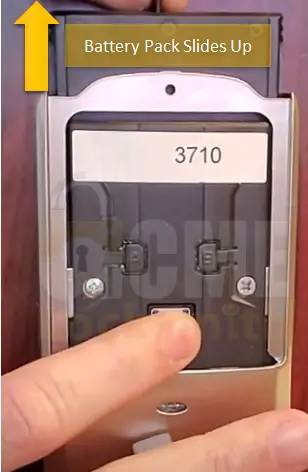
Battery Replacement Schedule
Replace batteries every six months to keep the lock powered. Use high-quality alkaline batteries for longer life and stable power. Monitor the lock’s battery indicator regularly via the app. Low battery can cause Bluetooth to disconnect or fail. Always keep spare batteries nearby for quick replacement.
Credit: www.acmelocksmith.com
Frequently Asked Questions
Why Is Kwikset Halo Bluetooth Not Connecting?
Bluetooth may be off, or the lock is out of range. Check both devices.
How Do I Reset Kwikset Halo Bluetooth Connection?
Press and hold the reset button until the light blinks. Then reconnect.
Can Low Battery Cause Kwikset Halo Bluetooth Issues?
Yes, weak batteries often disrupt Bluetooth signals and lock performance.
How To Fix Kwikset Halo Bluetooth Pairing Problems?
Restart your phone and lock. Remove old connections and try pairing again.
Does Firmware Update Help Kwikset Halo Bluetooth Problems?
Updating firmware can fix bugs and improve Bluetooth connection stability.
Conclusion
Kwikset Halo Bluetooth not working can cause frustration. Try simple fixes like restarting the lock or your phone. Check the battery and Bluetooth settings carefully. Updating the app might solve connection problems. Sometimes, resetting the lock helps restore function. Keep your device close to maintain a strong signal.
If problems continue, contact Kwikset support for guidance. Small steps often fix common Bluetooth issues quickly. Stay patient and follow these tips to get your lock working again.