
Is your Logitech video camera not working right when you need it most? It’s frustrating when your camera suddenly stops showing up or the video feed is blurry or frozen.
You rely on your Logitech camera for meetings, calls, or streaming, and any glitch can throw everything off. But don’t worry—you’re not alone, and there are simple steps you can take to fix it fast. You’ll discover easy solutions that get your Logitech video camera back to perfect working order.
Keep reading—your next video call will thank you.
Common Causes Of Logitech Camera Issues
Logitech video cameras may stop working due to several common issues. Identifying the cause helps fix the problem quickly. Understanding these reasons can save time and effort.
Connection Problems
Loose or faulty cables often cause camera connection problems. Check if the USB cable is plugged in properly. Try different USB ports to rule out port issues. Sometimes, damaged cables need replacement. Wireless connections may face interference or weak signals.
Driver Conflicts
Outdated or corrupted drivers can stop the camera from working. Drivers act as a bridge between the camera and computer. Conflicts arise if multiple camera drivers are installed. Updating or reinstalling drivers often solves these conflicts. Always download drivers from Logitech’s official site.
Software Glitches
Software bugs may prevent the camera from functioning correctly. The camera app might freeze or fail to detect the device. Conflicts with other programs can also cause glitches. Restarting the software or computer often fixes minor errors. Keep the camera software updated for smooth operation.
Hardware Failures
Physical damage to the camera can lead to hardware failures. Internal components may malfunction after drops or exposure to moisture. Signs include no power, flickering image, or no image at all. Hardware issues usually require professional repair or replacement.

Credit: www.youtube.com
Basic Troubleshooting Steps
Basic troubleshooting helps find simple problems with your Logitech video camera. It saves time and avoids extra fixes. Follow these easy steps to check your camera and fix common issues.
Check Physical Connections
Make sure the camera is properly plugged into your computer. The cable should be tight and secure. Look for any damage on the cord or connector. Loose or broken cables often cause the camera to stop working.
Restart Your Computer
Turn off your computer completely, then turn it on again. Restarting clears temporary errors and refreshes system settings. This step often solves camera recognition problems and software glitches.
Test On Another Usb Port
Plug your Logitech camera into a different USB port. Some ports might not work well or have power issues. Using another port can help find if the problem is with the port or the camera.
Close Conflicting Applications
Stop other programs that might use the camera. Video calls or chat apps running in the background can block the camera. Closing these apps frees the camera for your current use.
Update And Reinstall Drivers
Updating and reinstalling drivers often fixes Logitech video camera problems. Drivers help your computer and camera work together. Old or broken drivers can stop the camera from working. Updating to the latest driver version improves performance and fixes bugs. Reinstalling drivers removes errors and resets the camera software. Follow these steps carefully to update and reinstall your Logitech camera drivers.
Download Latest Drivers
Visit the official Logitech website. Find the support or downloads section. Enter your camera model to see available drivers. Download the latest driver version for your operating system. Save the file to a location you can find easily. Using the newest drivers ensures better compatibility.
Uninstall Old Drivers
Open Device Manager on your computer. Find your Logitech camera under imaging devices. Right-click the camera and select “Uninstall device.” Confirm the uninstallation to remove the old drivers. This step clears any corrupted driver files. Restart your computer after uninstalling to complete the process.
Reinstall Camera Software
Run the driver file you downloaded earlier. Follow the installation prompts step-by-step. Allow the software to install completely. After installation, restart your computer again. Check your camera to see if it works correctly now. Reinstalling fresh software often solves many camera issues.
Adjust Camera Settings
Adjusting your Logitech video camera settings can fix many common problems. Proper settings help the camera work smoothly. Small changes in settings often solve issues with video quality or connection.
Check these key areas in your camera settings. Each step ensures your camera works well with your apps and system.
Set Default Camera In Apps
Apps may use the wrong camera by default. Set your Logitech camera as the main device in each app. Look for camera settings in video or call sections. Choose your Logitech camera from the list. This step stops apps from using a built-in or other camera.
Check Privacy Permissions
Privacy settings can block camera access. Go to your system’s privacy settings. Find the camera section and see which apps have permission. Turn on camera access for the apps you use. Without permission, apps cannot use your Logitech camera. This simple check fixes many camera issues.
Modify Resolution And Quality
High resolution can slow down your camera or cause glitches. Lower the resolution and video quality in the camera settings. Test different settings to find the best balance of clarity and performance. This adjustment improves video smoothness and reduces lag.
Use Logitech Software Tools
Using Logitech software tools can fix many common video camera problems. These tools help you manage and test your camera easily. They also allow you to adjust settings for better video quality. Below are some key tools to try for your Logitech camera.
Install Logitech Capture
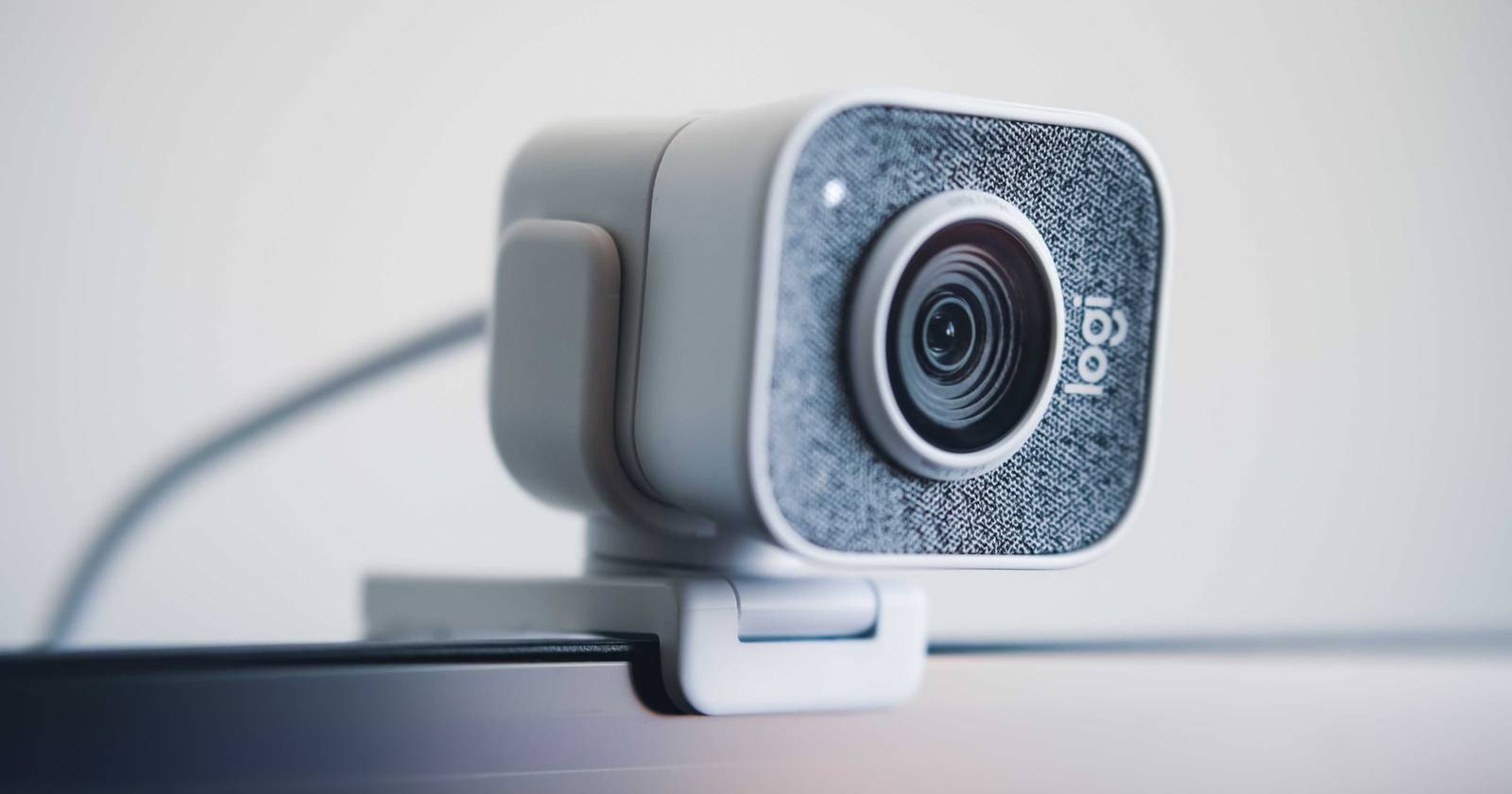
Logitech Capture is free software designed for your camera. It helps you control video settings and record videos. You can download it from the official Logitech website. After installing, open the program to check if your camera works. This software supports many Logitech models and improves camera performance.
Run Camera Diagnostics
Logitech provides a diagnostic tool to find camera issues. It checks hardware and software problems. Running diagnostics can show if your camera needs updates or repairs. Launch the tool from Logitech software or download it separately. Follow the on-screen steps to complete the test quickly.
Customize Camera Features
Logitech software allows you to change camera features easily. Adjust brightness, contrast, and zoom to improve image quality. You can also set autofocus and microphone options. These changes help your camera work better for video calls and recordings. Explore the software settings to find the best setup for you.
Credit: www.makeuseof.com
Advanced Fixes For Persistent Issues
Sometimes basic fixes do not solve Logitech video camera issues. Advanced steps may be necessary for persistent problems. These steps involve updating software and resetting hardware. They ensure the camera works smoothly and improves performance.
Update Operating System
Updating your operating system can fix many camera problems. New updates often include patches for hardware compatibility. Check for the latest OS update on your device. Install it fully and restart the computer. This can solve driver conflicts and improve camera function.
Reset Camera Hardware
Resetting the camera hardware can clear temporary faults. Unplug the Logitech camera from the computer. Wait for about 30 seconds before plugging it back in. This simple reset can refresh the device connection. It often solves issues caused by hardware glitches.
Check For Firmware Updates
Firmware controls the camera’s internal functions. Outdated firmware may cause persistent errors. Visit Logitech’s official website to find firmware updates. Download and install the latest firmware for your model. Keeping firmware current improves stability and camera performance.
When To Seek Professional Help
Knowing when to seek professional help for your Logitech video camera is key. Simple problems can often be fixed at home. But some issues need expert care to avoid damage. Recognizing these moments saves time and money. It also ensures your camera works well again.
Warranty And Support Options
Check if your camera is still under warranty. Logitech offers support for many products. A valid warranty may cover repairs or replacement. Contact Logitech support to learn about your options. Keep your purchase details handy for faster service.
Repair Vs Replacement
Decide if repair or replacement is best. Small issues may be fixed by a technician. Major damage or repeated problems might need a new camera. Consider repair cost and camera age. A professional can help you choose the right option.
Authorized Service Centers
Use authorized service centers for repair needs. These centers have trained staff and original parts. Repairs done here maintain your warranty. Avoid unauthorized repairs to protect your camera. Find the nearest center through Logitech’s website.
Credit: www.reddit.com
Frequently Asked Questions
Why Is My Logitech Video Camera Not Detected By Pc?
Check the USB connection and try a different port or cable. Update your camera drivers.
How Do I Fix Blurry Video On My Logitech Camera?
Clean the lens gently and adjust camera focus settings in the software.
Can Outdated Drivers Cause Logitech Camera Issues?
Yes, outdated drivers often cause camera malfunctions. Always update drivers from Logitech’s official site.
How To Resolve Logitech Camera Showing Black Screen?
Restart your computer and close other apps using the camera. Reinstall the camera software if needed.
Why Does My Logitech Camera Freeze During Video Calls?
Low bandwidth or old software can freeze video. Close unused apps and update your video call app.
Conclusion
Fixing your Logitech video camera is often simple and quick. Check connections and restart your device first. Update drivers to avoid common issues. Test the camera with different apps or computers. Clean the lens gently for better image quality. Small steps can solve most problems easily.
Stay calm and try each solution carefully. Your camera should work well again soon. Keep these tips handy for future use.